Lab
This page walks you through creating a Lab and connecting to a web-based development environment such as Jupyter Notebook or VS Code.
Lab List
Click Lab in the left sidebar to see the Lab list for the current project.
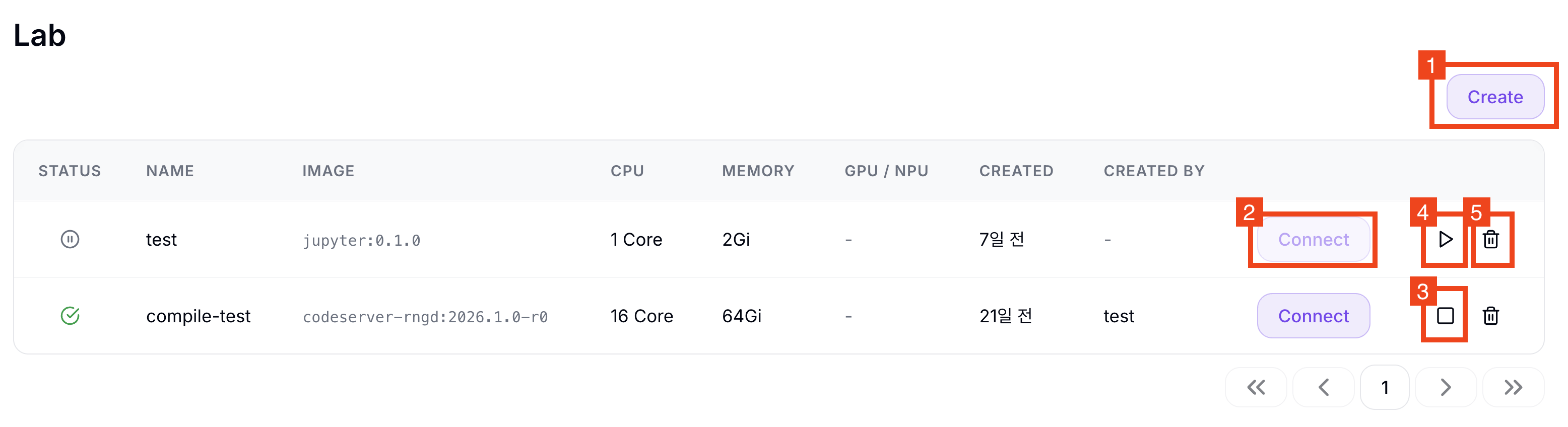
Actions
| Button | Description |
|---|---|
| ①Create | Create a new Lab |
| ②Connect | Open the development environment |
| ③Stop | Pause the Lab environment. Only the Pod is terminated; configuration and mounted Volume data are preserved. You can restart with Start. |
| ④Start | Restart a stopped Lab environment |
| ⑤Delete | Fully delete the Lab. The configuration is removed and cannot be recovered. Data on mounted Volumes is retained. |
Status
| Status | Color | Description |
|---|---|---|
| Running | Green | Running |
| Stop | Gray | Stopped |
| Pending | Orange | Starting |
| Stopping | Blue | Stopping |
| Error | Red | Error occurred |
What to check on Pending or Error
- If Status remains Pending for several minutes or more, the cluster may be short on the requested accelerator (GPU/NPU). Ask your administrator about cluster accelerator availability.
- If Status becomes Error, verify that the selected image is correct and that mounted Volumes are bound properly. You can stop the Lab, edit its settings (image, resources, Volumes) on the detail page, and start it again.
Create a Lab
- Click the ① Create button in the upper right.
- Enter the basic information.
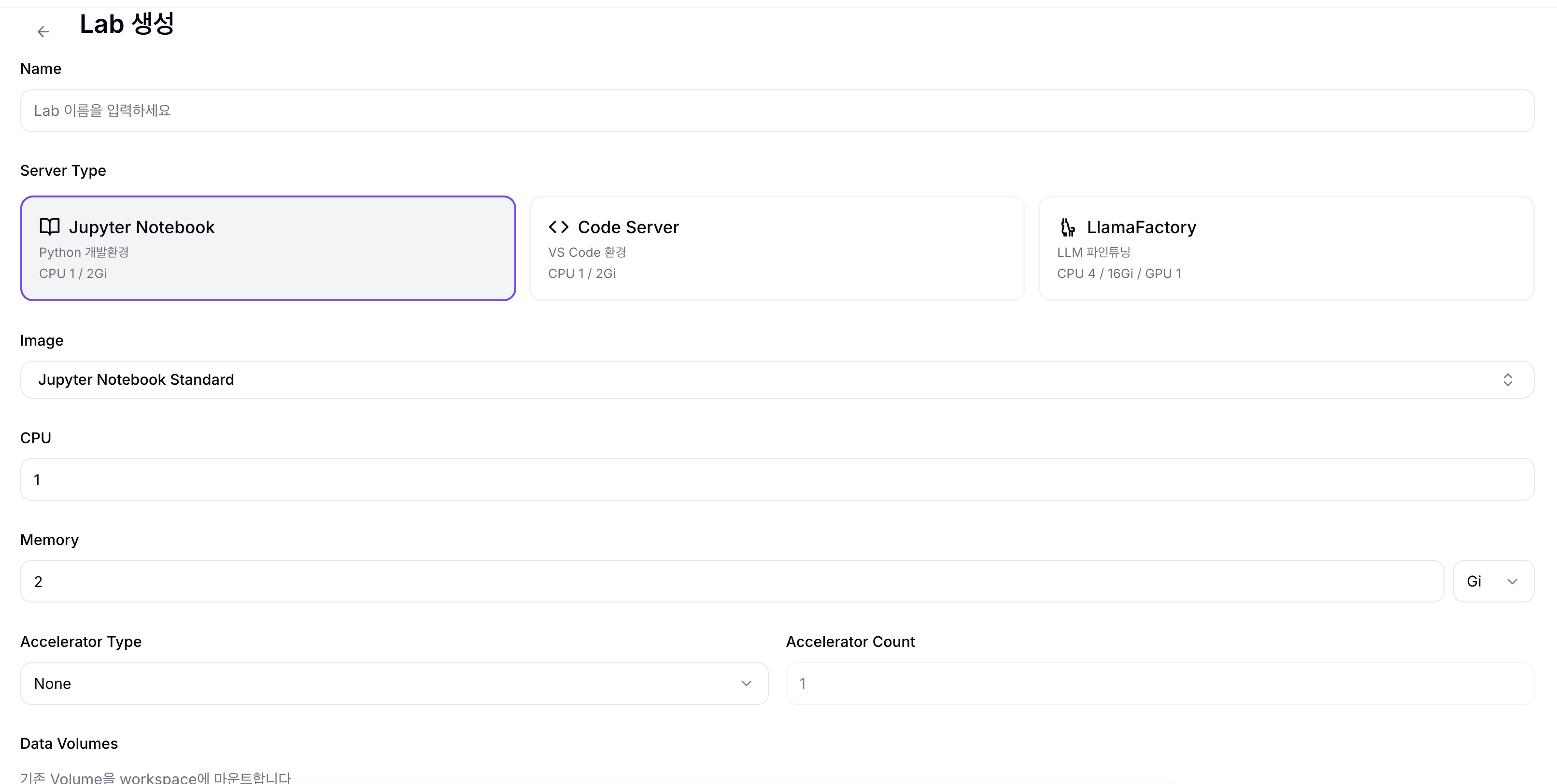
| Field | Description |
|---|---|
| Name | Lab name (lowercase, digits, hyphens / unique within the project) |
| Server Type | Development environment type: Jupyter Notebook (data analysis, model experiments), Code Server (VS Code-based coding), LlamaFactory (LLM fine-tuning dedicated UI) |
| Image | Container image (select from the list or enter manually) |
| CPU | Number of CPU cores. The default is set automatically by the Server Type preset (Jupyter/Code Server: 1, LlamaFactory: 4) |
| Memory | Memory. Numeric input plus a unit selector (Mi/Gi/Ti). The default is set automatically by the Server Type preset (Jupyter/Code Server: 2Gi, LlamaFactory: 16Gi) |
| Accelerator Type | GPU/NPU selection (None / NVIDIA GPU / FuriosaAI RNGD, etc.) |
tip
When you select an image from the dropdown, the Accelerator Type is set automatically. When using a custom image, you must select it manually.
- (Optional) Below the Accelerator settings, add PVCs to mount in the Data Volumes section.
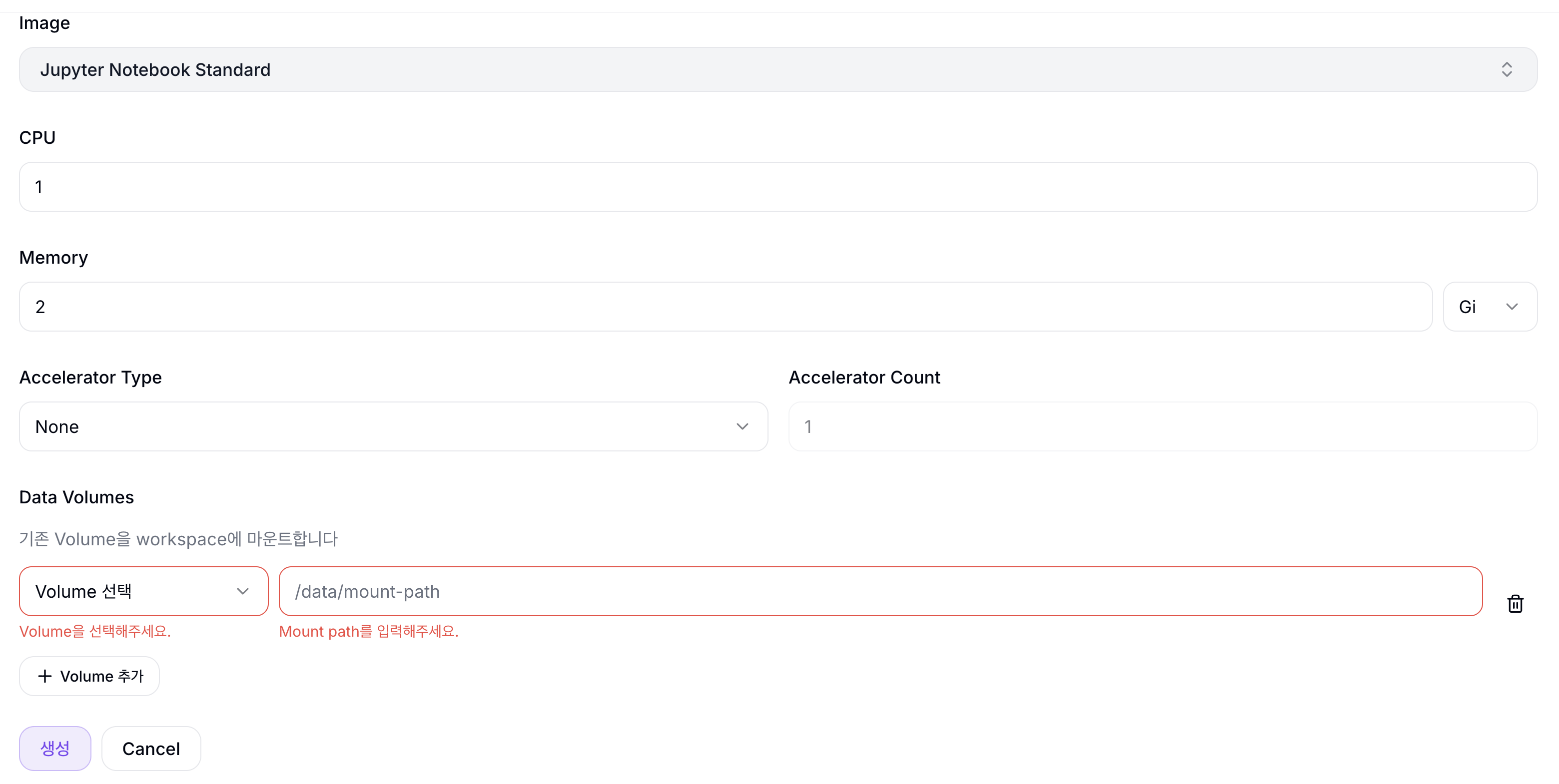
| Section | Description |
|---|---|
| ①Data Volumes | Section for mounting existing PVCs. Add volumes via the + Add Volume button. |
To add multiple PVCs, click the + Add Volume button.
Sharing files between Lab and Serving
To serve a model file you trained in a Lab directly in Serving, mount the same PVC into both the Lab and the Serving. Using the JuiceFS-based juicefs-sc Storage Class enables ReadWriteMany (RWX) access, so multiple Pods can read and write the same Volume simultaneously.
- Click the 생성 (Create) button.
Connect to a Lab
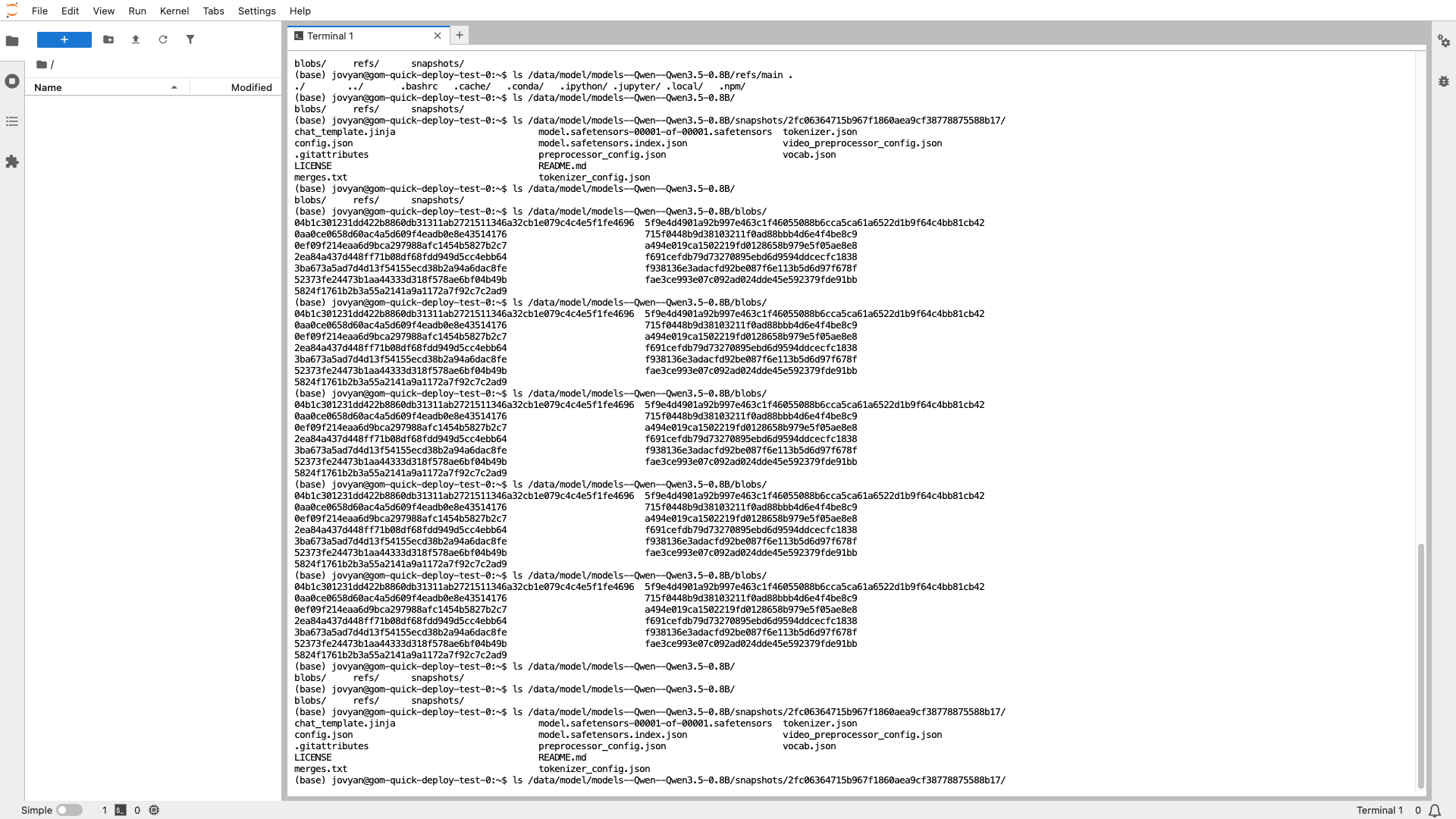
- In the Lab list, click the Connect button on a Lab whose status is Running.
- The development environment opens in a new tab.
Lab Detail Page
Click a Lab name in the list to navigate to its detail page.
| Tab | Description |
|---|---|
| Overview | Review the Lab configuration via the Status / Basic Info / Container / Resources / Volumes cards. While the Lab is stopped, the Edit button lets you modify the image, resources, and Volume settings (not editable while running). |
| Logs | View the container logs of the Lab Pod. |