Monitoring
This page walks you through checking the resource status of the entire cluster and the state of GPU/NPU devices.
Click the Monitoring menu in the left sidebar to see system monitoring information.
Summary
The Summary cards at the top of the page give an at-a-glance view of the whole cluster.
Use the time buttons (1h / 6h / 24h / 7d / 30d) in the upper right to adjust the time-series graph range (default 24h).
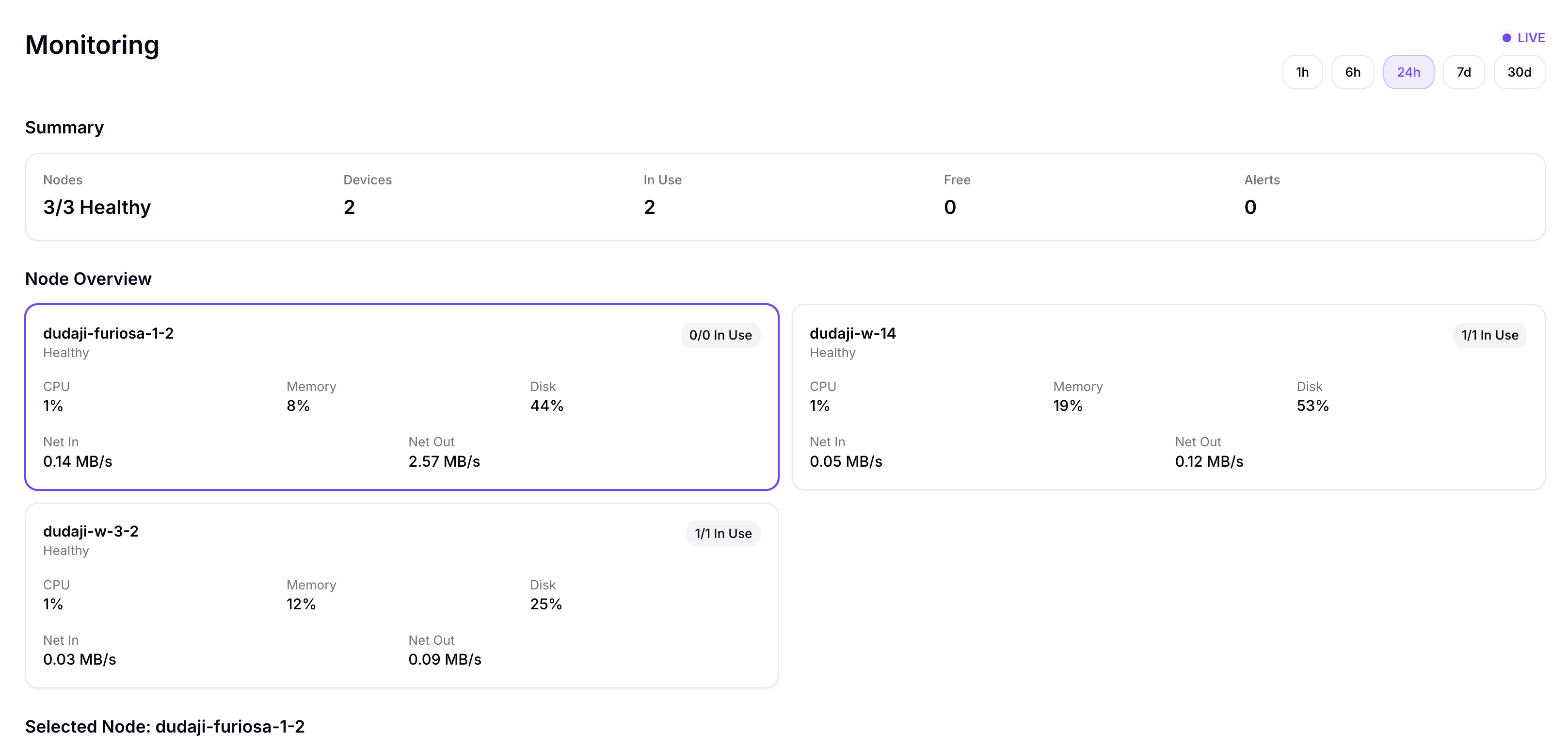
| Card | Description |
|---|---|
| Nodes | Healthy node count / total node count |
| Devices | Total number of GPU/NPU devices registered in the cluster |
| In Use | Number of devices allocated to workloads |
| Free | Number of unallocated devices |
| Alerts | Number of active alerts |
Node Overview
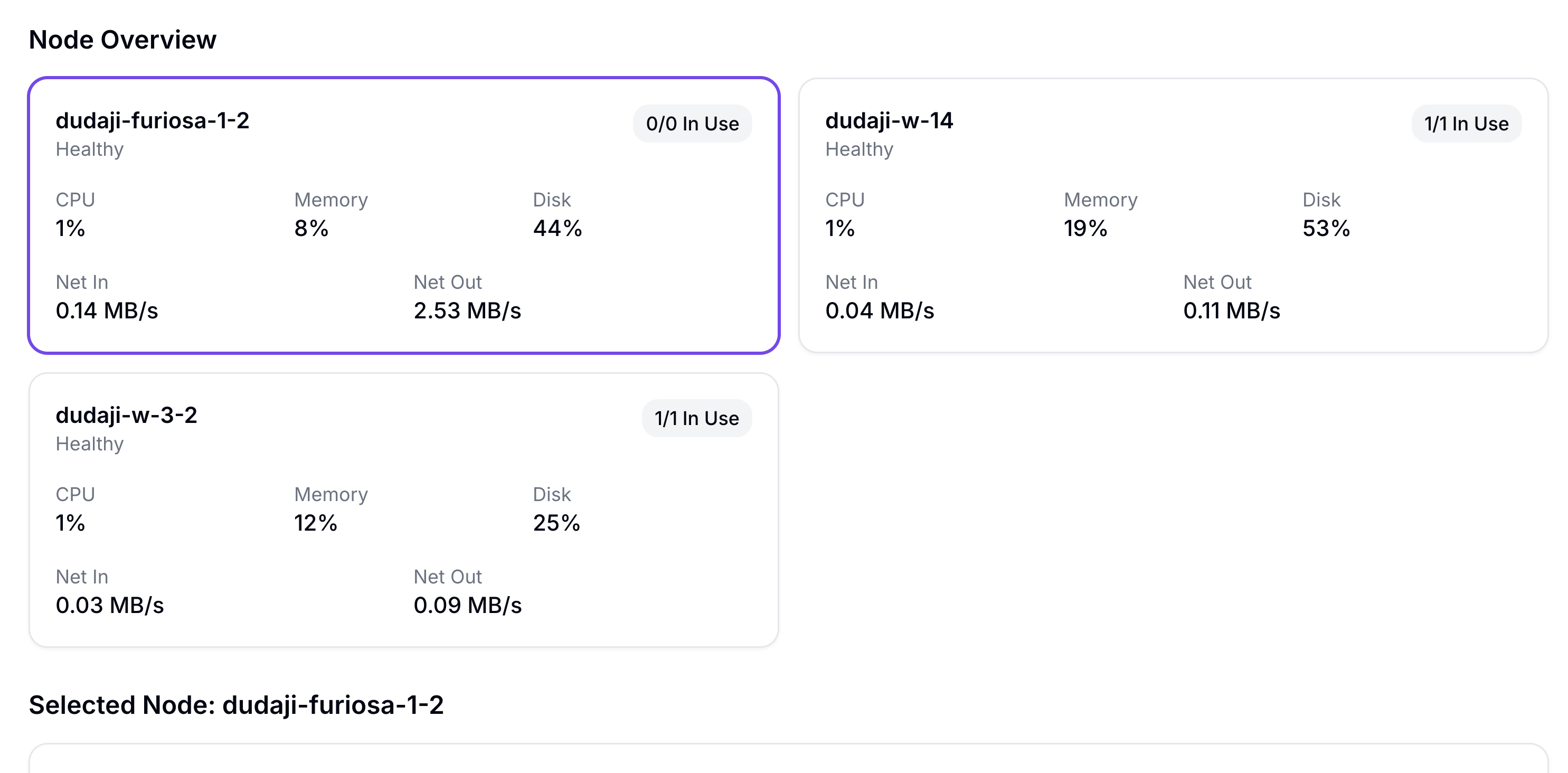
Per-node cards show CPU, Memory, Disk, Net In, Net Out, and device allocation status.
The Selected Node section is shown by default. Clicking another node card updates the selected node name and metrics. Its Node Metrics Over Time graph shows CPU, Memory, Disk, Net In, and Net Out time series.
Device Inventory
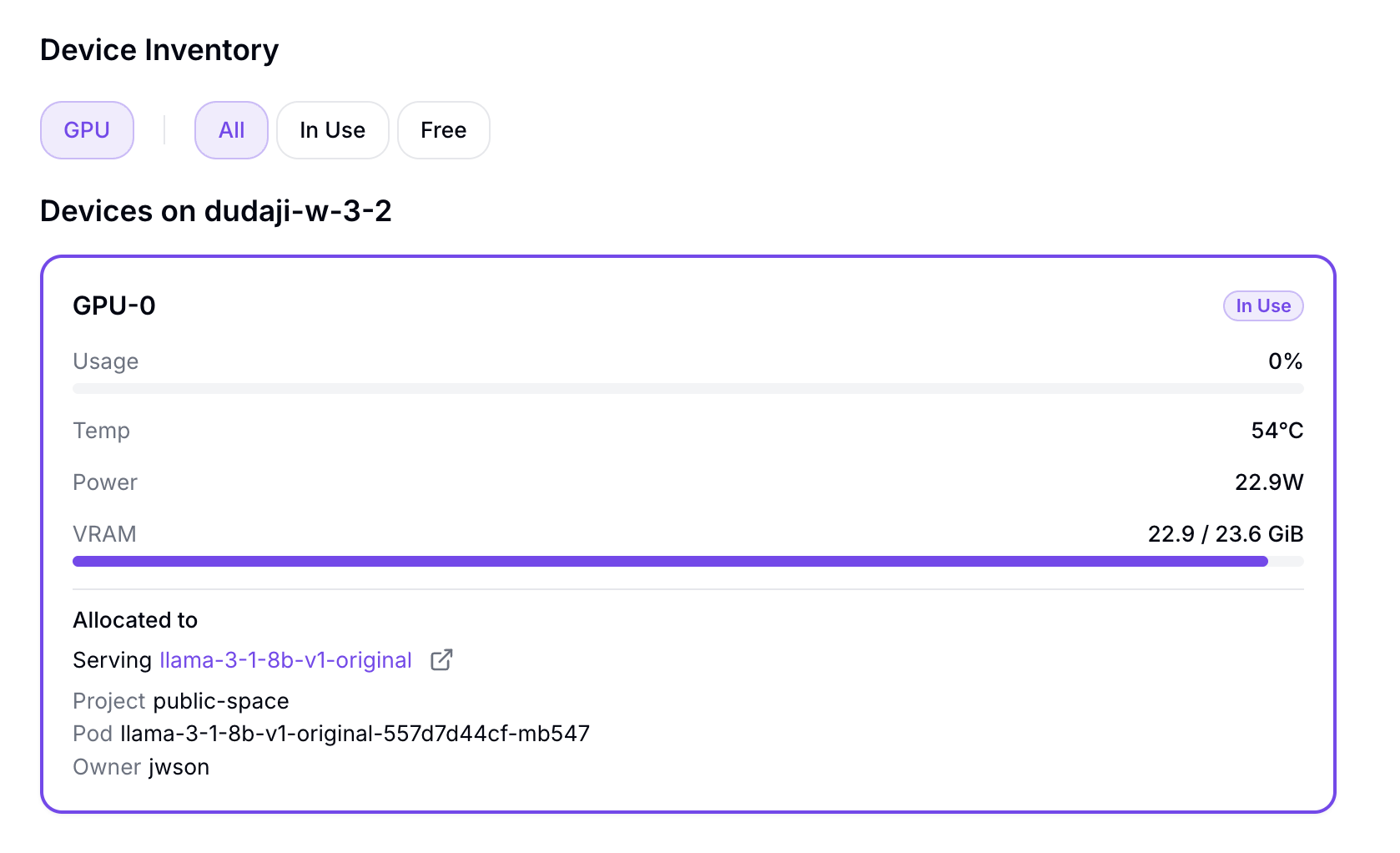
Shows the selected node's devices.
| Item | Description |
|---|---|
| Accelerator type filter | Only accelerator types installed in the cluster are shown |
| Allocation status filter | All / In Use / Free |
| Device card | Per-device Usage / Temp / Power / VRAM used/total, plus Lab/Serving information using the device |
If no devices match the filters, an empty state is shown.
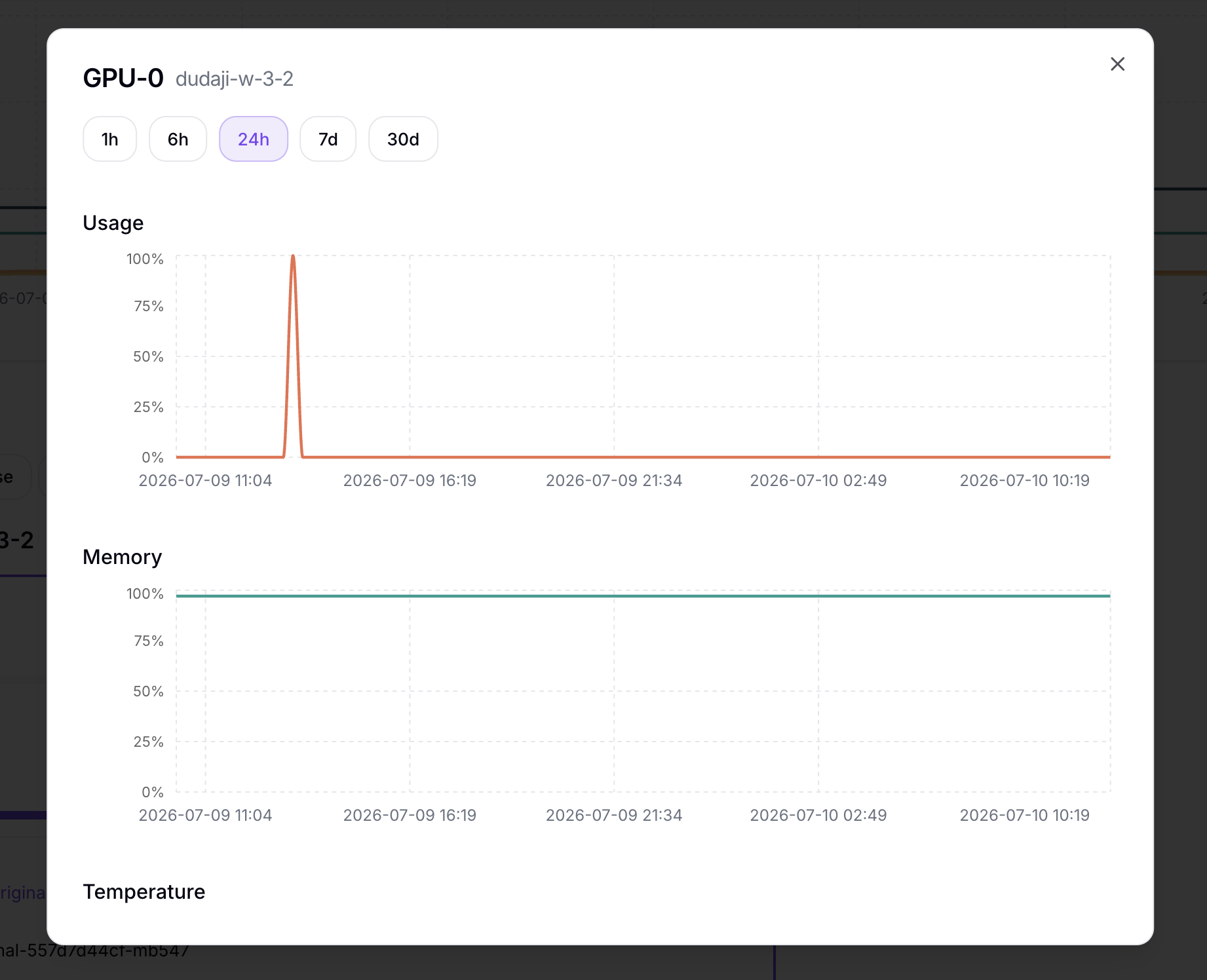
Click a device card to open a modal with that device's Usage / Memory / Temperature / Power time-series graphs.
Responding to Anomalies
If you observe the following situations during monitoring, take the actions below.
| Symptom | Action |
|---|---|
| Device temperature overheating | Check the Temperature Policy in Advanced Deployment Settings, and verify that auto scale-down or traffic restriction kicks in when the threshold is exceeded. |
| Accelerator utilization stuck at 100% | Increase Replicas in Deploy a Model, or adjust the Auto Scaling settings. |
| Node memory/disk exhaustion | Stop unnecessary Servings, or clean up unused Volumes in Volumes. |