Model Artifacts
Register models imported from Hugging Face / MLflow or stored on a Volume into NuFi, manage per-version artifacts, and deploy them directly as inference services.
Models are managed as a 3-tier structure.
| Tier | Description |
|---|---|
| RegisteredModel | Top-level group, named by model |
| ModelVersion | An individual version of the model. Multiple versions can be registered under one model. |
| ModelArtifact | Executable model unit used for deployment, evaluation, and compilation under a version. Includes original GPU models and compiled RNGD artifacts. |
Prerequisites
- A NuFi project must already be created.
- The Volume (PVC) where the model files are stored must be mountable in the project.
- To use MLflow integration, you need an accessible MLflow Tracking Server.
Model List
In the left sidebar, click Models.
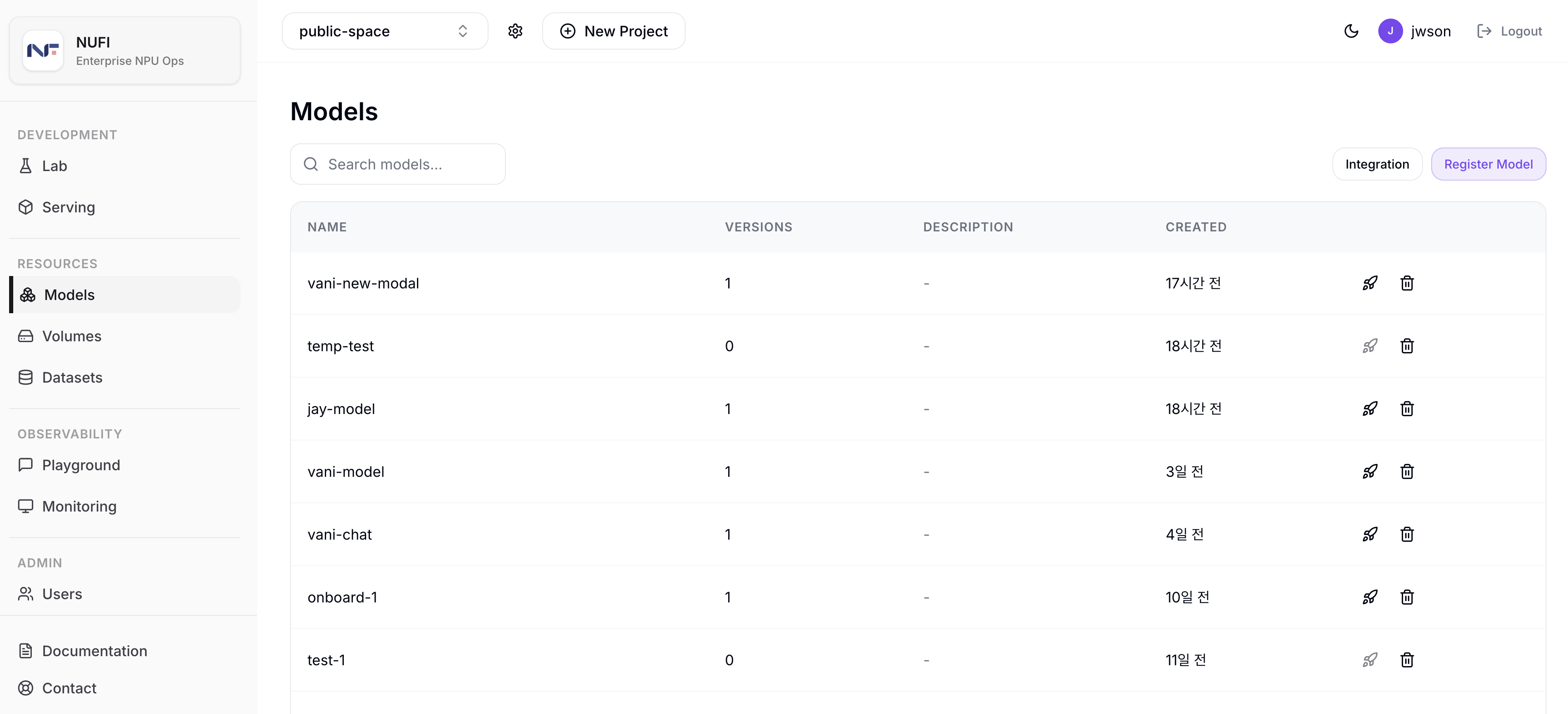
Use the top buttons to open the Integration page or the Register Model dialog.
Columns
| Column | Description |
|---|---|
| Name | Registered model name |
| Versions | Number of registered versions |
| Description | Model description |
| Created | Time of first registration |
Row Actions
| Action | Description |
|---|---|
| Quick Deploy | Opens the instant deployment dialog for the selected model. Disabled when the model has no executable artifacts. |
| Delete | Deletes the selected model and its versions/artifacts. A confirmation dialog appears before execution. |
Model Detail — Versions Section
Click a model row in the model list to open the model detail page. The Versions section shows the versions registered under that model.
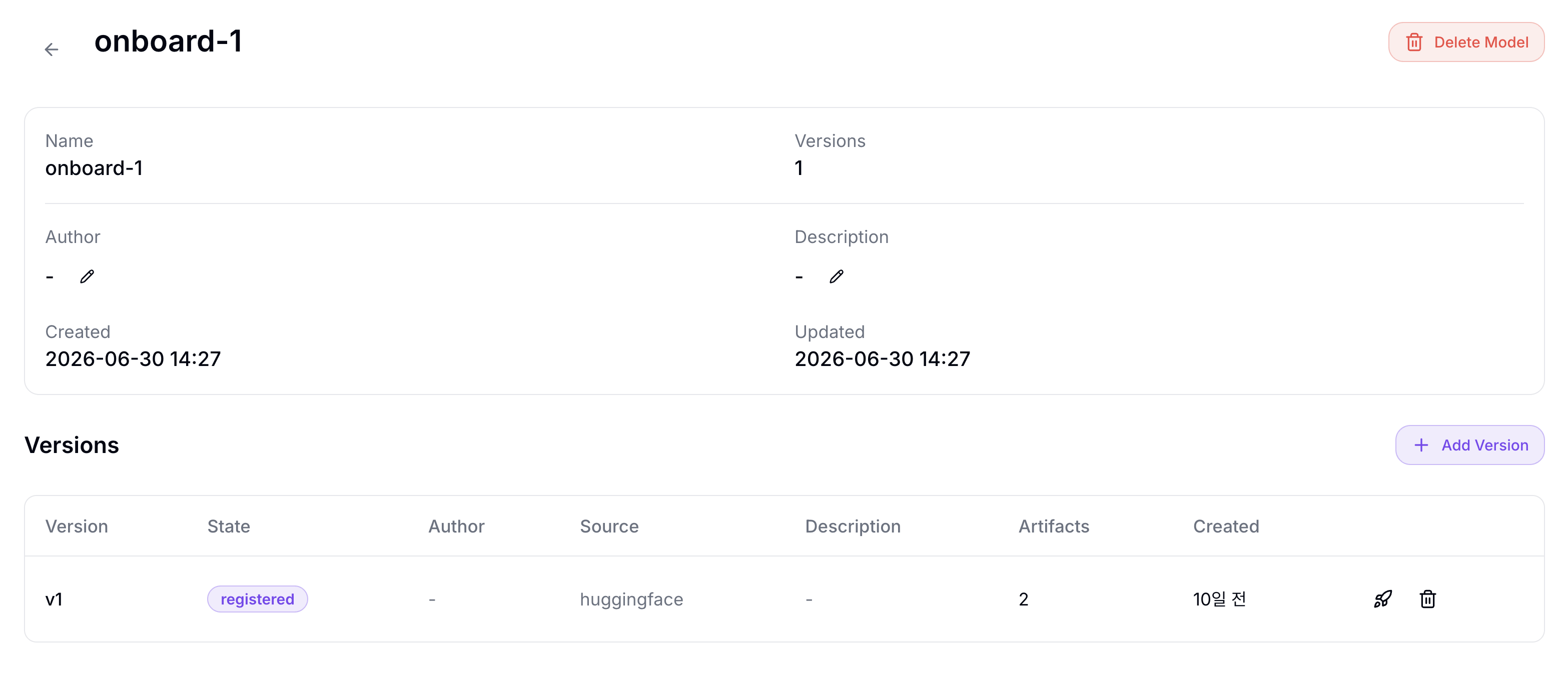
| Column | Description |
|---|---|
| Version | Version string (e.g., v1, 1.0.0) |
| State | Version state (registered) |
| Author | Name of the user who registered the version |
| Source | Source type of the version (mlflow, huggingface; - for manual registration) |
| Description | Version description |
| Artifacts | Number of artifacts linked to this version |
| Created | Version registration time |
Click Add Version to add a new version to the current model.
Version Detail — Artifact List
Click a version row to navigate to the version detail page. The version detail page consists of four tabs — Artifacts / Compilations / Optimizer / Evaluations — and the default Artifacts tab shows the artifact list.
The top summary shows:
| Field | Description |
|---|---|
| Version | Current version string |
| State | Current version state |
| Source | Version source (huggingface, mlflow, or - for manual registration) |
| Author | User who registered the version |
| Description | Version description |
| Created | Version creation time |
| Updated | Version update time |
| Tab | Description |
|---|---|
| Artifacts | View artifacts and run Add Artifact |
| Compilations | View and run compilations. See Model Compilations for details. |
| Optimizer | View optimizer run history. See Compile Option Optimizer for details. |
| Evaluations | View evaluation run history. See Evaluations for details. |
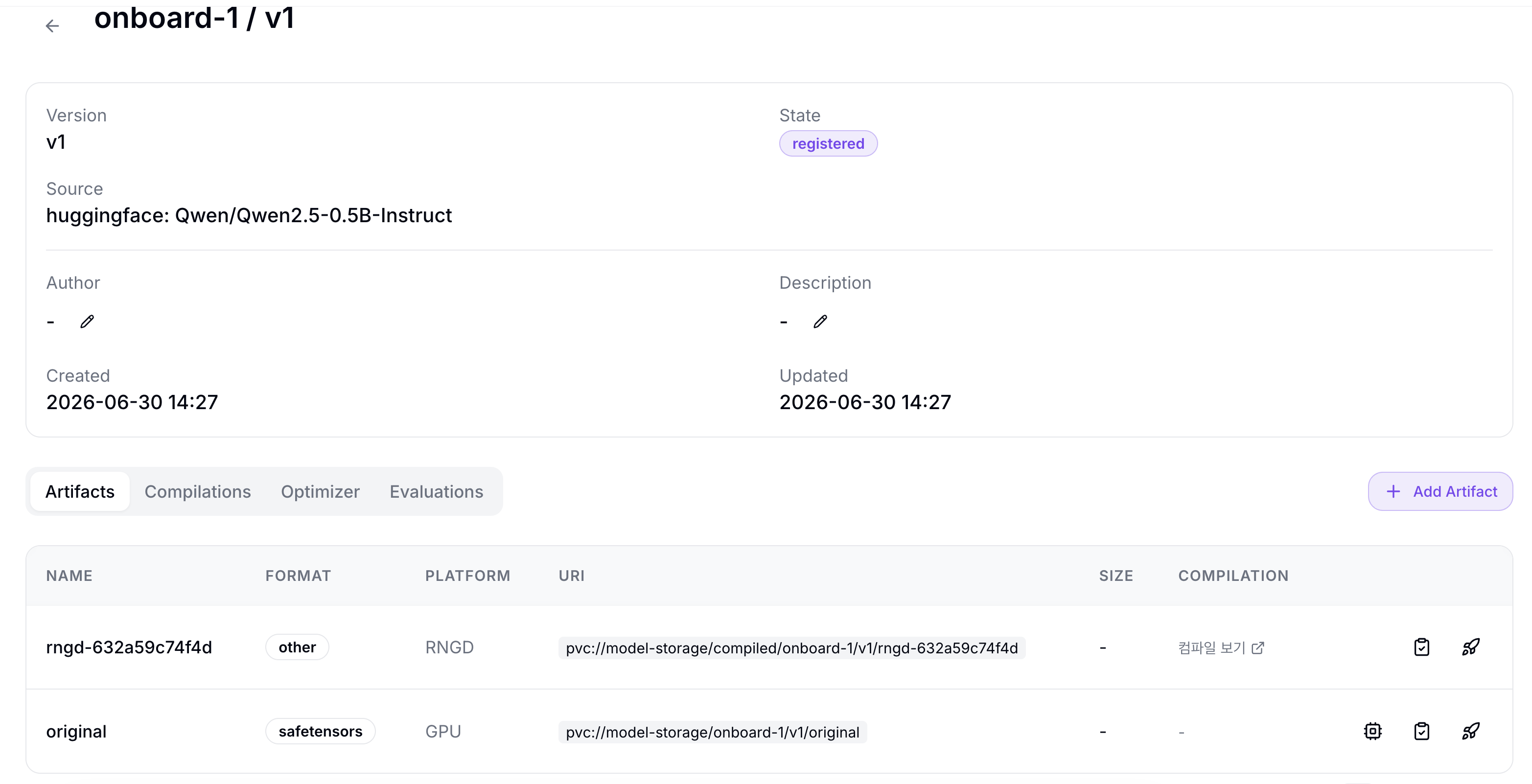
Columns
| Column | Description |
|---|---|
| NAME | Artifact name (e.g., original) |
| FORMAT | Model format (safetensors, other) |
| PLATFORM | Target execution platform (GPU, RNGD) |
| URI | Artifact file location (pvc://{volume}/{path} format) |
| SIZE | Artifact size. Shows - when unknown. |
| COMPILATION | Shows a 컴파일 보기 link for compiled outputs and - for original artifact rows. |
Action Icons
The action icons on the right of each row, from left to right (Compile appears only on GPU original artifact rows):
| Icon | Action | Description |
|---|---|---|
 | Compile | Quickly run an NPU compilation job for this artifact (shown only on GPU source artifacts) |
 | Evaluate | Create a Local Evaluation Run for this artifact |
 | Quick Deploy | Open the dialog to instantly deploy this artifact (only artifacts with pvc:// URIs can be deployed) |
See Evaluations for running evaluations and comparing results.
Register a Model
A model is structured as model → version → artifact, and you register in that order.
1. Register the Model
Click the Register Model button in the upper right of the model list page.
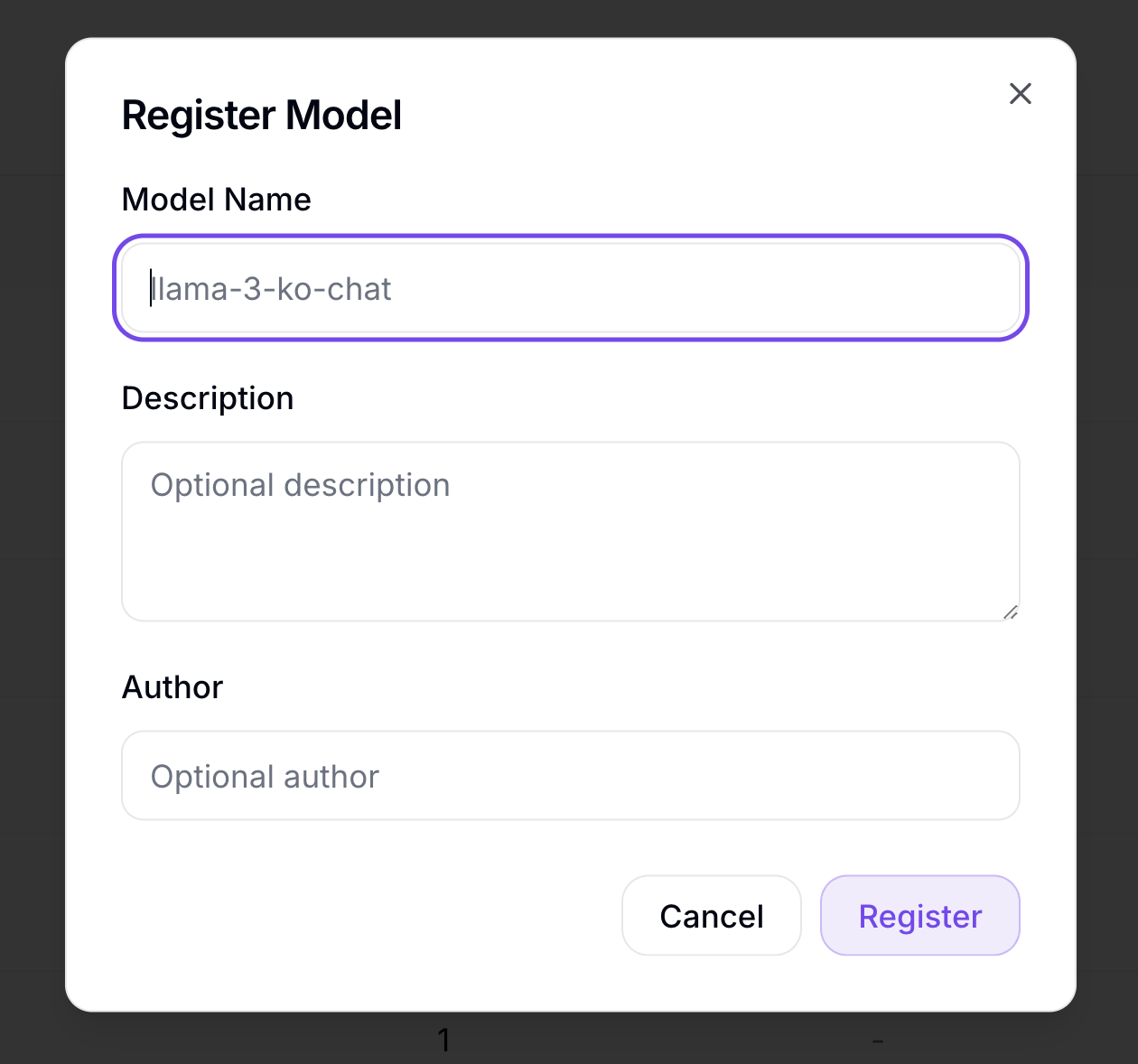
| Field | Description |
|---|---|
| Model Name | Model group name (e.g., llama-3-ko-chat) |
| Description | Description note for the model |
| Author | Name of the user registering the model |
2. Register a Version
In the model list, click the row of the registered model to go to the model detail page, then click Add Version.
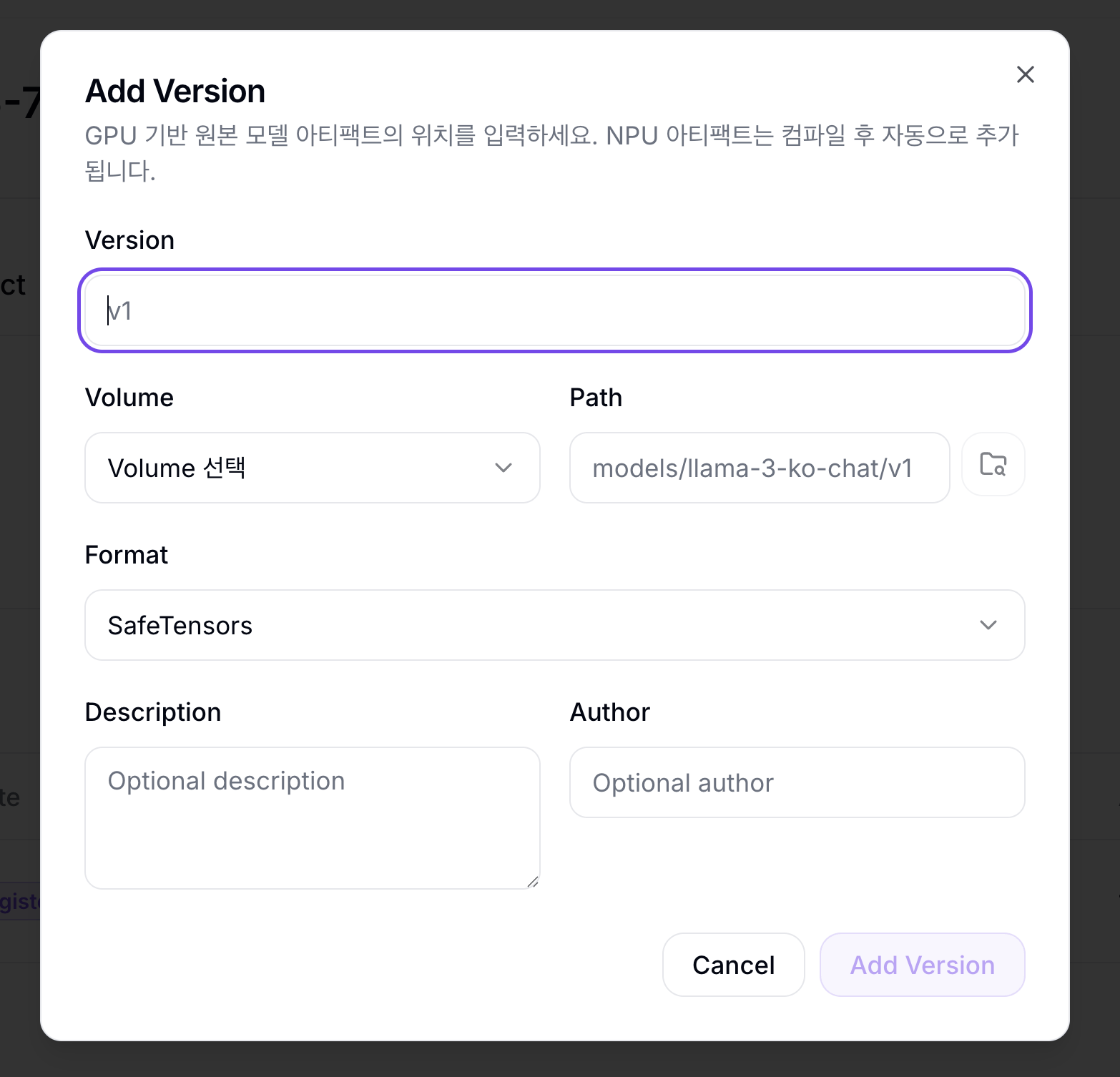
| Field | Description |
|---|---|
| Version | Version string (e.g., v1, 1.0.0). Must be unique within the same model. |
| Volume | Select the Volume (PVC) where the model files are stored. |
| Path | Path to the model file or directory inside the Volume. Click the folder icon to the right of the input to open a directory browser. |
| Format | Model file format (SafeTensors / Other). Set automatically when validation succeeds. |
| Description | Description note for the version |
| Author | Name of the user registering the version |
After you enter Volume and Path, the URI validation area shows a Validate button. Add Version stays disabled until validation succeeds.
Version registration accepts only GPU-based original (SafeTensors) models. NPU compilation outputs (rngd artifacts) are added to the version automatically when compilation completes; for manual registration use Register an Artifact below.
3. Register an Artifact
Add Artifact is for manually registering NPU-compiled RNGD artifacts. In the model detail page's Versions section, click the registered version row to go to the version detail page, then click Add Artifact.
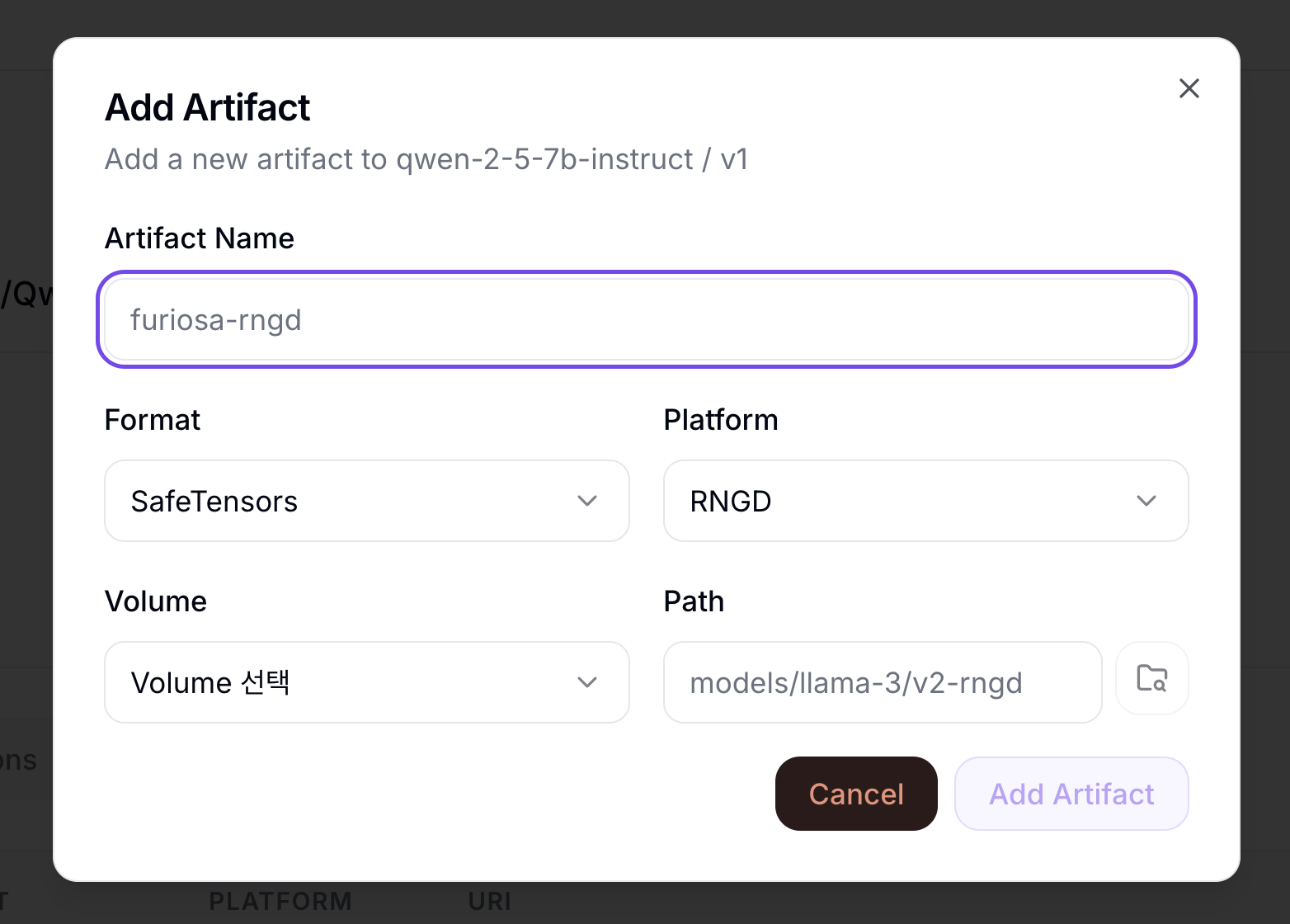
| Field | Description |
|---|---|
| Artifact Name | Artifact name (e.g., furiosa-rngd) |
| Format | Model format (SafeTensors / Other, auto-detected during validation) |
| Platform | Single RNGD option |
| Volume | Select the Volume (PVC) where the artifact file is stored. |
| Path | Path to the artifact file or directory inside the Volume. Click the folder icon to the right of the input to open a directory browser. |
After you enter Volume and Path, the URI validation area shows a Validate button. Add Artifact stays disabled until validation succeeds.
Quick Deploy
From any of the model list, version list, or artifact list, you can click Quick Deploy () to open the instant deployment dialog.
Per-Entry-Point Disable Conditions
| Entry Point | Disabled when |
|---|---|
| Model list | The model has no versions |
| Version list | The version has no artifacts |
Quick Deploy Dialog
The Quick Deploy dialog lets you select model, version, and artifact in order, then automatically picks the accelerator, inference engine, and container image based on the artifact platform.
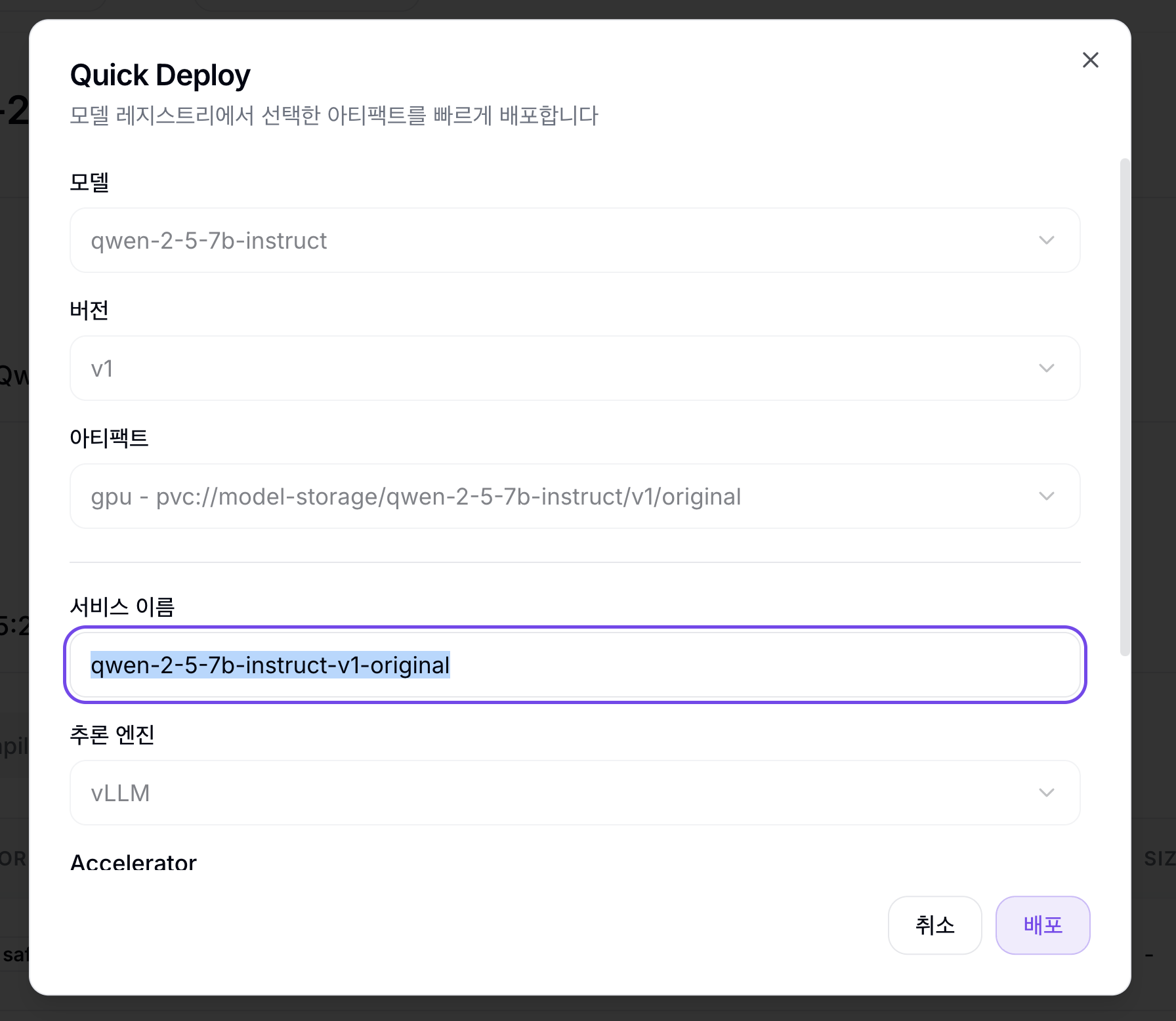
| Field | Description |
|---|---|
| Model | Select the model to deploy |
| Version | Select the version to deploy (enabled after selecting a model) |
| Artifact | Select the artifact to deploy (enabled after selecting a version) |
| Service Name | Name of the Serving to be created |
| Inference Engine | Select the inference engine |
| Accelerator | Determined automatically by the artifact platform (read-only — GPU → NVIDIA GPU, RNGD → FuriosaAI RNGD) |
| Image | Container image |
Advanced section (optional):
| Field | Description |
|---|---|
| CPU | Container CPU request |
| Memory | Container memory request |
| Additional Arguments | Custom arguments to pass to the inference engine (e.g., --max-model-len 4096) |
| Environment Variables | Environment variables to inject into the container |
Model Import (Integration)
Click the Integration button at the top of the model list to navigate to the integration management page. The Integration page has two top-level source tabs: Hugging Face (default) and MLflow.
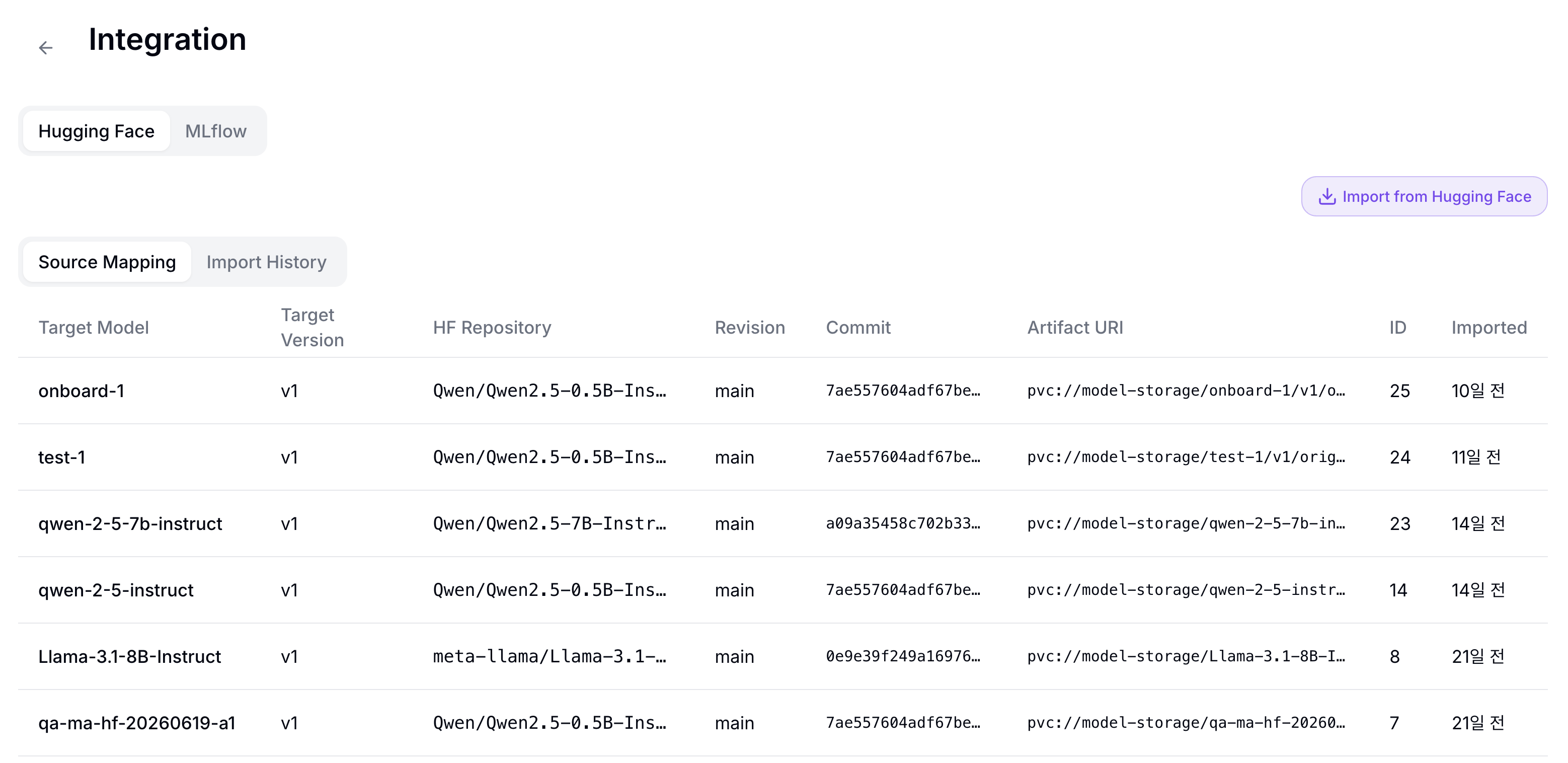
Hugging Face Tab
| Item | Description |
|---|---|
| Import from Hugging Face | Opens the import dialog |
| Source Mapping subtab | List of mappings between Hugging Face repositories and NuFi models |
| Import History subtab | Import job history |
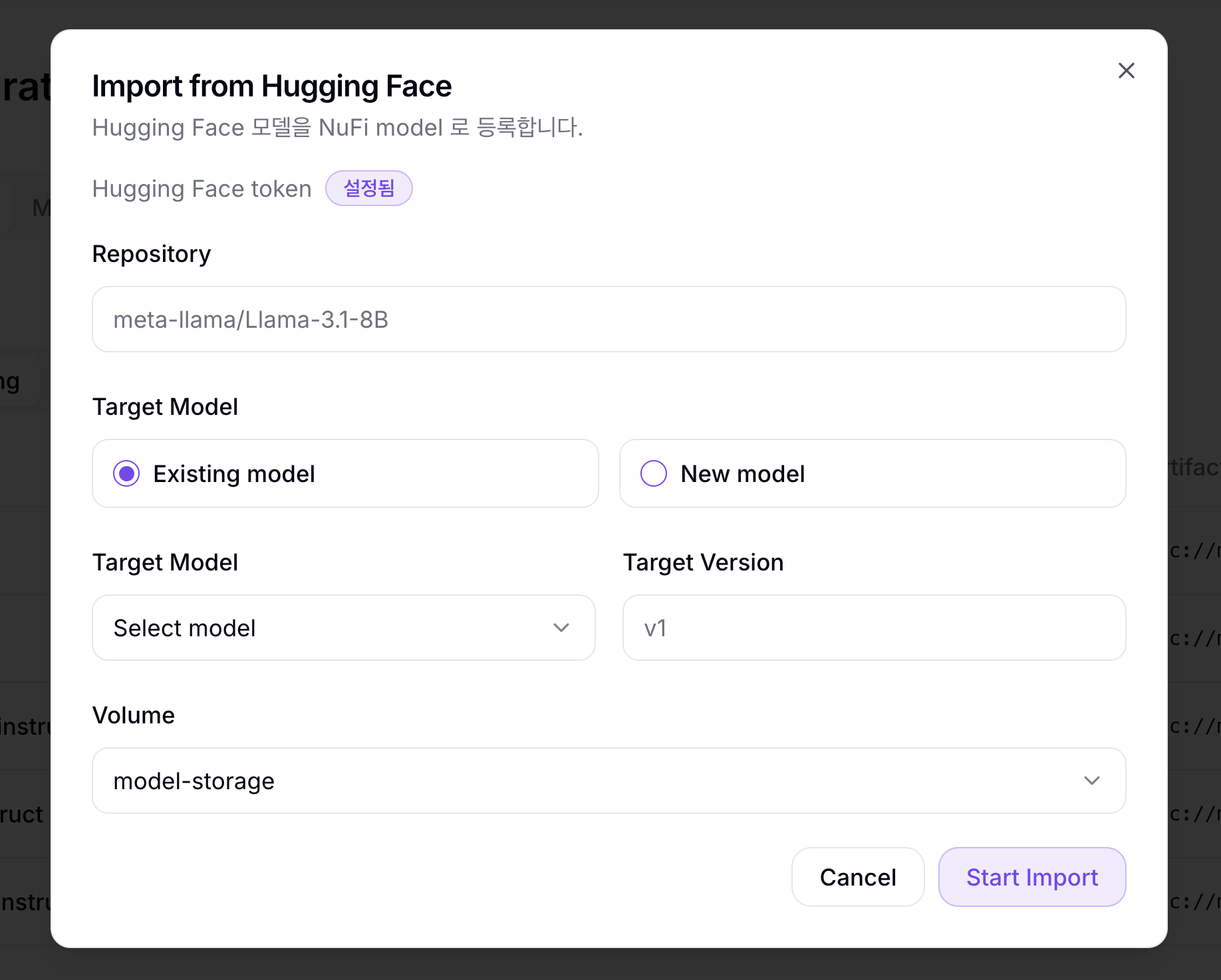
Import from Hugging Face dialog fields:
| Field | Description | Required |
|---|---|---|
| Repository | Hugging Face repository (owner/name format) | ✓ |
| HF Token | Shows the status of the Hugging Face token configured for the project (needed for gated models) | - |
| Target Model | Choose Existing model (dropdown) / New model (name input) mode | ✓ |
| Model Description | Model description shown when New model is selected | - |
| Target Version | The version string to be registered in NuFi (must not duplicate an existing version) | ✓ |
| Volume | Select the Volume (PVC) to store the model files | ✓ |
MLflow Tab
NuFi integrates with MLflow in two ways.
| Mode | Description |
|---|---|
| Pull (manual Import) | Pull artifacts directly from a specific Run on the MLflow Tracking Server. |
| Push (Webhook auto Import) | When a model is registered in MLflow, the event is delivered automatically to NuFi via a Webhook. Register the Receive URL issued by NuFi as a Webhook in MLflow. |
For the Webhook form fields, how to register the issued Receive URL in MLflow (with a MlflowClient.create_webhook example), and how to check Import History — see the step-by-step procedure in Tutorial: Model Registration — Method B: MLflow Integration.
The MLflow tab has an Import from MLflow button (opens the import dialog) and Webhooks / Import History subtabs.
In the Webhooks tab, you can check each registered Webhook's Name, MLflow URL, Target Model, Auto Import, Active status, and Receive URL, and edit or delete it.
| Column | Description |
|---|---|
| Name | Webhook name |
| MLflow URL | MLflow Tracking Server sending events |
| Target Model | Model name when the webhook targets one model. Shows All when it applies to every model. |
| Auto Import | Whether NuFi starts import automatically after receiving an event |
| Active | Webhook active state |
| Receive URL | NuFi receive URL to register in MLflow Webhooks |
How to register a Webhook:
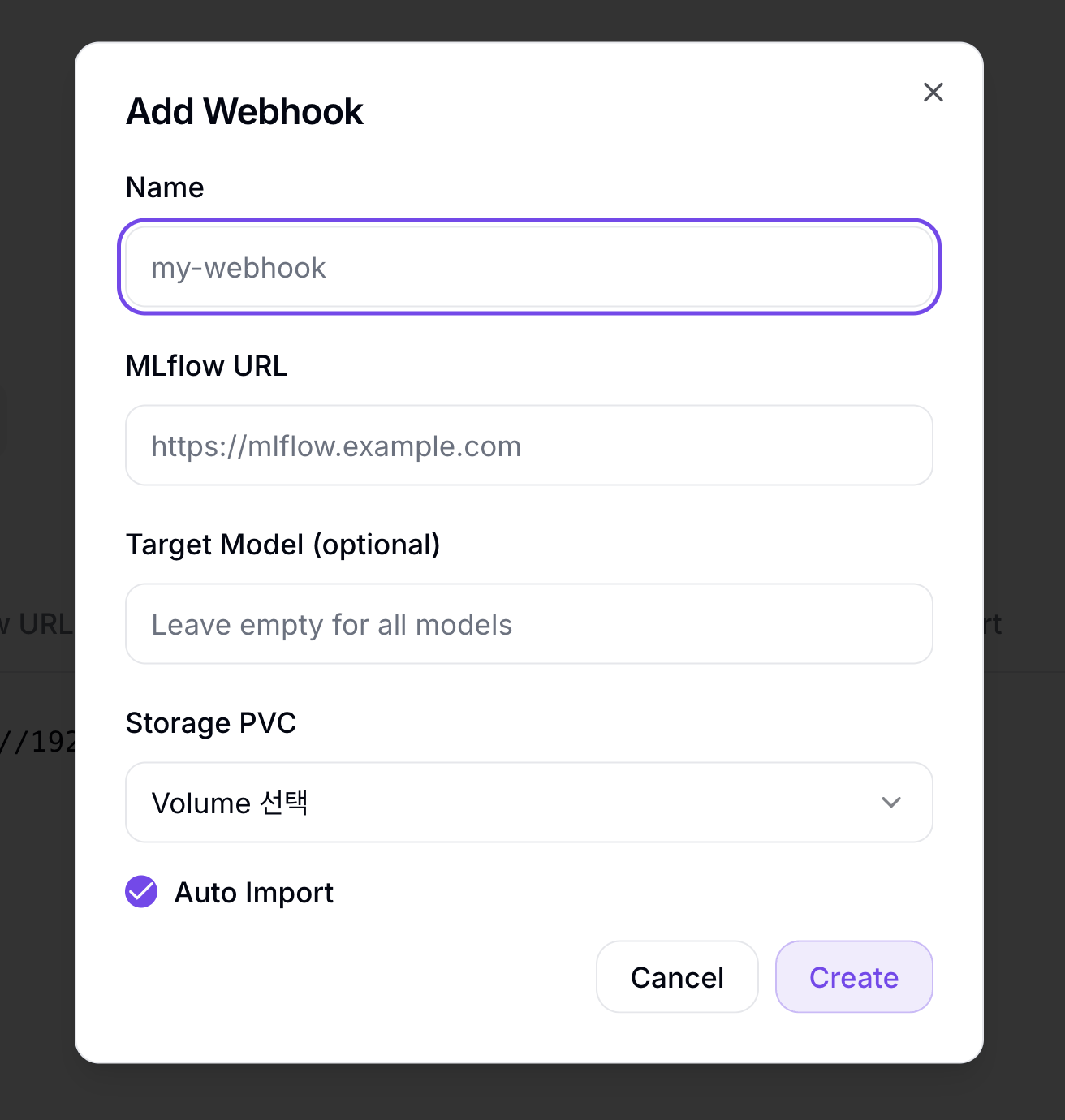
- Click the Add Webhook button and create the webhook with Name, MLflow URL, Target Model (optional; empty means all models), Storage PVC, and Auto Import.
- Copy the URL from the Receive URL column in the Webhooks list using the Copy URL button, and register it in MLflow's Webhooks settings.
- For how to register a Webhook in MLflow, see the MLflow Registry Webhooks documentation.
- From then on, whenever a model version is registered in MLflow, it is automatically delivered to NuFi.
In the Import History tab, you can check past Import jobs.
| Column | Description |
|---|---|
| ID | Import job ID |
| Target Model | Target model to register |
| Target Version | Target version to register |
| Source | MLflow Run or Hugging Face repository to import |
| Storage | Volume (PVC) used to store model files |
| State | pending, running, completed, or failed. For failed jobs, hover over the state badge to see the error message. |
| Created | Import job creation time |
Handling abnormal states:
| Status | What to check |
|---|---|
| Import Failed | Re-verify that the MLflow Tracking URL and Run ID are correct. |
| Webhook Inactive | A Webhook in the Inactive state does not process received events. Edit the Webhook in the Webhooks list and turn Active on. |
MLflow Import Dialog
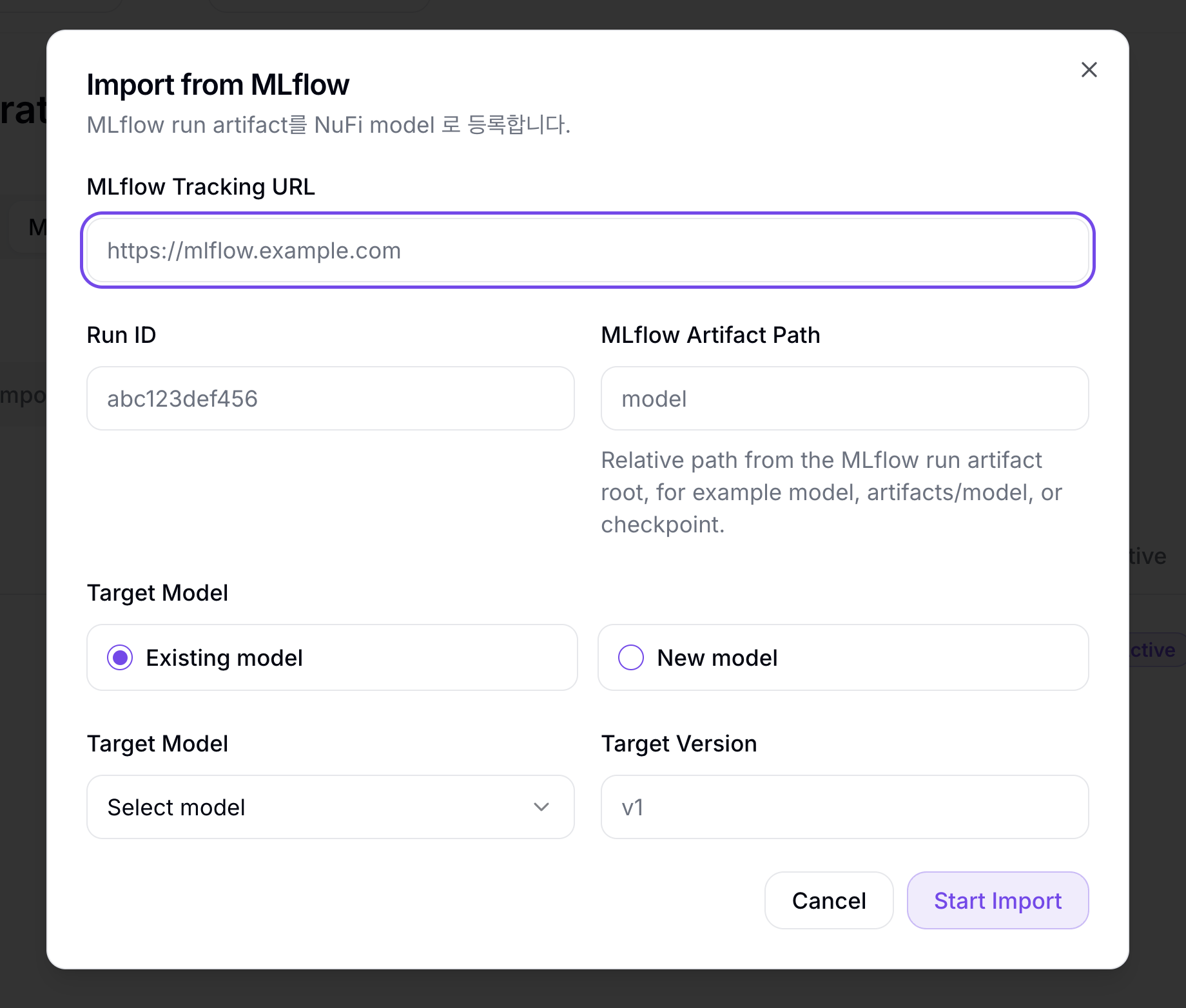
| Field | Description | Required |
|---|---|---|
| MLflow Tracking URL | MLflow Tracking Server address (e.g., http://mlflow.example.com) | ✓ |
| Run ID | UUID of the MLflow Run to import | ✓ |
| MLflow Artifact Path | Relative path from the Run artifact root (e.g., model, artifacts/model) | ✓ |
| Target Model | Choose Existing model (dropdown) / New model (name input + Model Description) mode | ✓ |
| Target Version | The version string to be registered in NuFi (must not duplicate an existing version) | ✓ |
When you click the Start Import button, a background Import job starts. You can check progress under Integration > Import History.