Playground
On this page you can send messages directly to deployed models, compare multiple Servings side by side, and experiment with prompts and parameters.
Click the Playground item in the left sidebar to navigate to the Playground page. Use the Device / Model tabs at the top of the page to switch the kind of metrics shown in the top status bar. Both tabs provide the same chat UI; only the metrics shown in the status bar differ.
| Tab | Status Bar Metrics |
|---|---|
| Device | Hardware metrics — usage / temperature / power / memory (for the GPU/NPU devices used by the model) |
| Model | Inference performance metrics — TTFT / ITL / TPS / tok/s/W |
Below is an example of the Device tab with a GPU deployment selected. After you select a Serving, the top status bar shows usage, temperature, power, and memory, and the values continue updating during chat. Clicking the status bar shows a time series chart for the last 5 minutes with Usage %, Temp °C, Power W, and Mem %.
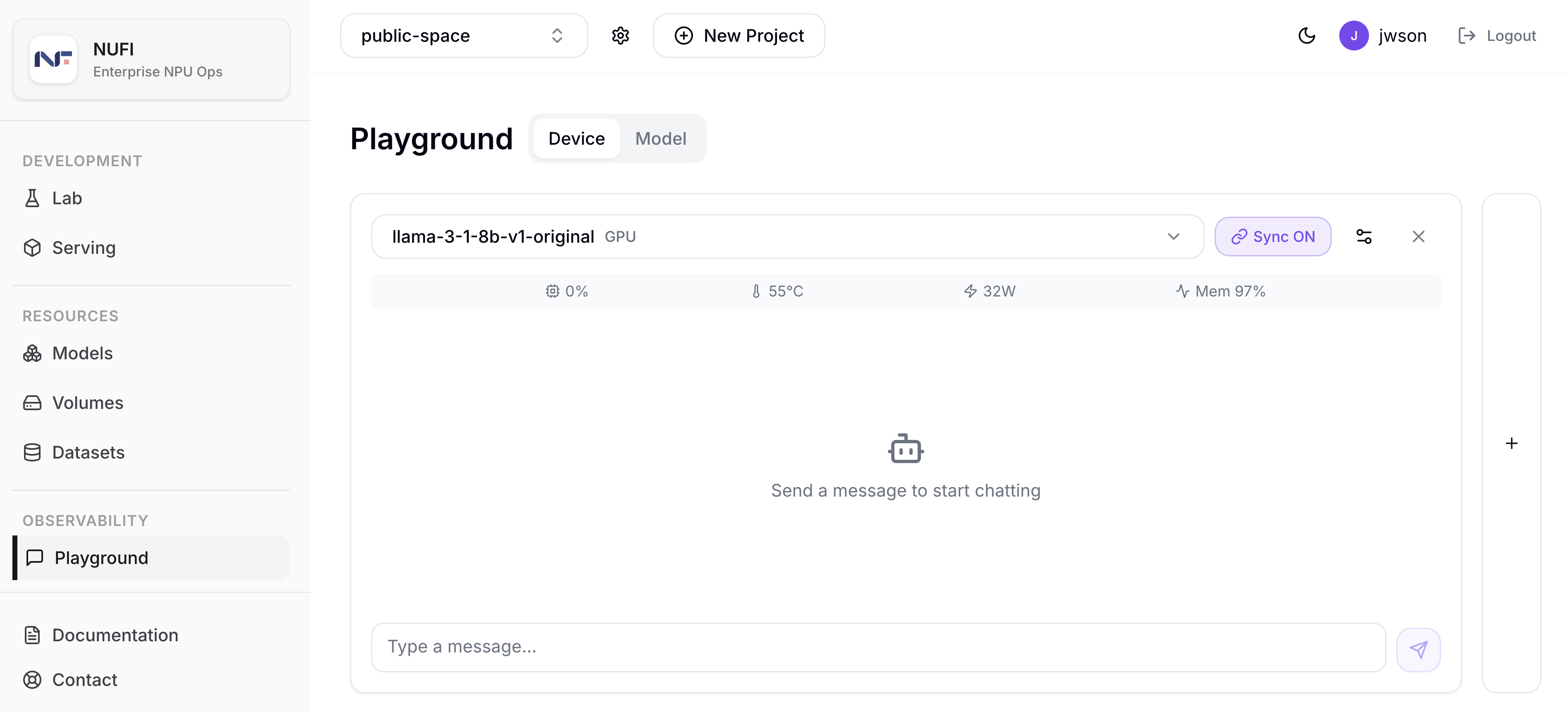
Device Tab
The Device tab shows the chat UI alongside hardware metrics.
The following 4 metrics are displayed in real time on the status bar.
| Metric | Description |
|---|---|
| Usage % | Usage of the GPU/NPU device used by the model |
| Temp °C | Current temperature of the GPU/NPU device used by the model |
| Power W | Power usage of the GPU/NPU device used by the model |
| Mem % | Memory usage of the GPU/NPU device used by the model |
Model Tab — Inference Performance Metrics
The Model tab provides the same chat UI as the Device tab, but the top status bar is replaced with LLM inference performance metrics instead of hardware metrics. While chatting with the model, you can monitor service response quality metrics such as TTFT and TPS in real time — useful when comparing GPU and RNGD deployments or monitoring the results of parameter tuning with numbers.
The following 4 metrics are displayed in real time on the status bar.
| Metric | Description |
|---|---|
| TTFT | Time until the first token is generated (Time To First Token, milliseconds) |
| ITL | Time between successive tokens (Inter-token Latency, milliseconds) |
| TPS | Output tokens per second (Tokens Per Second) |
| tok/s/W | Tokens generated per watt of power consumption (performance/watt) |
Clicking the status bar shows a time series popover for the last 5 minutes. You can inspect trends across four line charts: TTFT (ms), ITL (ms), Output TPS, and tok/s/W.
- GPU (NVIDIA) deployment: vLLM metrics (
vllm:*) + DCGM power metrics - RNGD (Furiosa) deployment: furiosa-llm metrics (
furiosa_llm_*) +furiosa_npu_hw_power
The metric source is selected automatically based on the accelerator type assigned to the Serving.
Selecting a Serving and Sync
In each panel, select the Serving to compare and send a message. The Select serving dropdown only shows Servings that support the OpenAI-compatible API (/v1/chat/completions), grouped by accelerator type such as GPU (1) and RNGD (1). Use Add panel to add comparison panels; up to 4 can be placed side by side.
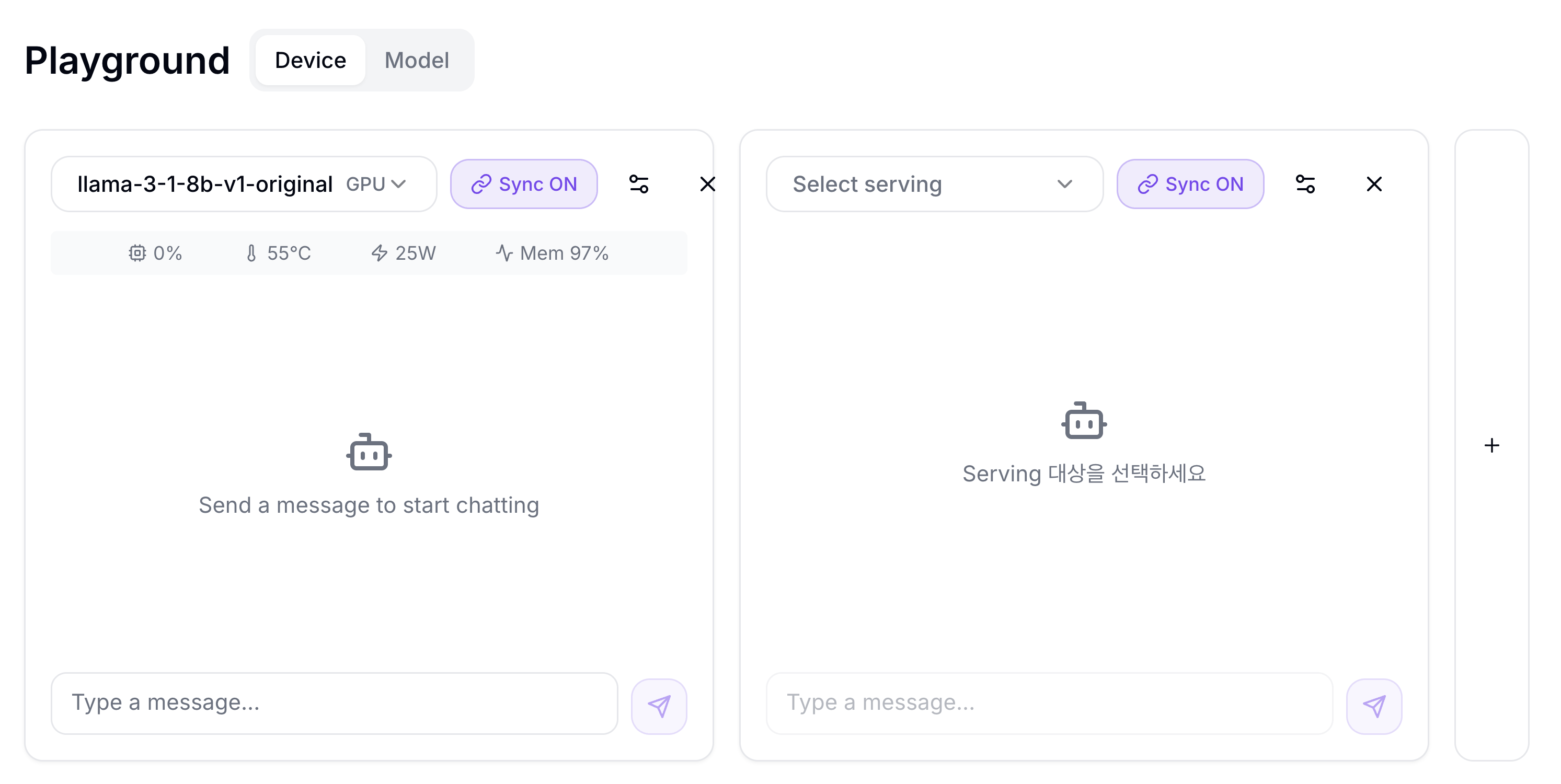
Panels with Sync ON receive the same message at the same time, so you can compare responses in one shot. To exclude a panel from the comparison, switch that panel to Sync OFF.
Parameter Settings
Click the Settings button to adjust parameters or reset the conversation with Clear Chat.
| Parameter | Description | Range | Default |
|---|---|---|---|
| System Prompt | Defines the model's role and behavior. The input shows You are a helpful assistant... as the default placeholder. | — | — |
| Temperature | Controls response randomness. Higher = more diverse and creative; lower = more consistent. | 0 – 2 | 0.7 |
| Max Tokens | Maximum number of tokens to generate. The UI shows the maximum as 최대 4096. | 1 – half of the model's context length (4096 if model info is unavailable) | 2048 |
| Top P | Sample only from the highest-probability tokens. Controls diversity together with Temperature. | 0 – 1 | 1.0 |
| Presence Penalty | Reduce repetition of already-mentioned topics to encourage new ones | 0 – 2 | 0.0 |
| Frequency Penalty | Reduce repeated use of the same words/phrases to diversify expression | 0 – 2 | 0.0 |
Generally adjust only one of Temperature and Top P. Tuning both away from their defaults can produce unpredictable responses.