Model Compilations
Convert models registered in the Model Registry into NPU-specific binaries automatically. When conversion completes, the resulting artifact is auto-registered in the Model Registry and can be deployed immediately.
Prerequisites
- A model and a version must already be registered in the NuFi Model Registry.
- The target artifact must be an original artifact whose platform is unset (treated as a GPU source) or
gpu(format e.g.,safetensors). - The cluster must have sufficient CPU and memory resources.
How to Start NPU Compile
NPU compilation starts from the model version detail page.
- In the left sidebar, click Models to go to the model list page.
- Go to the model version detail page you want to compile.
- From the version detail page, you can start a compilation in two ways:
- Click the Compile button in the Compilations tab
- Click the
 icon on the right of an original artifact row (platform empty or
 gpu) in the Artifacts tab
To generate multiple compile option candidates automatically and choose the best artifact with evaluation metrics, use Compile Option Optimizer.
NPU Compile List
In the Compilations tab of the version detail page, you can see the compilation history for that version.
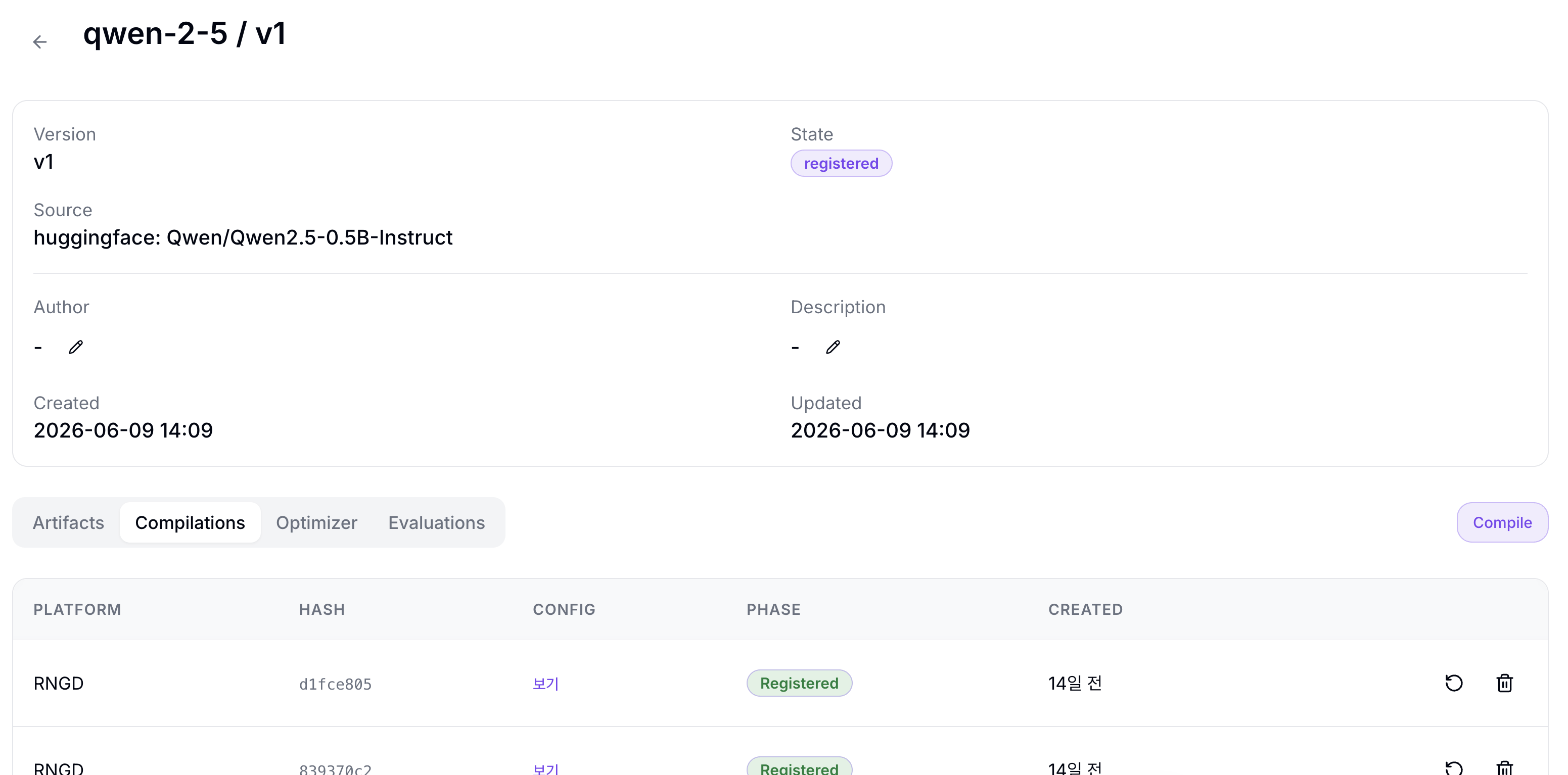
Columns
| Column | Description |
|---|---|
| PLATFORM | Target NPU platform |
| HASH | Hash of the compile options (identifies same-option runs) |
| CONFIG | Shows a View button for entries with saved compile options. Click it to open the Compile Settings dialog and review Max Seq Len, Tensor Parallel, Pipeline Parallel, Prefill Buckets, Decode Buckets, and Tokenwise Seq Lens. |
| PHASE | Current pipeline state |
| CREATED | Creation time |
Status
| Phase | Description | Recovery |
|---|---|---|
| Pending | The pipeline is waiting to be scheduled | Check that the cluster has sufficient resources. |
| Running | The compilation step is in progress | — |
| Succeeded | Compile and verification steps complete. Model Registry registration proceeds automatically (transitions to Registered when done). | — |
| Failed | One or more steps failed | Check the failing step's logs on the detail page and re-run using the retry button. |
| Registered | The compilation result has been registered in the Model Registry | — |
Action Icons
The icons on the right of each row, from left to right:
| Icon | Action | Description |
|---|---|---|
 | Re-compile | Opens the creation dialog pre-filled with this pipeline's compile options. The existing run is preserved in history. Disabled while the run is Pending/Running or when the entry has no saved compile options. |
 | Delete | Deletes this compilation history entry. Click Delete in the confirmation dialog to permanently delete the pipeline and history entry. |
Create a Pipeline
Click the Compile button to open the creation dialog.
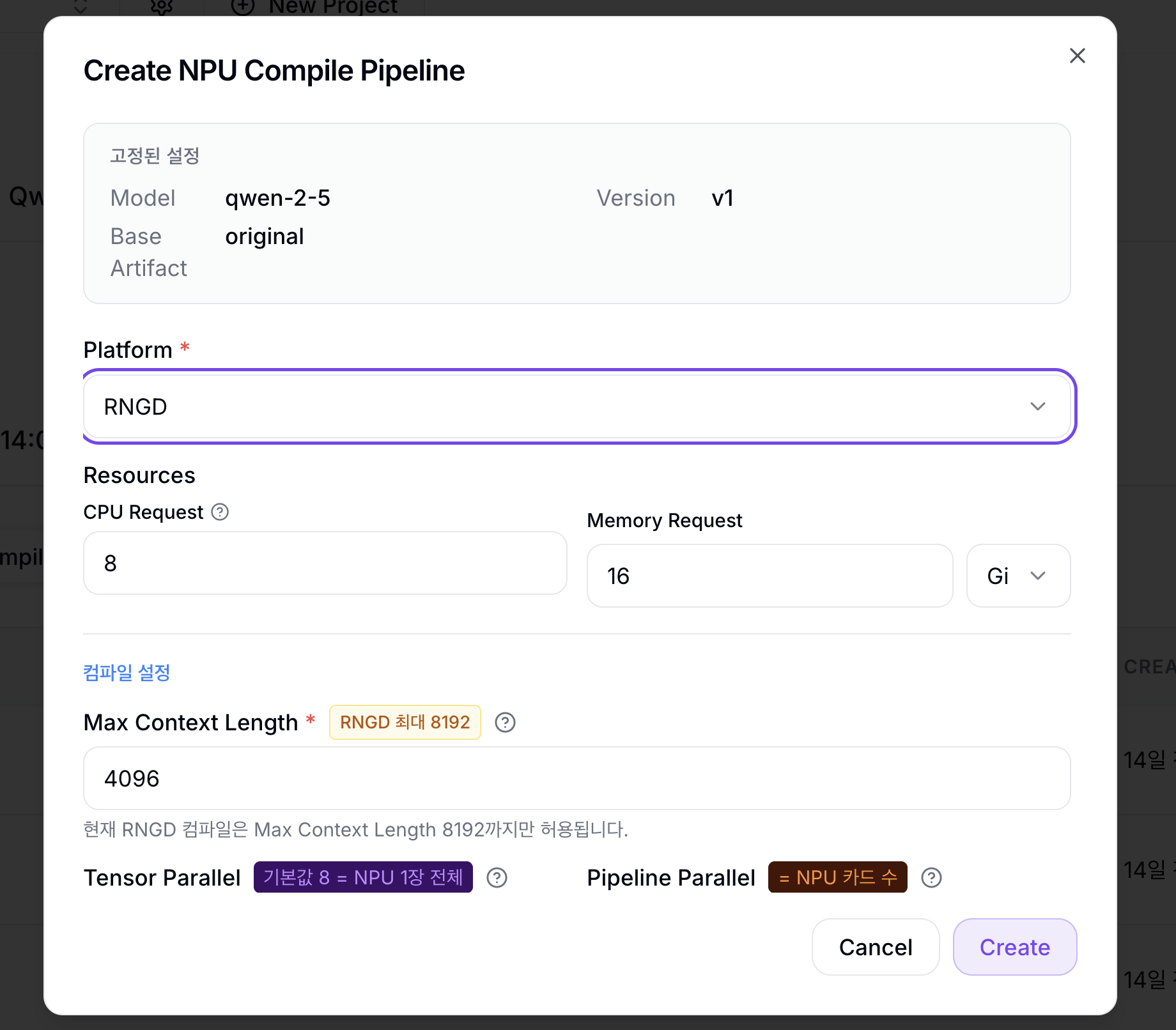
Pinned Settings
The pinned settings area at the top of the dialog shows the compilation target information determined at entry time. The user cannot change these.
| Item | Description |
|---|---|
| Model | Model name from the version detail page where you entered |
| Version | The version you entered |
| Base Artifact | The artifact to convert. The original artifact for that version (e.g., original) is used. |
Platform Selection
| Field | Description |
|---|---|
| Platform * | Select the target NPU platform (e.g., RNGD) |
Resource Settings
| Field | Description |
|---|---|
| CPU Request | Number of CPU cores to allocate to the compile Job |
| Memory Request | Memory size to allocate to the compile Job |
Compile Settings
| Field | Description |
|---|---|
| Max Context Length * | Maximum token count allowed during serving. Longer values increase memory requirements. The RNGD platform currently supports up to 8192; entering a larger value blocks creation. |
| Tensor Parallel | Number of PEs to parallelize the tensor across. Choose 4 or 8 (1 RNGD card = 8 PEs). |
| Pipeline Parallel | Number of pipeline parallel stages. Distributes model layers across multiple NPUs. |
| Prefill Buckets | Bucket list for the Prefill stage. Use the + Add bucket button to add rows and enter a batch (batch size) / seq_len (sequence length) pair per row. If left empty, buckets appropriate for Max Context Length are set automatically. Example: batch 1 / seq_len 512 |
| Decode Buckets | Bucket list for the Decode stage. Add rows with + Add bucket and enter a batch (batch size) and seq_len (context length) pair for each row. Set automatically if left empty. Example: batch 1 / seq_len 1024 |
| Tokenwise Seq Lens | List of memory-space window sizes used during token generation. Directly affects compile time. Typically include powers of 2 from 128 up to Max Context Length. Example: 128,256,512,1024,2048,4096 |
| Additional Args | Additional arguments to pass directly to the compiler. RNGD does not currently support additional arguments. |
| Environment Variables | Environment variables to inject into the compile Job container. Enter as KEY=VALUE, one per line, or drag and upload a .env file. |
- Tensor Parallel / Pipeline Parallel: Set these to match the number of NPU devices you have. If you use a single NPU, set Tensor Parallel to
8and Pipeline Parallel to1. RNGD has 8 PEs per NPU. - Prefill / Decode Buckets: Set these based on the expected input length distribution of your actual service. More buckets mean longer compile time and larger binary size.
When you click the Create button, the pipeline starts.
Pipeline Detail
Click a pipeline row in the list to navigate to the detail page.
The top area shows summary information for the compile run.
| Item | Description |
|---|---|
| Model | Model used for the compile run |
| Version | Target model version |
| Platform | Target NPU platform |
| Resources | CPU and memory requested for the compile Job |
| Created | Pipeline creation time |
If the artifact was registered successfully, a link to the produced artifact appears below the summary information.
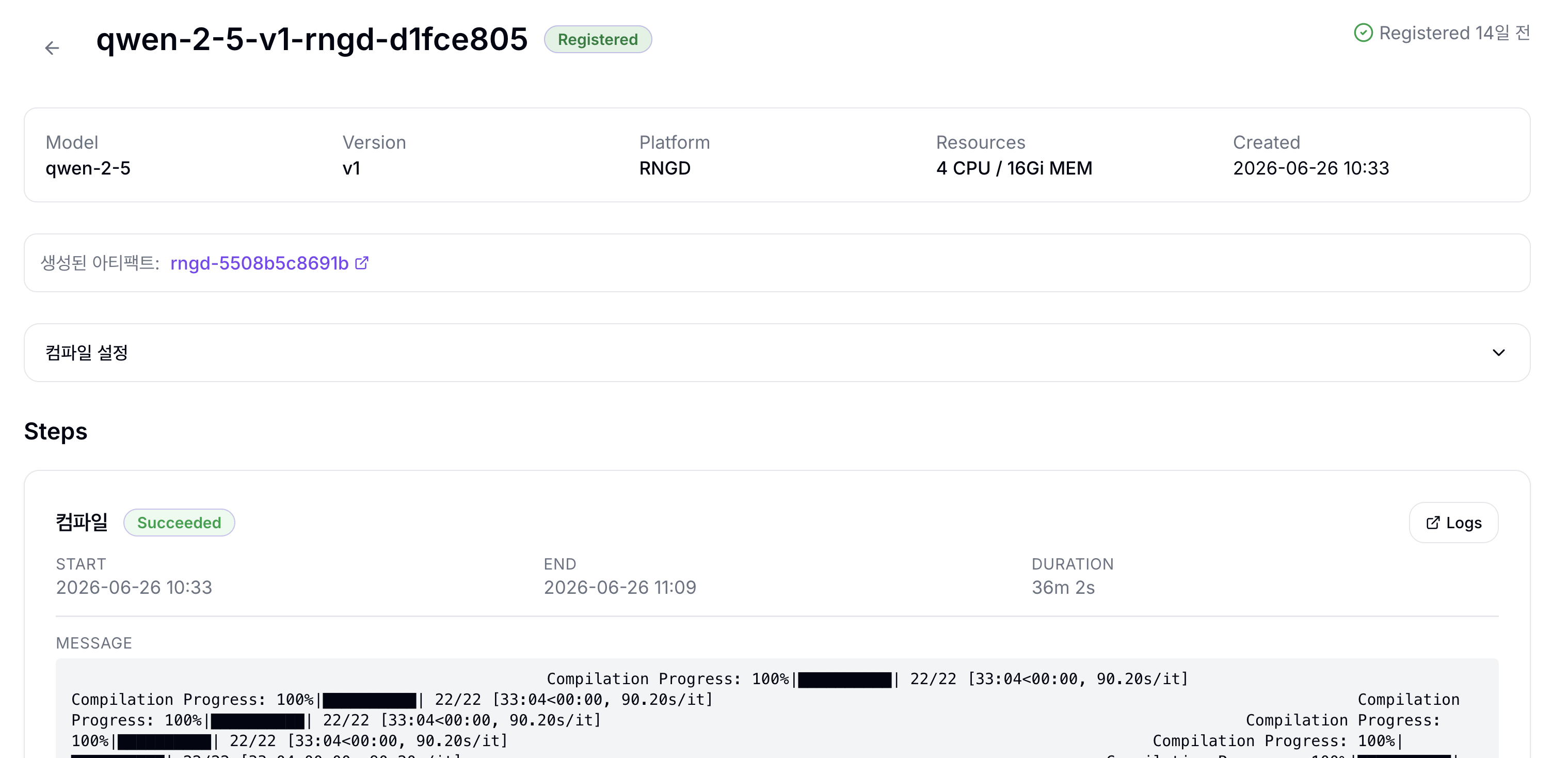
The detail page shows step-level status in the Steps section.
| Step | Description |
|---|---|
| Compile | Convert the model into the NPU-specific binary. |
| Artifact file verification | Only verifies that the artifact files produced by the Compile step exist at the expected paths. Does not load onto the actual device or perform inference. |
Each step card shows the following information.
| Item | Description |
|---|---|
| START | Step execution start timestamp |
| END | Step execution end timestamp |
| DURATION | Time the step took to execute |
| MESSAGE | Step message or error output. Shown only when present. |
| OUTPUT FILES | List of output files produced by the step. Shown only for steps with output files. |
| Logs | Button for detailed logs. Shown only when a log URL can be built. |
The step status is shown as a badge next to the step name (Waiting / Pending / Running / Succeeded / Failed). Waiting means the step is waiting for the previous step to complete.
Per-step retry: When the pipeline is in a Failed state overall, the Retry button on each failed step card can re-run that step independently. For example, if only the Artifact file verification step failed, you can retry only the verification step without re-running the Compile step.
When both the Compile and verification steps reach the Succeeded state, the compiled NPU artifact is automatically added to the original version in the Model Registry. After that, you can run Quick Deploy with that artifact.
Check Compile Settings
Below the top summary information on the detail page, click the Compile Settings accordion to expand it and review all of the compile options used when the pipeline was created (collapsed by default).
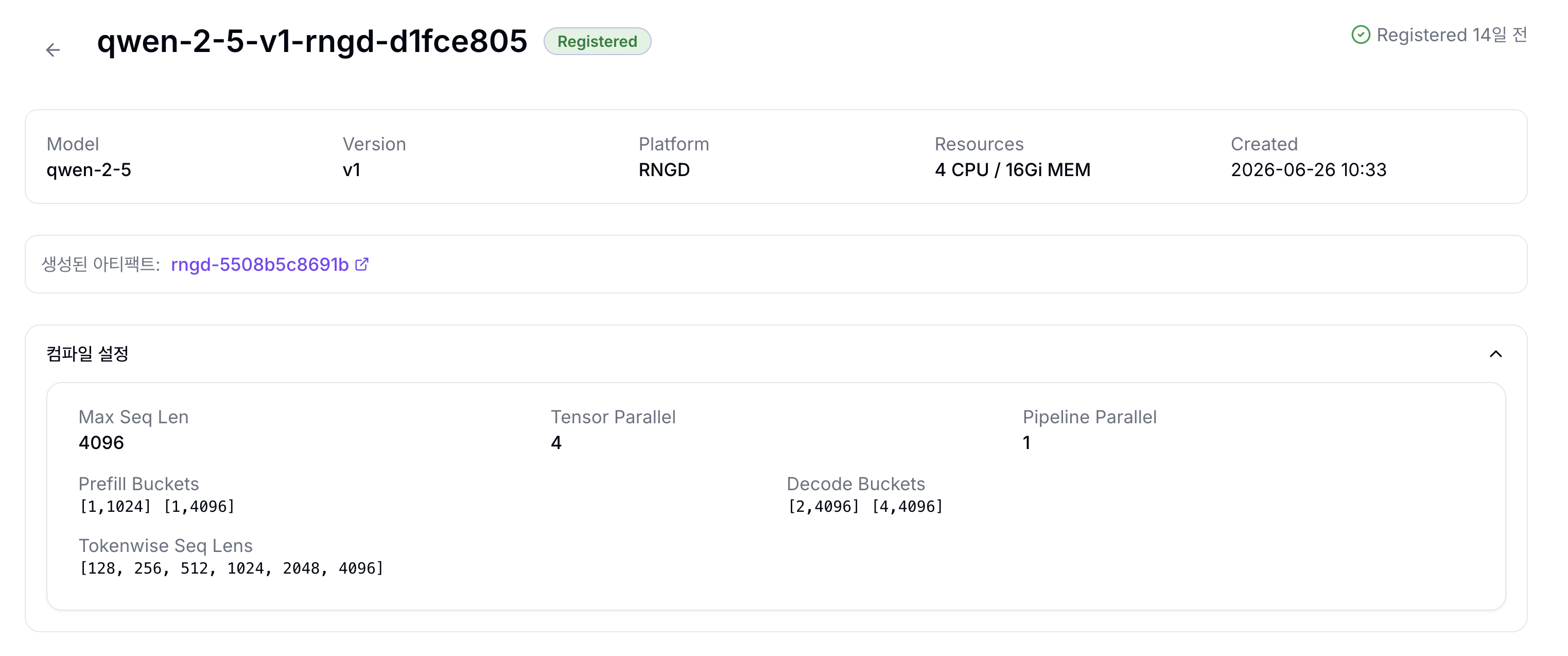
| Field | Description |
|---|---|
| Max Seq Len | Maximum context token count set at compile time |
| Tensor Parallel | Number of PEs for tensor parallelism |
| Pipeline Parallel | Number of pipeline parallel stages |
| Prefill Buckets | Sequence-length bucket list for the Prefill stage |
| Decode Buckets | Batch-size / context-length bucket list for the Decode stage |
| Tokenwise Seq Lens | List of memory-space window sizes for token generation. Shown only when present. |