Serve a Model Imported from MLflow
Import a Run artifact from an MLflow Tracking Server into NuFi, register it in Model Artifacts, and deploy it as a Serving. Use this path when training and model artifacts are already managed in MLflow.
Prerequisites
- An MLflow Tracking Server reachable from the NuFi cluster.
- A Volume for storing model files. If you need a new one, see Volumes.
- The MLflow Run ID and MLflow artifact path to import.
1. Import from MLflow
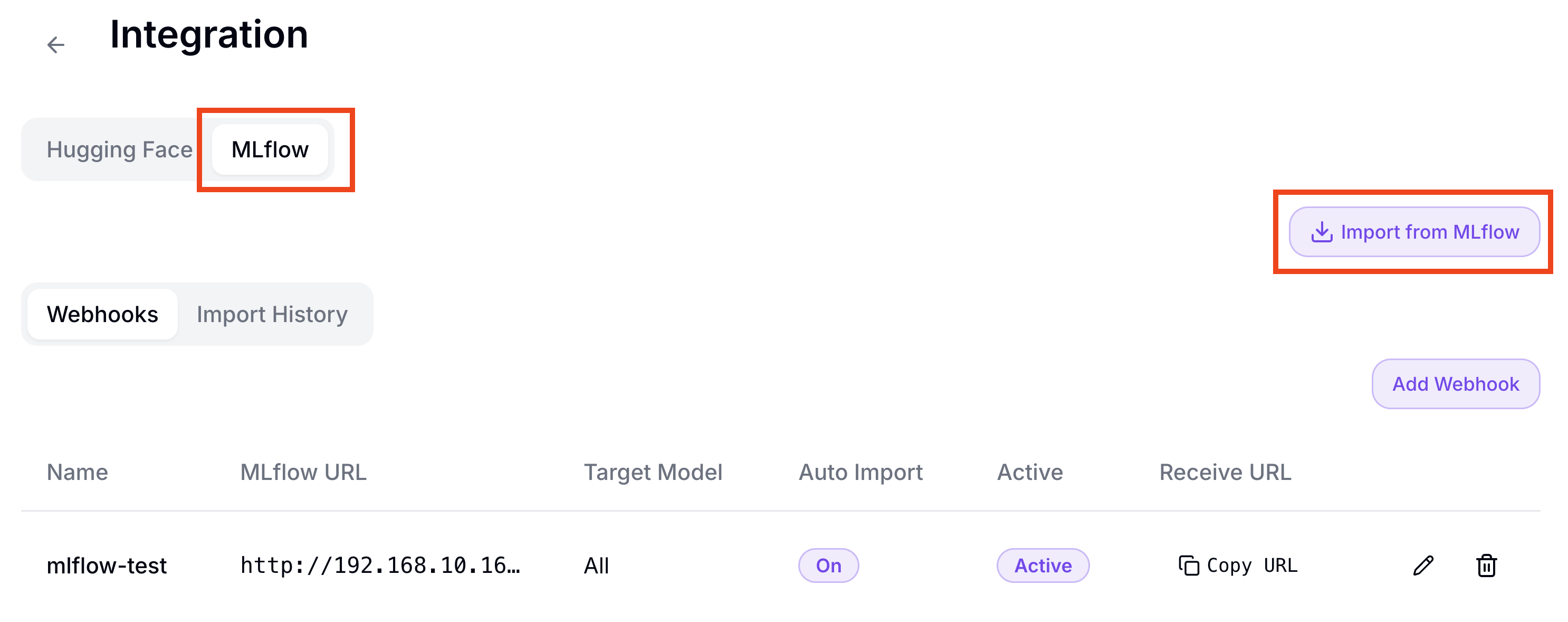
In the left sidebar, click Model Artifacts and open Integration. In the MLflow tab, click Import from MLflow.
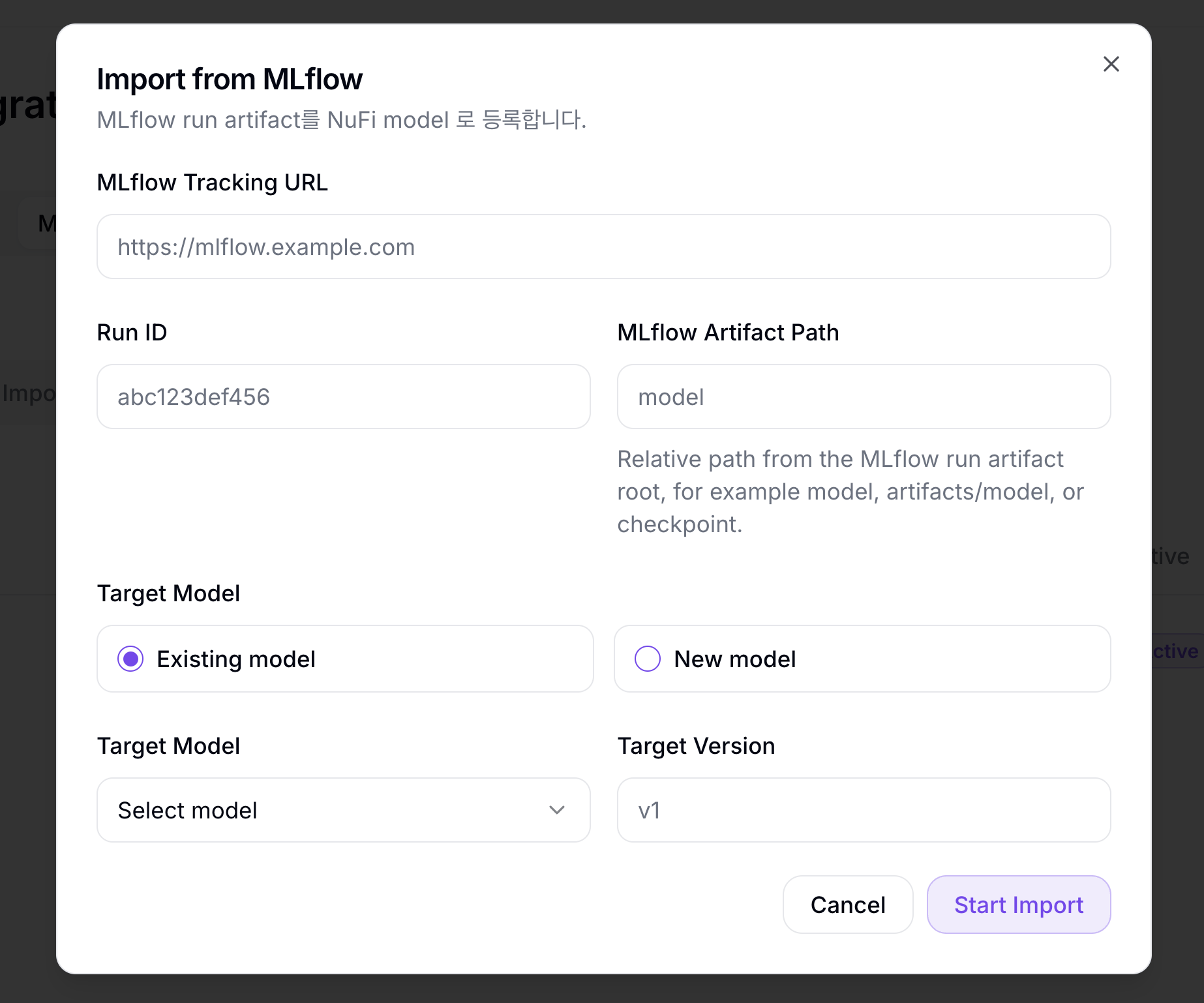
| Field | Example | Description |
|---|---|---|
| MLflow Tracking URL | http://mlflow.example.com | MLflow Tracking Server URL |
| Run ID | 7f3... | MLflow Run UUID to import |
| MLflow Artifact Path (optional) | model | Specific artifact path inside the Run. Leave empty to import the entire Run |
| Target Model | mlflow-tutorial-model | Model name registered in NuFi |
| Target Version | v1 | Version to register |
| Storage PVC | tutorial-volume | Volume where artifacts are stored |
2. Check Import Status
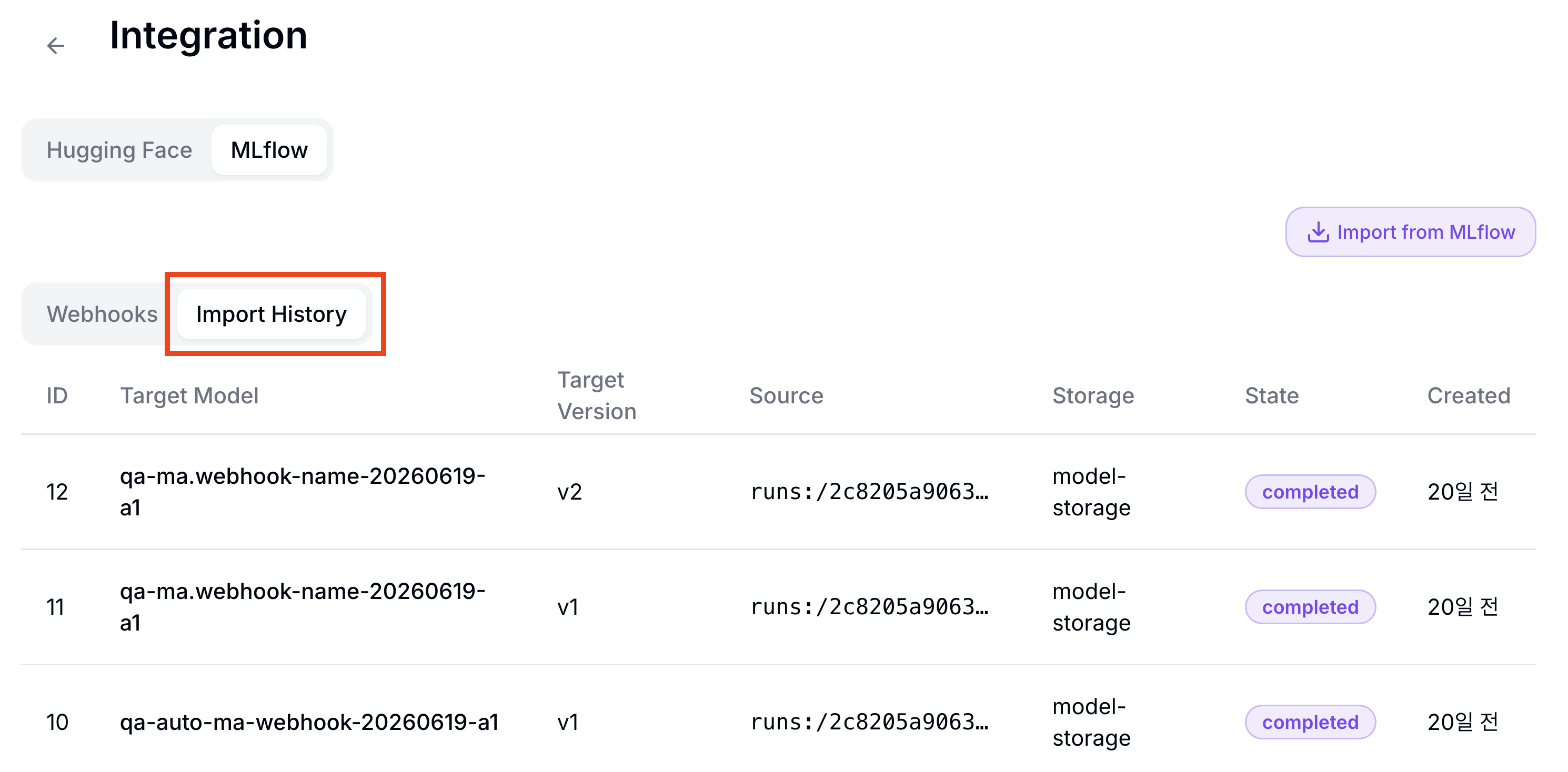
In Import History, confirm that the job reaches Succeeded. When it finishes, the model files are stored in the selected Volume and a model version is created in Model Artifacts.
3. Choose a Serving Path
For GPU serving, run Quick Deploy from the model detail page.
For NPU serving, compile the source artifact first in Model Compilations. When compilation reaches Succeeded, run Quick Deploy with the generated NPU artifact.
4. Create the Serving
In the Quick Deploy dialog, confirm the model, version, and artifact, then enter a Serving name.
| Field | Example |
|---|---|
| Service Name | mlflow-import-serving |
| Version | v1 |
| Artifact | Source artifact for GPU serving, compiled artifact for NPU serving |
The deployment is complete when the Serving status becomes Ready.
Next Steps
To check the serving model's response, continue to Test Responses in Playground.
To check device and node metrics, continue to Check Metrics in Monitoring.