Build a RAG Chatbot in Lab
In the Lab, upload documents to a Volume, index them with an embedding server and a Vector DB, then build a RAG backend (FastAPI) and a Streamlit UI as images and deploy them as NuFi Servings. The final end-to-end check is performed in the externally exposed Streamlit UI.
APIs exposed externally by NuFi Serving only accept the OpenAI-compatible spec. This tutorial's RAG backend is written with a custom spec (POST /query) that freely carries sources/scores, so it can't be opened directly in the Playground. Instead, keep the RAG backend for internal calls only and use the Streamlit UI Serving as the external exposure point.
Composition
Volume: tutorial-volume
  └─ /data/docs            # Documents uploaded from the Lab

Lab (tutorial-volume mounted at /data)
  └─ Document chunking, embedding, Vector DB loading

Serving: tutorial-embedding
  └─ Converts documents and questions into vectors (OpenAI-compatible /v1/embeddings)

Vector DB
  └─ collection: nufi-rag-tutorial

Serving: tutorial-llm
  └─ vLLM-based LLM API (OpenAI-compatible /v1/chat/completions)

Serving: tutorial-rag-backend            ← Internal calls only
  └─ POST /query
  └─ Vector DB search → prompt construction → LLM call → returns answer + sources

Serving: tutorial-rag-ui                 ← External exposure point
  └─ Streamlit
  └─ Calls tutorial-rag-backend → renders answer + sources
Prerequisites
- Create the Volume
tutorial-volumefor this tutorial by following Volumes - Create a Lab with a GPU or NPU by following Lab (mount the above Volume at
/data) - Deploy a vLLM-based LLM Serving by following one of the E2E model serving scenarios. This tutorial refers to that LLM Serving as
tutorial-llm. The actual Serving name is auto-generated in the form<model-name>-<version>-<artifact>at Quick Deploy time (e.g.,qwen-instruct-tutorial-v1-original) and is visible in the Development > Serving list. Replace the host portion ofLLM_BASE_URLin the environment variables with the actual name in your environment. - Vector DB connection info received from the administrator (also viewable on the Vector DB deployment page)
- An image build environment (Docker/Podman) and a registry you can push to
1. Upload documents to the Lab
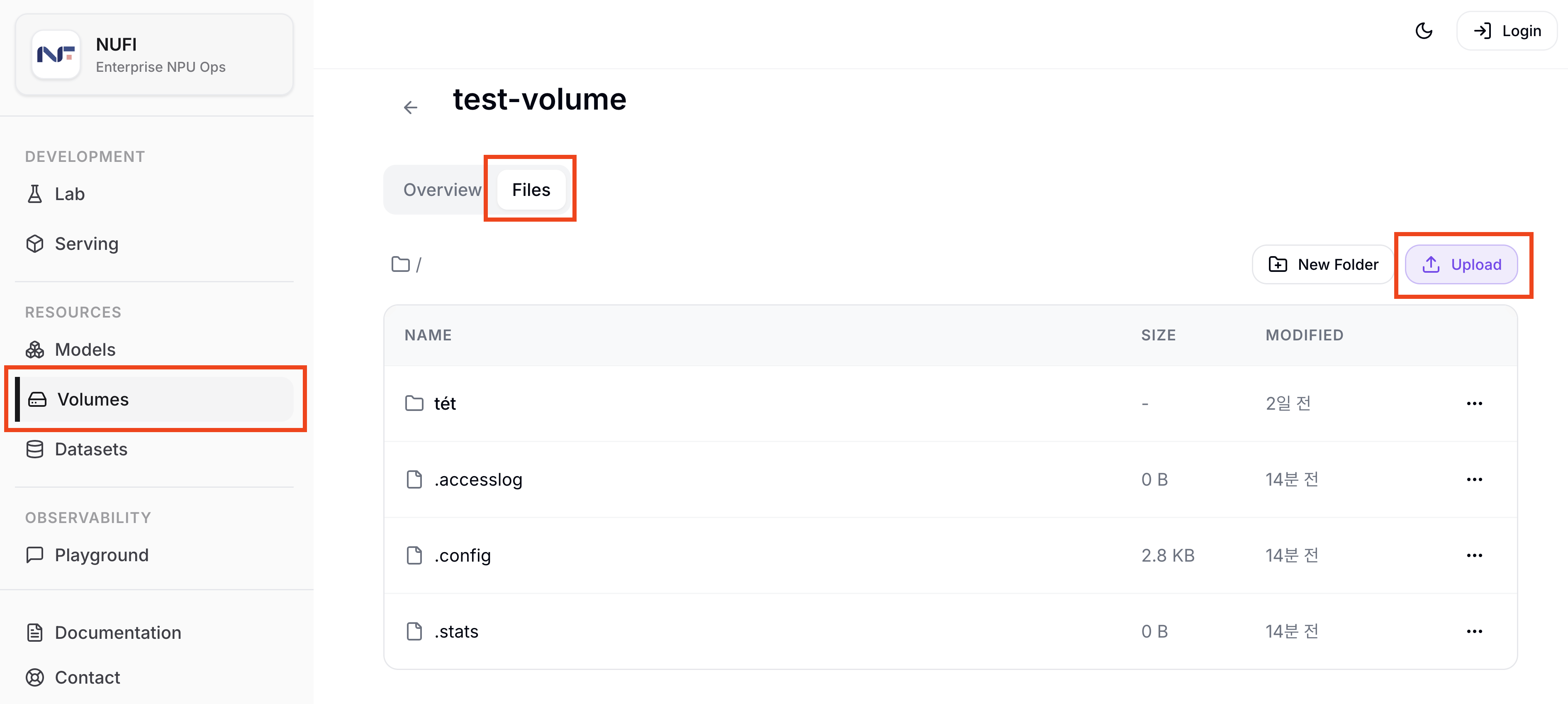
In the Volume detail page, click the Files tab, where you'll find an Upload button. Use it to upload the documents you want to use for RAG to tutorial-volume.
The indexing code at the bottom of this tutorial does not support parsing PDF/DOCX. Use text files only (.md, .txt, etc.).
2. Deploy the Embedding Serving
Go to Development > Serving > Create and deploy the embedding server.
Step 1 — Basic information
| Field | Value |
|---|---|
| Service Name | tutorial-embedding |
| Description | RAG embedding server |
| Select Template | Custom |
Step 2 — Detailed settings
| Field | Value |
|---|---|
| Image | ghcr.io/huggingface/text-embeddings-inference:cpu-1.7 |
| CPU | 2 |
| Memory | 16 |
| Accelerator Type | None |
| Replicas | 1 |
| Inference Port | 80 |
Command / Args
--model-id
intfloat/multilingual-e5-base
After deployment, in the Development > Serving list, verify that tutorial-embedding is in the Running state.
When calling from another Lab or Serving, use port 80 of the Service that NuFi created.
http://tutorial-embedding.<project-namespace>.svc:80
This URL is used as OPENAI_API_BASE (EMBEDDING_BASE_URL) in the indexing script in step 3. Load documents into the Vector DB from the Lab below.
3. Load documents into the Vector DB from the Lab
Get the Vector DB connection info (URL, API Key, Collection, etc.) from the administrator. Examples in this tutorial use Qdrant.
Install the required packages in the Lab terminal.
pip install langchain langchain-community langchain-openai langchain-qdrant qdrant-client
Use the script below to perform document loading, chunking, embedding, and Vector DB loading with LangChain. The actual question-answering is handled by the RAG backend Serving deployed later.
Change PROJECT_NAMESPACE and VECTOR_DB_URL to match your environment. If the Vector DB requires an API key, add api_key="..." to QdrantClient.
from pathlib import Path

from langchain_community.document_loaders import DirectoryLoader, TextLoader
from langchain_openai import OpenAIEmbeddings
from langchain_qdrant import QdrantVectorStore
from langchain_text_splitters import RecursiveCharacterTextSplitter
from qdrant_client import QdrantClient
from qdrant_client.models import Distance, VectorParams

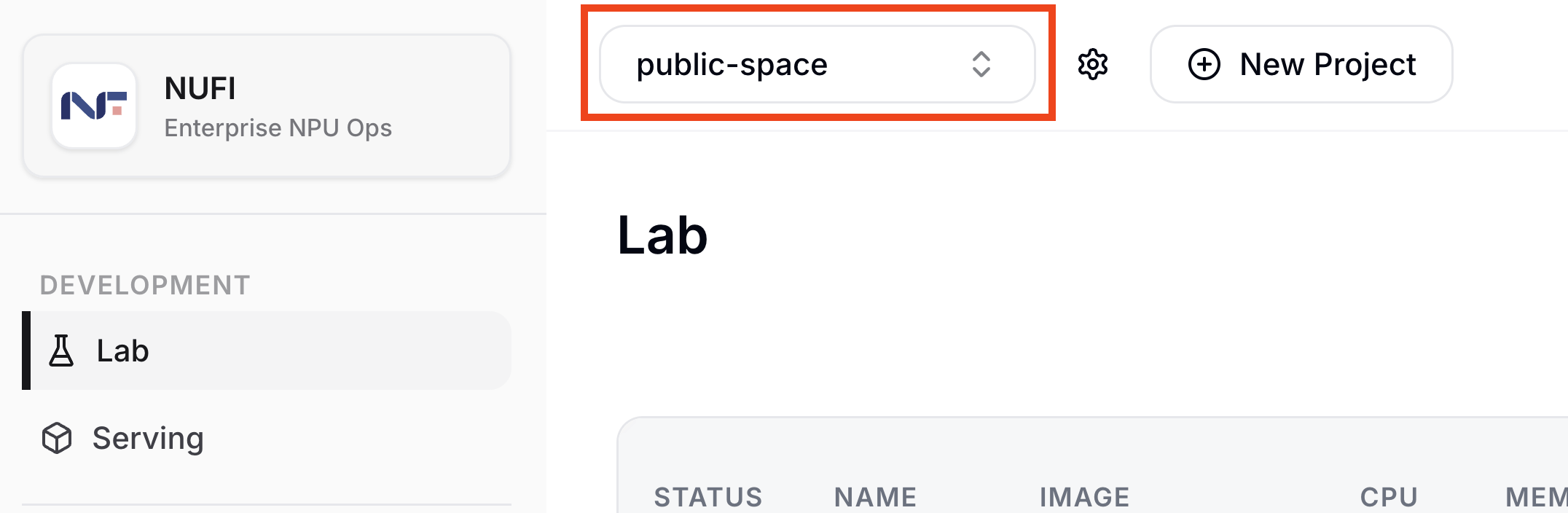
PROJECT_NAMESPACE = "<project-namespace>"  # Change to your project namespace (visible in the project namespace area of the top header)
DOCS_DIR = Path("/data/docs")

EMBEDDING_BASE_URL = f"http://tutorial-embedding.{PROJECT_NAMESPACE}.svc:80/v1"
EMBEDDING_MODEL = "intfloat/multilingual-e5-base"

VECTOR_DB_URL = "http://qdrant.vector-db.svc:6333"
COLLECTION = "nufi-rag-tutorial"
VECTOR_SIZE = 768

qdrant = QdrantClient(url=VECTOR_DB_URL)

if not qdrant.collection_exists(COLLECTION):
    qdrant.create_collection(
        collection_name=COLLECTION,
        vectors_config=VectorParams(size=VECTOR_SIZE, distance=Distance.COSINE),
    )

loader = DirectoryLoader(
    str(DOCS_DIR),
    glob="**/*",
    loader_cls=TextLoader,
    loader_kwargs={"encoding": "utf-8"},
    show_progress=True,
)
docs = loader.load()

chunks = RecursiveCharacterTextSplitter(
    chunk_size=400,
    chunk_overlap=80,
).split_documents(docs)

embeddings = OpenAIEmbeddings(
    model=EMBEDDING_MODEL,
    base_url=EMBEDDING_BASE_URL,
    api_key="unused",
)

vector_store = QdrantVectorStore(
    client=qdrant,
    collection_name=COLLECTION,
    embedding=embeddings,
)
vector_store.add_documents(chunks)

print(f"indexed {len(chunks)} chunks into {COLLECTION}")
You can find the PROJECT_NAMESPACE value in the project namespace area of the top header.
On a successful run, you'll see the message indexed ... chunks into nufi-rag-tutorial.
4. Inspect RAG backend and UI code (optional)
The RAG backend is a FastAPI server that takes the user's question, searches the Vector DB, and calls the vLLM Serving with the results inserted into the prompt. Since it is internal-call only inside the cluster, it doesn't follow the OpenAI spec and uses a custom spec.
The Streamlit UI calls the RAG backend and renders the answer and sources. Because the RAG backend is not exposed externally, the UI serves as the user touch point.
This tutorial provides pre-built images. You can proceed to the next step without building yourself.
registry.dudaji.com/nufi/tutorial-rag-backend:0.1.0
registry.dudaji.com/nufi/tutorial-rag-ui:0.1.0
API spec
POST /query- Request:
{ "question": str, "top_k": int(optional, default 4) } - Response:
{"answer": "...","sources": [{ "title": "company-guide.md", "score": 0.82, "snippet": "...", "uri": "/data/docs/company-guide.md" }],"latency_ms": 1234}
- Request:
GET /healthz— health check
If you want to inspect the image's source or build and test it yourself, expand below.
🐍 Full RAG backend (FastAPI) code
Directory layout
/data/backend/
  ├─ app.py
  ├─ requirements.txt
  └─ Dockerfile
app.py
import os
import time
from typing import List

from fastapi import FastAPI
from pydantic import BaseModel

from openai import OpenAI
from qdrant_client import QdrantClient

LLM_BASE_URL = os.environ["LLM_BASE_URL"]
LLM_MODEL = os.environ["LLM_MODEL"]
EMBEDDING_BASE_URL = os.environ["EMBEDDING_BASE_URL"]
EMBEDDING_MODEL = os.environ["EMBEDDING_MODEL"]
VECTOR_DB_URL = os.environ["VECTOR_DB_URL"]
VECTOR_DB_API_KEY = os.environ.get("VECTOR_DB_API_KEY", "")
COLLECTION = os.environ["VECTOR_COLLECTION"]
DEFAULT_TOP_K = int(os.environ.get("TOP_K", "4"))

llm = OpenAI(base_url=LLM_BASE_URL, api_key="unused")
embedder = OpenAI(base_url=EMBEDDING_BASE_URL, api_key="unused")
qdrant = QdrantClient(url=VECTOR_DB_URL, api_key=VECTOR_DB_API_KEY or None)

SYSTEM_PROMPT = """You are an assistant that answers based on internal company documents.
Use only the given documents to answer, and if there is no basis, say "Not found in the documents." """


class QueryRequest(BaseModel):
    question: str
    top_k: int | None = None


class Source(BaseModel):
    title: str
    score: float
    snippet: str
    uri: str | None = None


class QueryResponse(BaseModel):
    answer: str
    sources: List[Source]
    latency_ms: int


app = FastAPI()


@app.get("/healthz")
def healthz():
    return {"ok": True}


@app.post("/query", response_model=QueryResponse)
def query(req: QueryRequest):
    started = time.time()
    top_k = req.top_k or DEFAULT_TOP_K

    emb = embedder.embeddings.create(model=EMBEDDING_MODEL, input=req.question)
    qvec = emb.data[0].embedding

    hits = qdrant.search(
        collection_name=COLLECTION,
        query_vector=qvec,
        limit=top_k,
        with_payload=True,
    )

    sources: List[Source] = []
    context_blocks: List[str] = []
    for h in hits:
        payload = h.payload or {}
        text = payload.get("page_content", "")
        meta = payload.get("metadata", {}) or {}
        title = meta.get("source", "unknown")
        sources.append(
            Source(
                title=str(title).split("/")[-1],
                score=float(h.score),
                snippet=text[:240],
                uri=str(title),
            )
        )
        context_blocks.append(f"[{title}]\n{text}")

    context = "\n\n---\n\n".join(context_blocks) if context_blocks else "(no search results)"
    user_prompt = f"Documents:\n{context}\n\nQuestion: {req.question}"

    chat = llm.chat.completions.create(
        model=LLM_MODEL,
        messages=[
            {"role": "system", "content": SYSTEM_PROMPT},
            {"role": "user", "content": user_prompt},
        ],
        temperature=0.2,
    )

    answer = chat.choices[0].message.content or ""
    latency_ms = int((time.time() - started) * 1000)
    return QueryResponse(answer=answer, sources=sources, latency_ms=latency_ms)
requirements.txt
fastapi==0.115.0
uvicorn[standard]==0.30.6
openai==1.51.0
httpx==0.27.2
qdrant-client==1.11.3
pydantic==2.9.2
Dockerfile
FROM python:3.11-slim

WORKDIR /app
COPY requirements.txt .
RUN pip install --no-cache-dir -r requirements.txt
COPY app.py .

EXPOSE 8000
CMD ["uvicorn", "app:app", "--host", "0.0.0.0", "--port", "8000"]
Build and push directly
cd /data/backend
docker build -t <registry>/tutorial-rag-backend:0.1.0 .
docker push <registry>/tutorial-rag-backend:0.1.0
🐍 Full Streamlit UI code
Directory layout
/data/ui/
  ├─ app.py
  ├─ requirements.txt
  └─ Dockerfile
app.py
import os
import requests
import streamlit as st

BACKEND_URL = os.environ["BACKEND_URL"]  # e.g., http://tutorial-rag-backend.<ns>.svc:80

st.set_page_config(page_title="NuFi RAG Chatbot", page_icon="📚")
st.title("📚 NuFi RAG Chatbot")

if "history" not in st.session_state:
    st.session_state.history = []

for turn in st.session_state.history:
    with st.chat_message(turn["role"]):
        st.markdown(turn["content"])
        if turn["role"] == "assistant" and turn.get("sources"):
            with st.expander("Sources"):
                for s in turn["sources"]:
                    st.markdown(f"**{s['title']}**  (score: {s['score']:.3f})")
                    st.caption(s["snippet"])

question = st.chat_input("Ask a question about the documents")
if question:
    st.session_state.history.append({"role": "user", "content": question})
    with st.chat_message("user"):
        st.markdown(question)

    with st.chat_message("assistant"):
        with st.spinner("Searching and generating response..."):
            resp = requests.post(
                f"{BACKEND_URL}/query",
                json={"question": question},
                timeout=120,
            )
            resp.raise_for_status()
            data = resp.json()

        st.markdown(data["answer"])
        if data.get("sources"):
            with st.expander("Sources"):
                for s in data["sources"]:
                    st.markdown(f"**{s['title']}**  (score: {s['score']:.3f})")
                    st.caption(s["snippet"])

    st.session_state.history.append({
        "role": "assistant",
        "content": data["answer"],
        "sources": data.get("sources", []),
    })
requirements.txt
streamlit==1.39.0
requests==2.32.3
Dockerfile
FROM python:3.11-slim

WORKDIR /app
COPY requirements.txt .
RUN pip install --no-cache-dir -r requirements.txt
COPY app.py .

EXPOSE 8501
CMD ["streamlit", "run", "app.py", \
     "--server.port=8501", \
     "--server.address=0.0.0.0", \
     "--server.enableCORS=false", \
     "--server.enableXsrfProtection=false", \
     "--server.enableWebsocketCompression=false", \
     "--browser.gatherUsageStats=false"]
Build and push directly
cd /data/ui
docker build -t <registry>/tutorial-rag-ui:0.1.0 .
docker push <registry>/tutorial-rag-ui:0.1.0
5. Deploy the RAG backend Serving
Go to Development > Serving > Create.
Step 1 — Basic information
| Field | Value |
|---|---|
| Service Name | tutorial-rag-backend |
| Description | RAG backend (internal) |
| Select Template | Custom |
Step 2 — Detailed settings
| Field | Value |
|---|---|
| Image | registry.dudaji.com/nufi/tutorial-rag-backend:0.1.0 |
| CPU | 1 |
| Memory | 2 |
| Accelerator Type | None |
| Replicas | 1 |
| Inference Port | 8000 |
Environment Variables
LLM_BASE_URL=http://qwen-instruct-tutorial-v1-original.rag.svc:80/v1
LLM_MODEL=/mnt/rag-volume/Qwen2.5-0.5B-Instruct
EMBEDDING_BASE_URL=http://tutorial-embedding.rag.svc:80/v1
EMBEDDING_MODEL=intfloat/multilingual-e5-base
VECTOR_DB_URL=http://qdrant.vector-db.svc:6333
VECTOR_COLLECTION=nufi-rag-tutorial
TOP_K=4
LLM_BASE_URL— formhttp://<llm-service-name>.<project-namespace>.svc:80/v1. Internal call URL for the LLM Serving in use. Replace<llm-service-name>with the LLM Serving name and<project-namespace>with the current project namespace.LLM_MODEL— the model ID passed to vLLM via--model. Copy the value after--modelfrom Command/Args on the Serving detail page (when--served-model-nameis not used).EMBEDDING_BASE_URL— formhttp://tutorial-embedding.<project-namespace>.svc:80/v1. Internal call URL of the embedding Serving deployed in step 2. Replace<project-namespace>with the current project namespace.EMBEDDING_MODEL— the model ID used by the embedding Serving.VECTOR_DB_URL— Vector DB connection URL. Adjust namespace/port if different. If an API key is needed, addVECTOR_DB_API_KEY.VECTOR_COLLECTION— must match the collection name created by the indexing script in step 3.TOP_K— number of top chunks to retrieve.
After deployment, wait until tutorial-rag-backend reaches Running. The external URL is not used — calls happen from within the same namespace only.
6. Deploy the Streamlit UI Serving
Go to Development > Serving > Create.
Step 1 — Basic information
| Field | Value |
|---|---|
| Service Name | tutorial-rag-ui |
| Description | RAG chatbot UI |
| Select Template | Custom |
Step 2 — Detailed settings
| Field | Value |
|---|---|
| Image | registry.dudaji.com/nufi/tutorial-rag-ui:0.1.0 |
| CPU | 1 |
| Memory | 2 |
| Accelerator Type | None |
| Replicas | 1 |
| Inference Port | 8501 |
Environment Variables
BACKEND_URL=http://tutorial-rag-backend.rag.svc:80
BACKEND_URL— formhttp://tutorial-rag-backend.<project-namespace>.svc:80. Internal call URL of the RAG backend Serving deployed in step 5. Replace<project-namespace>with the same project namespace as the backend.
After deployment, when it reaches Running, check the Connect URL on the Serving detail page.
7. Check the RAG response
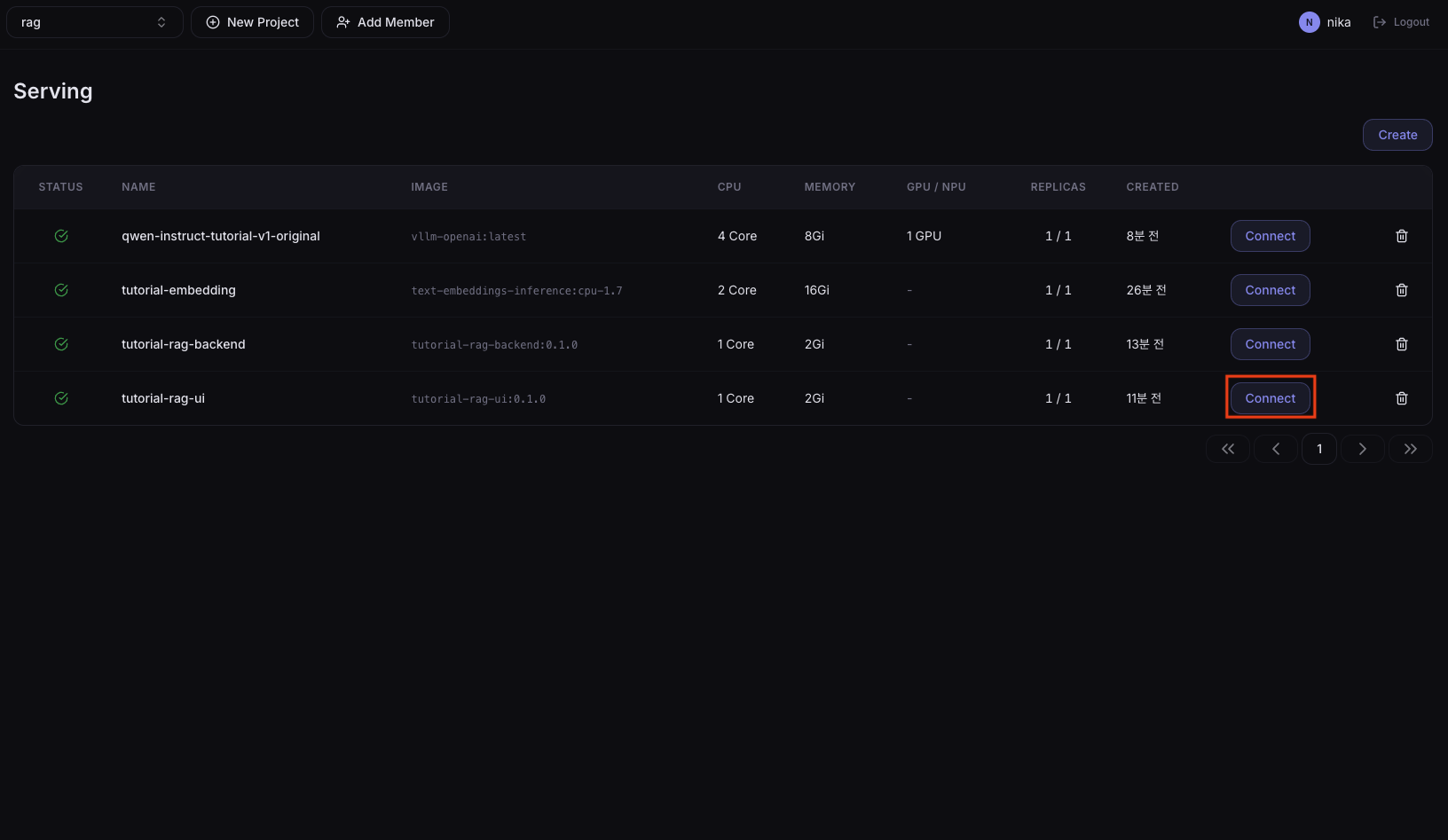
In the Serving list, find the tutorial-rag-ui Serving and press the Connect button.
When the chat screen opens, ask a question related to the documents you uploaded in step 1 to get an answer and the sources.
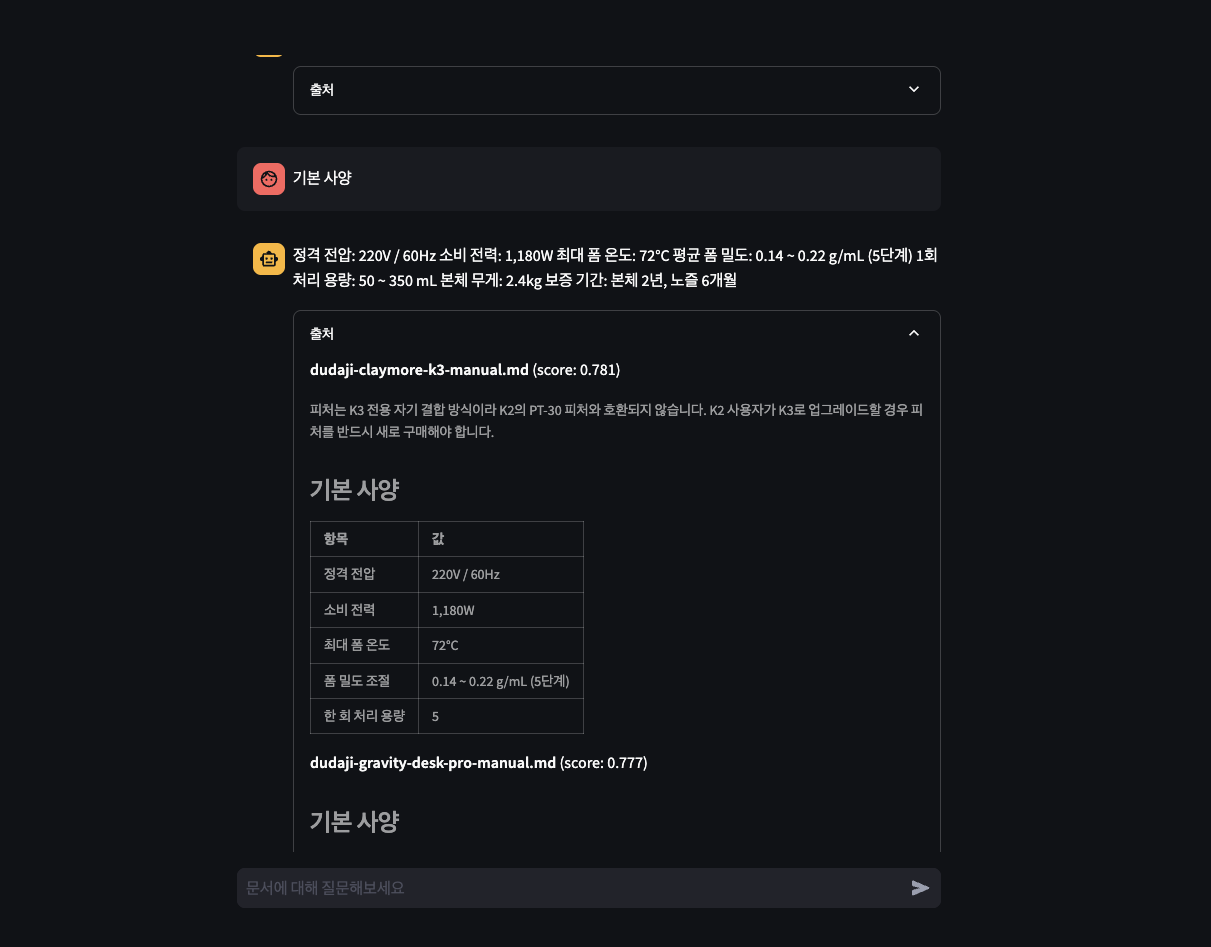
When working, the response is shown along with the Sources panel listing the uploaded document name (e.g., company-guide.md — the document name you uploaded earlier), score, and snippet.
The LLM deployed in this tutorial is Qwen2.5-0.5B-Instruct. As a 0.5B-class small model, even when grounded on RAG-retrieved documents the answers may be inaccurate or inconsistent. For more accurate responses, swap the LLM Serving to a larger model.