Serving
This page walks you through deploying and managing an AI model as an NPU/GPU-based inference service.
Serving List
In the left sidebar, click Development > Serving.
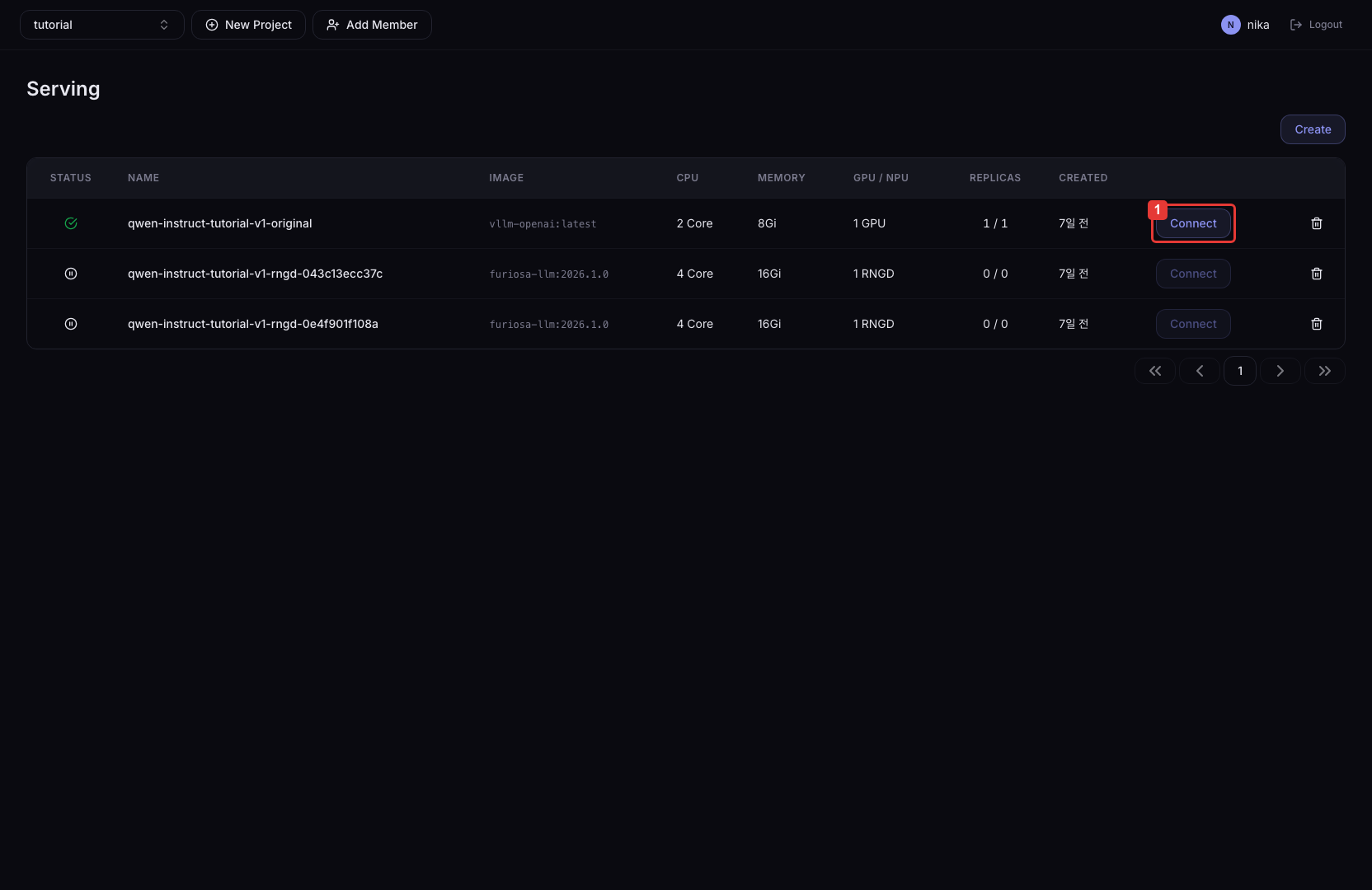
Click the Connect button to find the endpoint URL for accessing the deployed service. An inference endpoint URL in the form https://<host>/<project>/<deployment-name> is shown. Append the inference framework's API path (e.g., /v1/chat/completions) to send inference requests from outside.
Status
| Status | Description | Recovery |
|---|---|---|
| Ready | All Pods are in the Ready state. The service is operating normally. | — |
| Starting | Pods are starting. Not yet Ready, e.g., still loading the model. | Wait briefly. If it persists, check the logs. |
| Degraded | Only some Pods are Ready. Requests are still served but overall performance is reduced. | Check the logs and events of the failing Pods. |
| Error | One or more Pods are in an error state such as CrashLoopBackOff. | Click the Status column → check failureReason and logs in the popover. |
| Pending | Pods are not scheduled. Resource shortage or image pull failure. | Check cluster resource availability and image settings. |
| Scaled Down | Replicas were scaled to 0. | Change Replicas to 1 or more if needed. |
Hover or click on the Status column to see the Pod status popover. The popover includes the main error reason, the Ready count, the list of failing Pods, and a View logs link for each Pod (opens a new tab to the Logs tab).
Create a Serving
Click Create to go to the creation page. Creation proceeds in 3 steps.
- Step 1. Basic Information
- Step 2. Detailed Settings
- Step 3. Review & Deploy
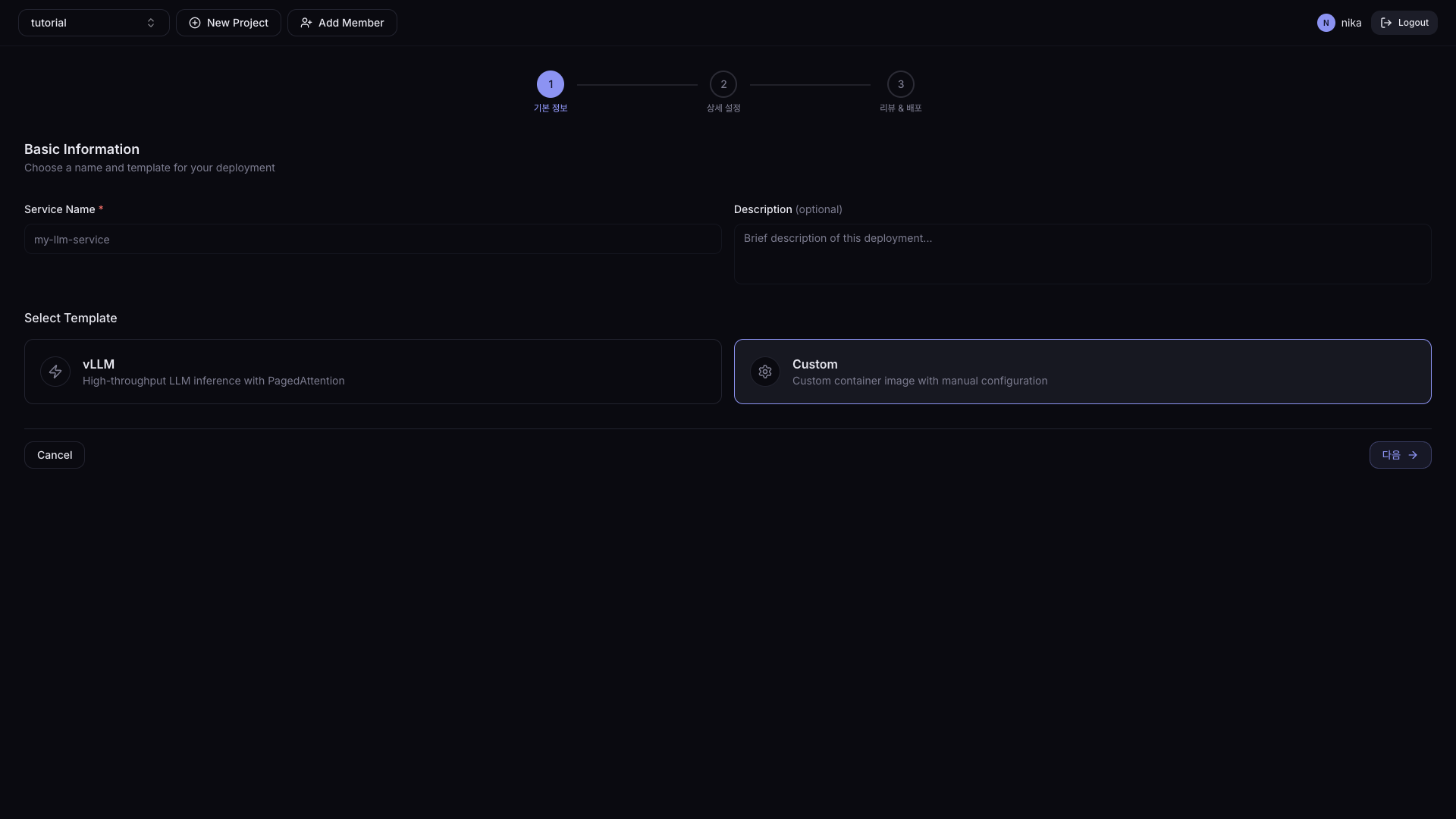
| Field | Description | Required |
|---|---|---|
| Service Name | Serving name (lowercase, digits, hyphens, up to 63 characters) | ✓ |
| Description | Serving description | - |
| Service Template | Inference framework selection | ✓ |
Common settings:
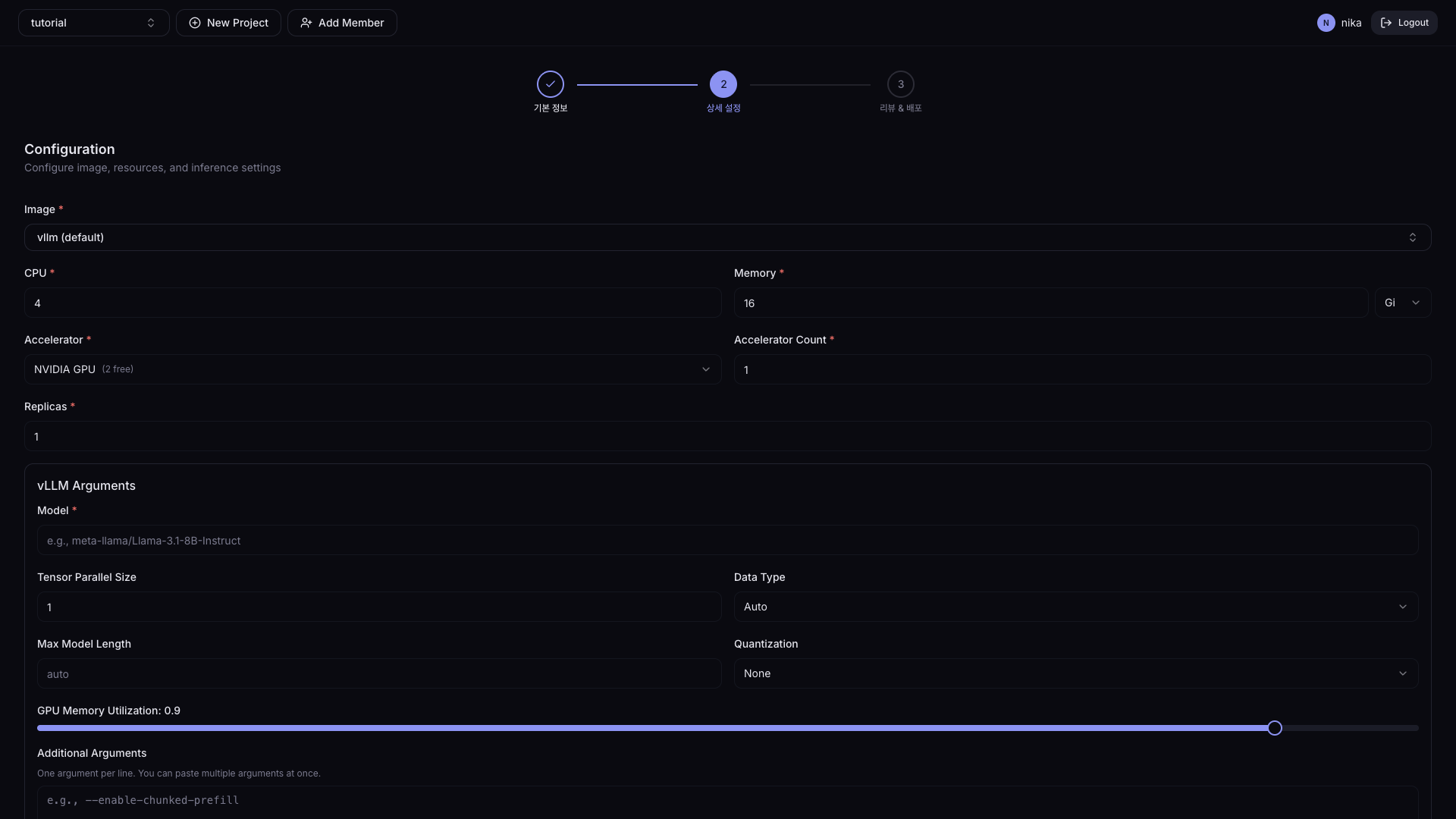
| Field | Description | Default |
|---|---|---|
| Image | Container image | - |
| CPU | Number of CPU cores | 0.5 |
| Memory | Memory | 1Gi |
| Accelerator | Accelerator type | None |
| Accelerator Count | Number of accelerators | 1 |
| Replicas | Number of service containers | 1 |
Per-template additional settings:
- vLLM
- Custom
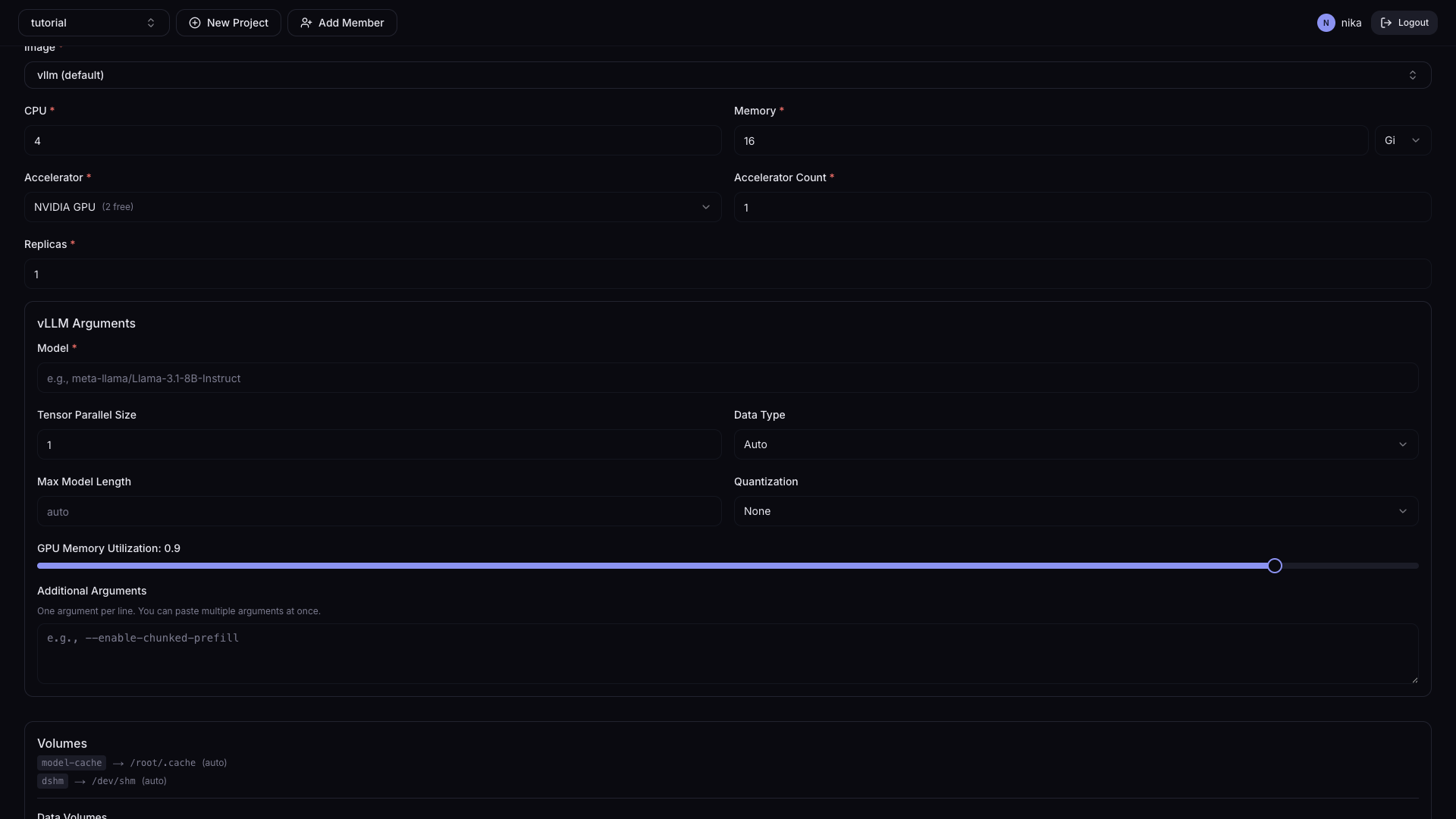
| Field | Description | Default |
|---|---|---|
| Model | Model name or path (e.g., meta-llama/Llama-3.1-8B-Instruct) | - |
| Tensor Parallel Size | Number of GPUs to split the model across | 1 |
| Data Type | Numeric representation for model operations | Auto |
| Max Model Length | Maximum tokens processed (input + output combined) | - |
| Quantization | Reduce model precision to save memory | - |
| GPU Memory Utilization | Fraction of GPU memory vLLM will use (0.0–1.0) | 0.9 |
| Additional Arguments | Enter advanced vLLM settings directly | - |
The Custom template uses only the common settings (Image, CPU, Memory, Accelerator, Replicas) and Advanced Settings. You control it directly via the container image and Command Override.
Data Volumes (optional):
Add PVCs to mount. Hardcoded volumes (model-cache, dshm) are shown as read-only system defaults; users can additionally specify PVCs they created.
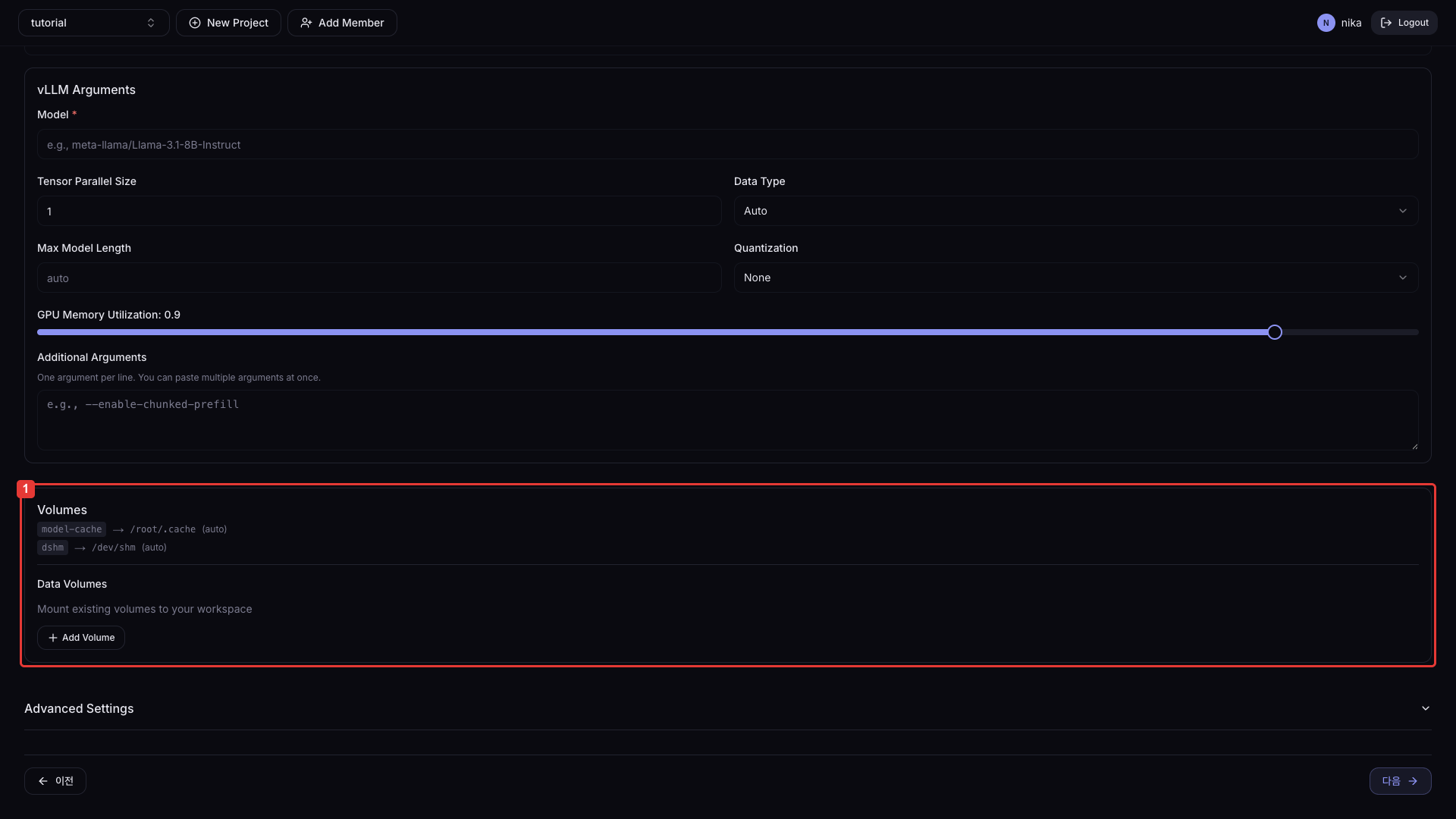
You can mount additional user PVCs via the + Add Volume button.
Advanced Settings (optional):
| Field | Description | Default |
|---|---|---|
| Inference Port | Service inference port | 8000 |
| Command Override | Container start command | - |
| Environment Variables | Environment variables (KEY=VALUE or env file) | - |
| Transformer | Add a pre/post-processing sidecar | - |
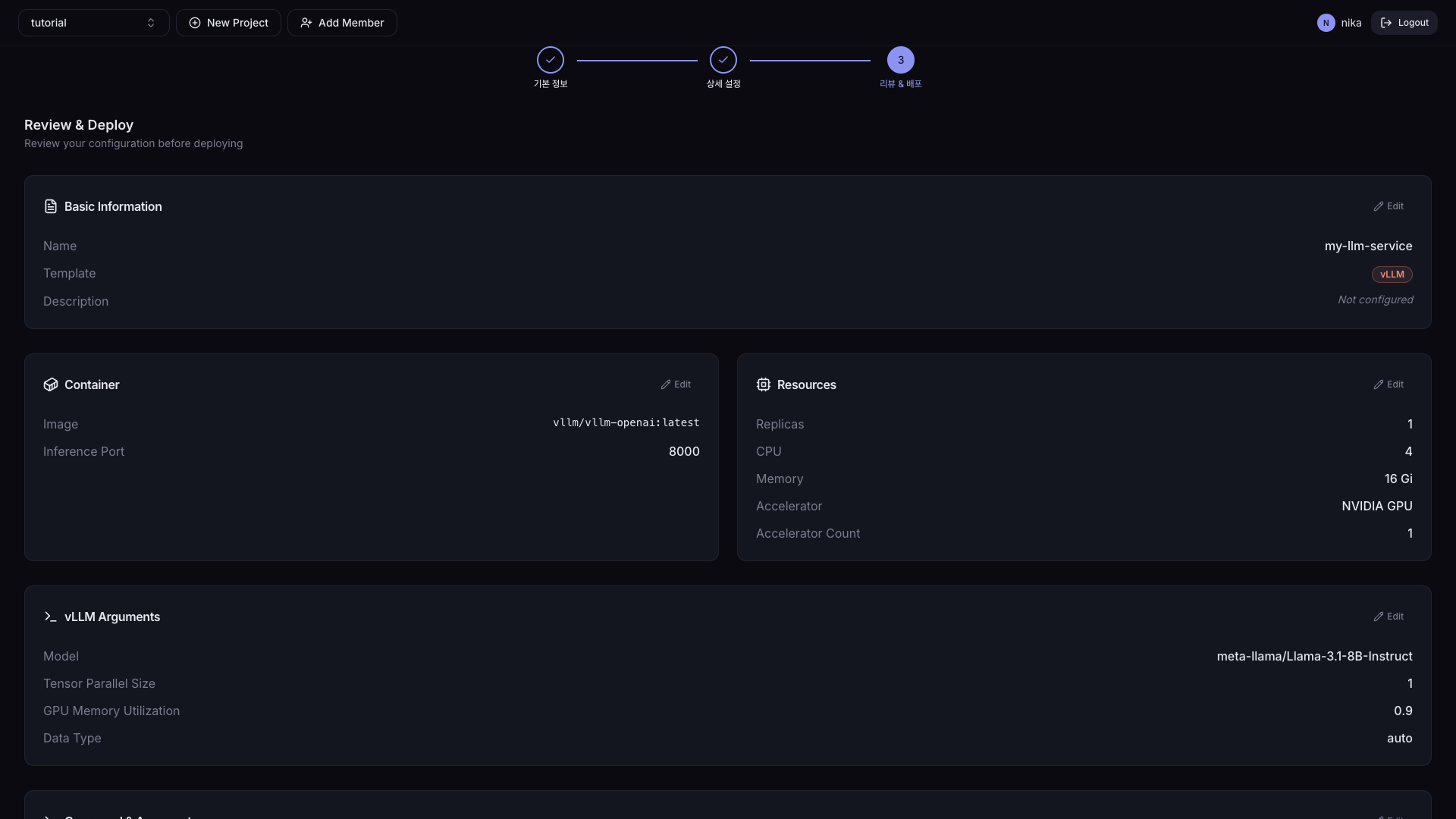
If any spec needs to be changed, click the Edit button. Click the Deploy button at the bottom right to deploy.
Serving Detail Page
Click an item in the Serving list to go to its detail page. Click the Edit button at the top right of the Overview tab to switch into edit mode; after changes, click the Save Changes button in the Floating Save Bar at the bottom of the screen to apply. If changes that require a Pod restart (image, port, resources, volumes, etc.) are included, a confirmation dialog is shown.
- Overview
- Metrics
- Logs
- Async Queue
- Settings
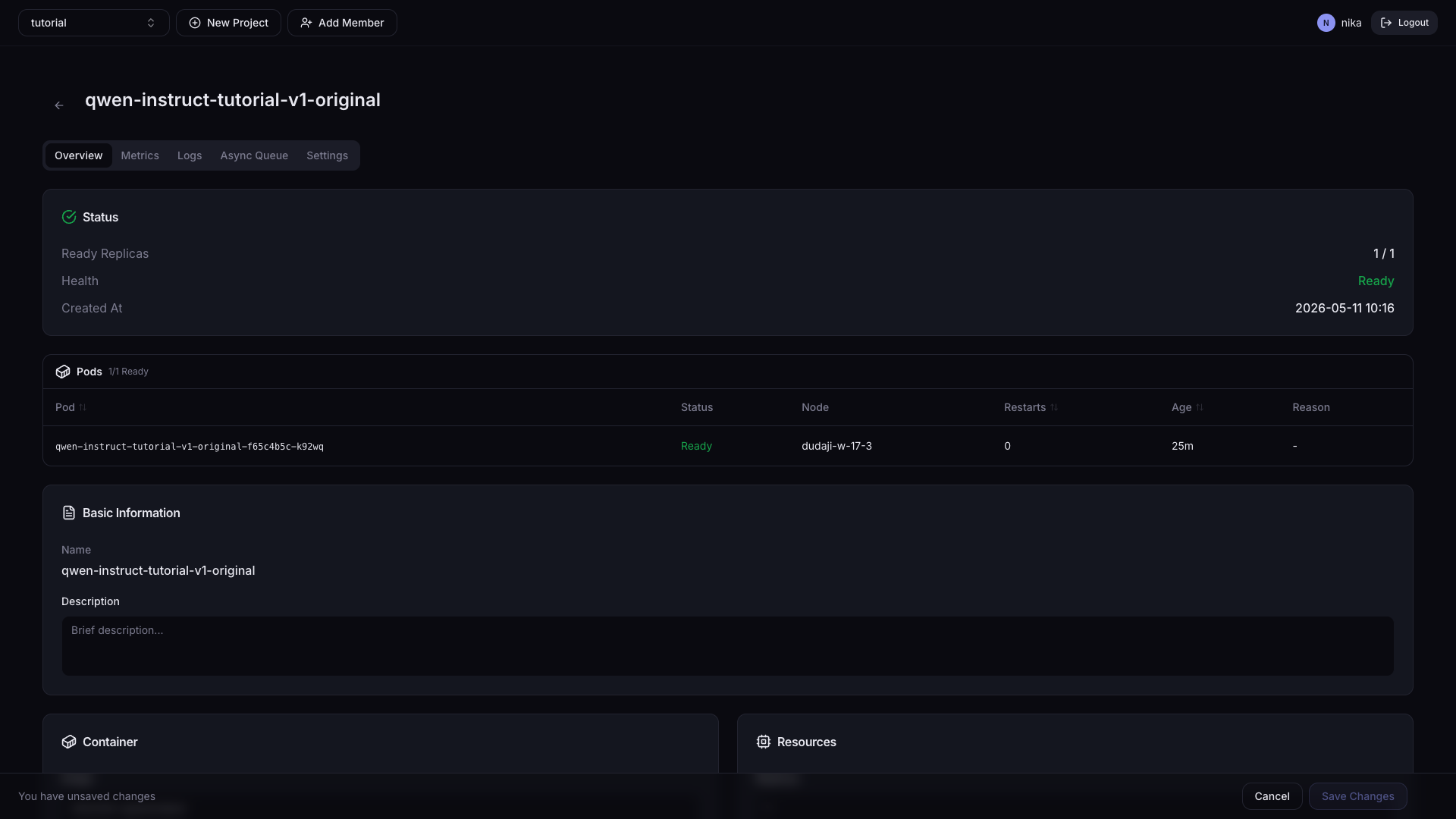
Card Layout
| Card | Description |
|---|---|
| Status | Ready Replicas, Health, Auto Scaling, creation time |
| Basic Information | Serving name, description |
| Container | Container image, inference port |
| Resources | CPU, Memory, accelerator type/count, Replicas |
| Command & Arguments | Container start command and arguments |
| Environment Variables | List of environment variables |
| Volumes | List of mounted PVCs |
| Transformer | Pre/post-processing sidecar settings |
| Pods | Per-Pod status table — failing Pods sorted first |
Pods section
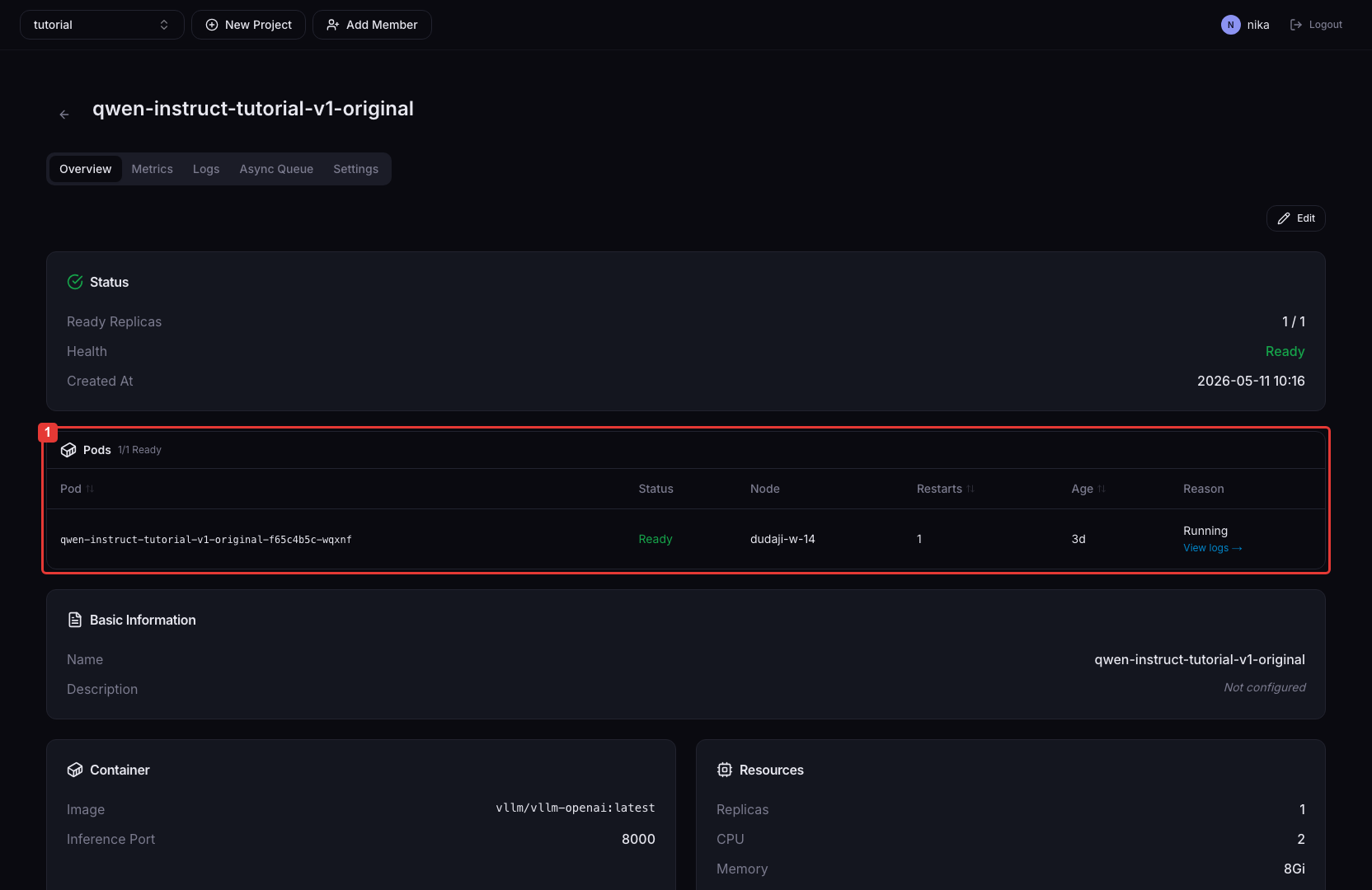
Shows per-Pod status, node, restart count, age, and failure reason in a table.
| Column | Description |
|---|---|
| Status | Current status of the Pod (Running / Pending / CrashLoopBackOff, etc.) |
| Node | Name of the node the Pod is scheduled on |
| Restarts | Container restart count |
| Age | Time since the Pod was created |
| Reason | Failure reason shown when Ready=false or on error |
| View logs | Log link shown for Pods where Ready=false or restartCount > 0. Opens a new tab to the Logs tab of that Pod. |
Failing Pods are sorted to the top of the table.
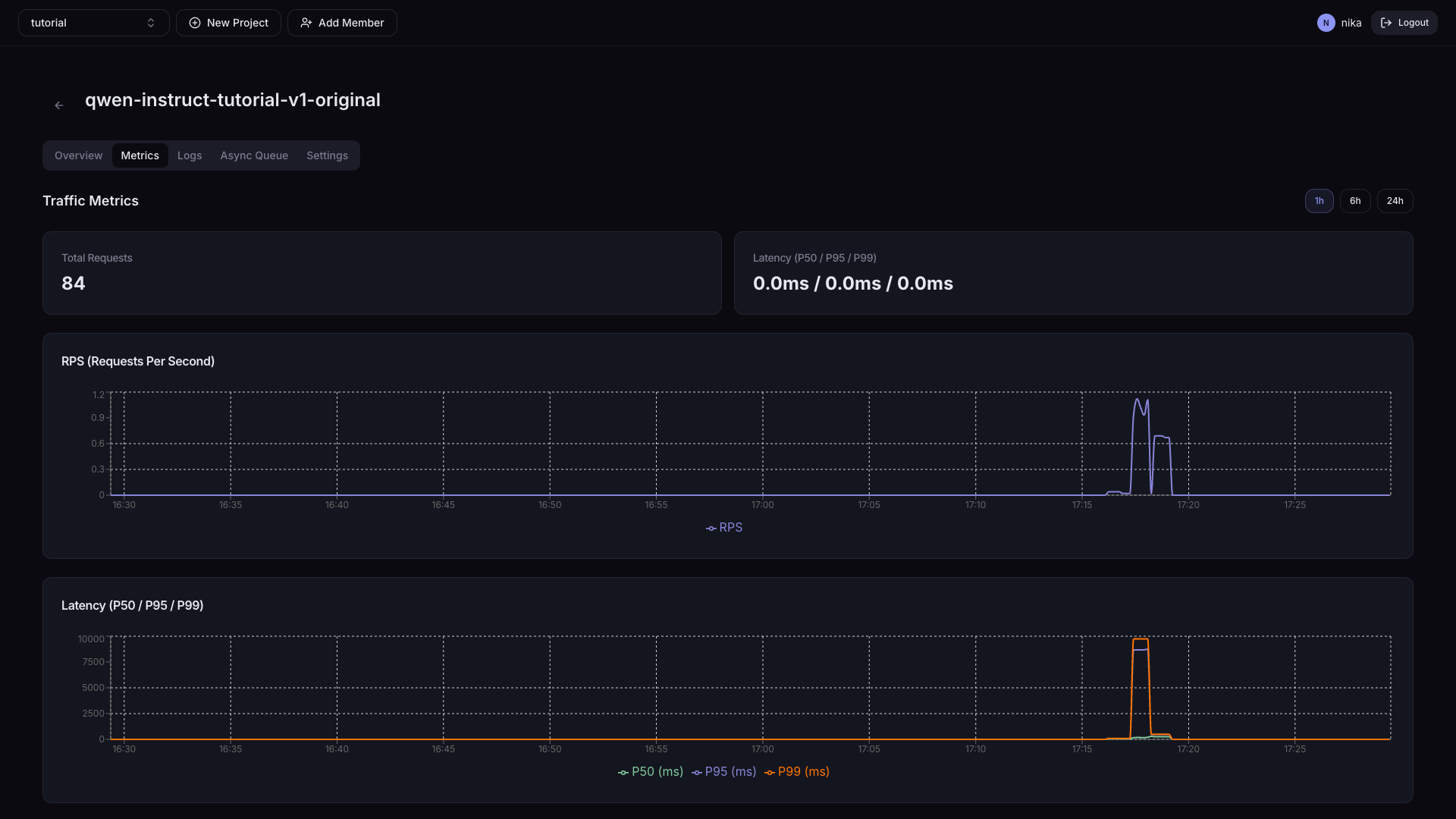
Use the time range buttons (1h / 6h / 24h) at the top right to adjust the graph period.
| Card | Information |
|---|---|
| Total Requests | Total request count |
| Latency (P50 / P95 / P99) | Current request response times |
| RPS graph | Time series of requests per second |
| Latency graph | Time series of P50/P95/P99 response times |
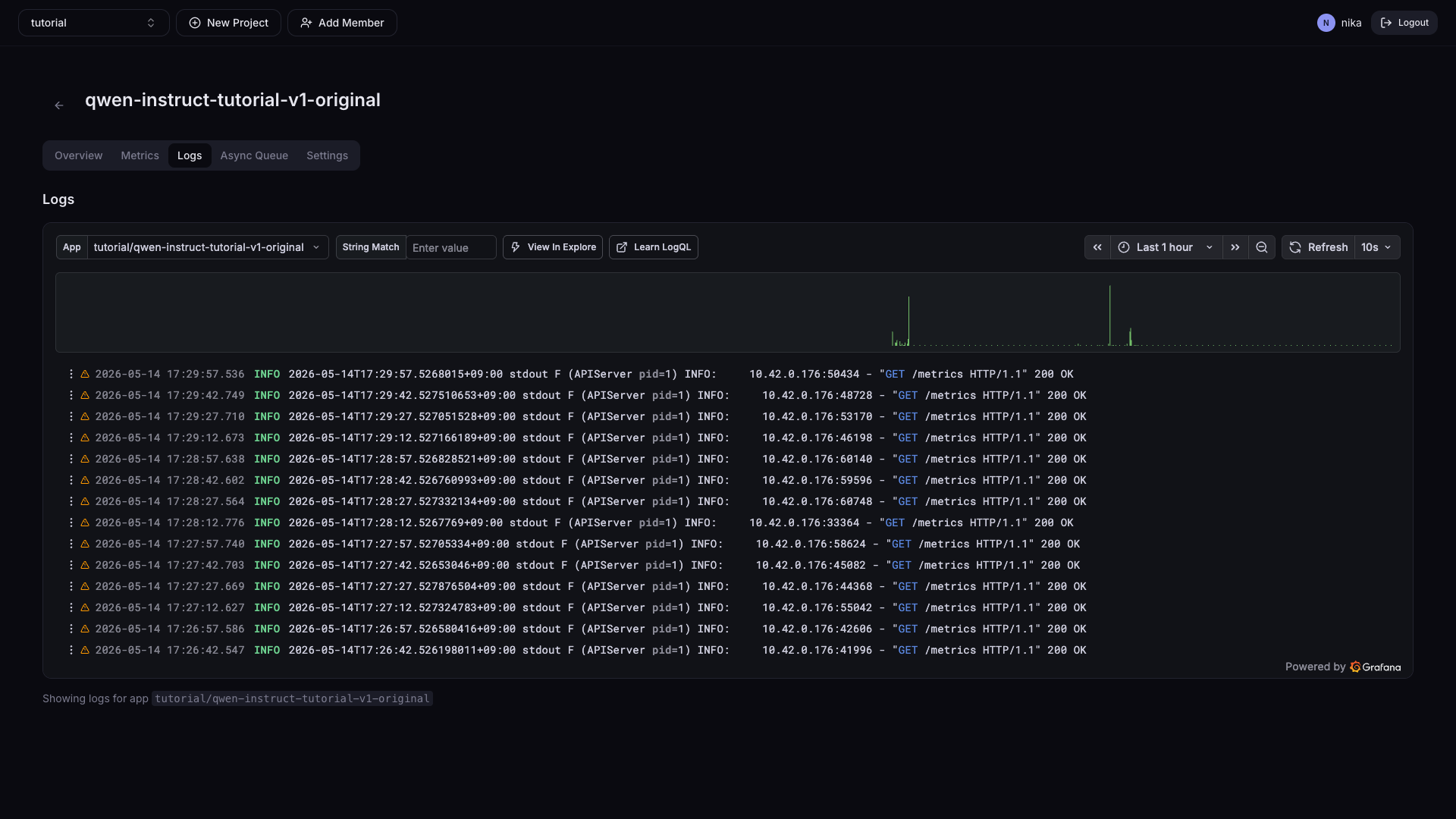
Prints the runtime logs of the inference server container.
When you enable Async Queue in Settings, you can browse the asynchronous request list and the results.
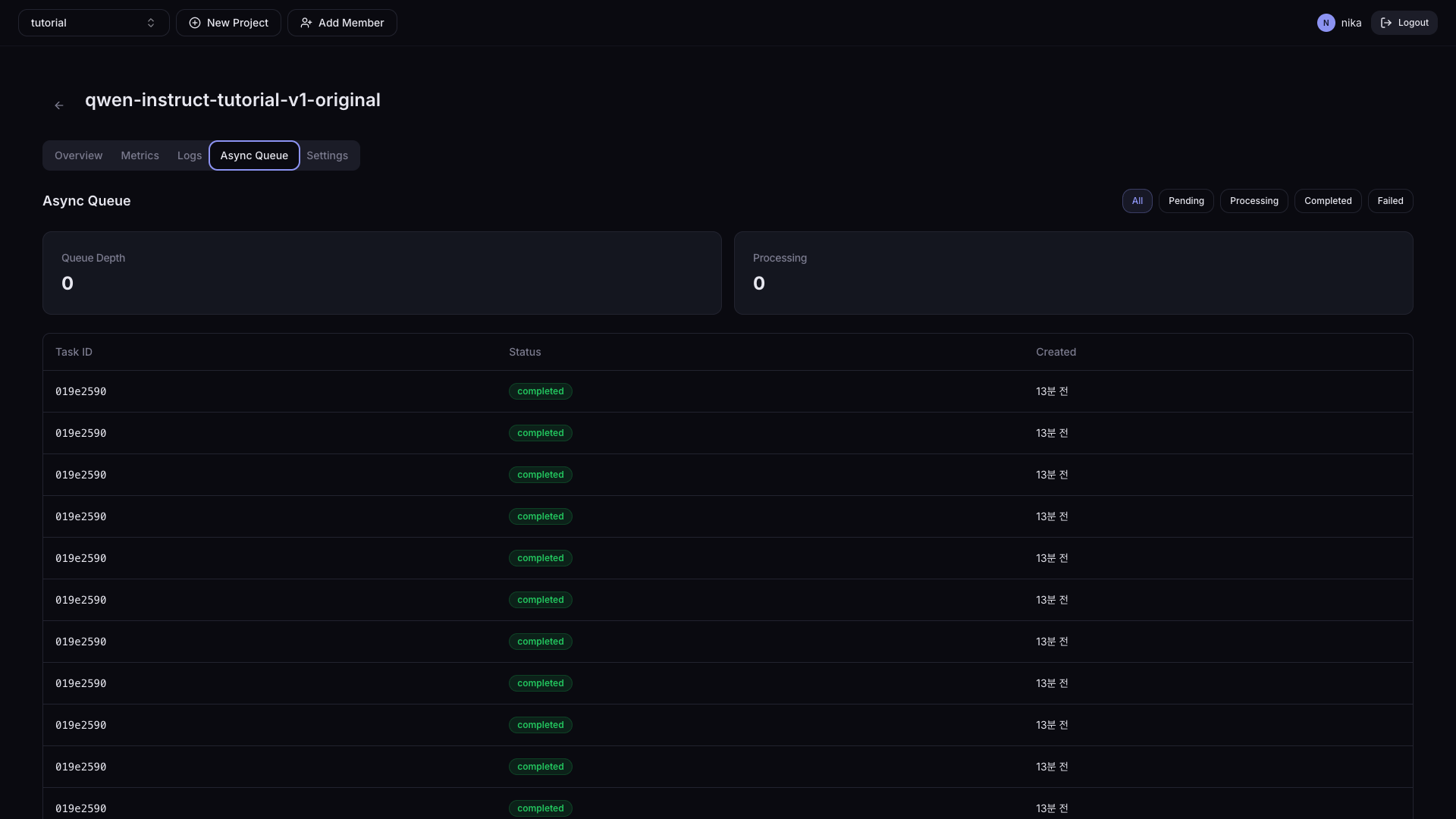
| Item | Description |
|---|---|
| Status filter | All / Pending / Processing / Completed / Failed |
| Queue Depth | Number of Tasks currently in the queue |
| Processing | Number of Tasks currently in progress |
Click a specific Task to view Request / Response details.
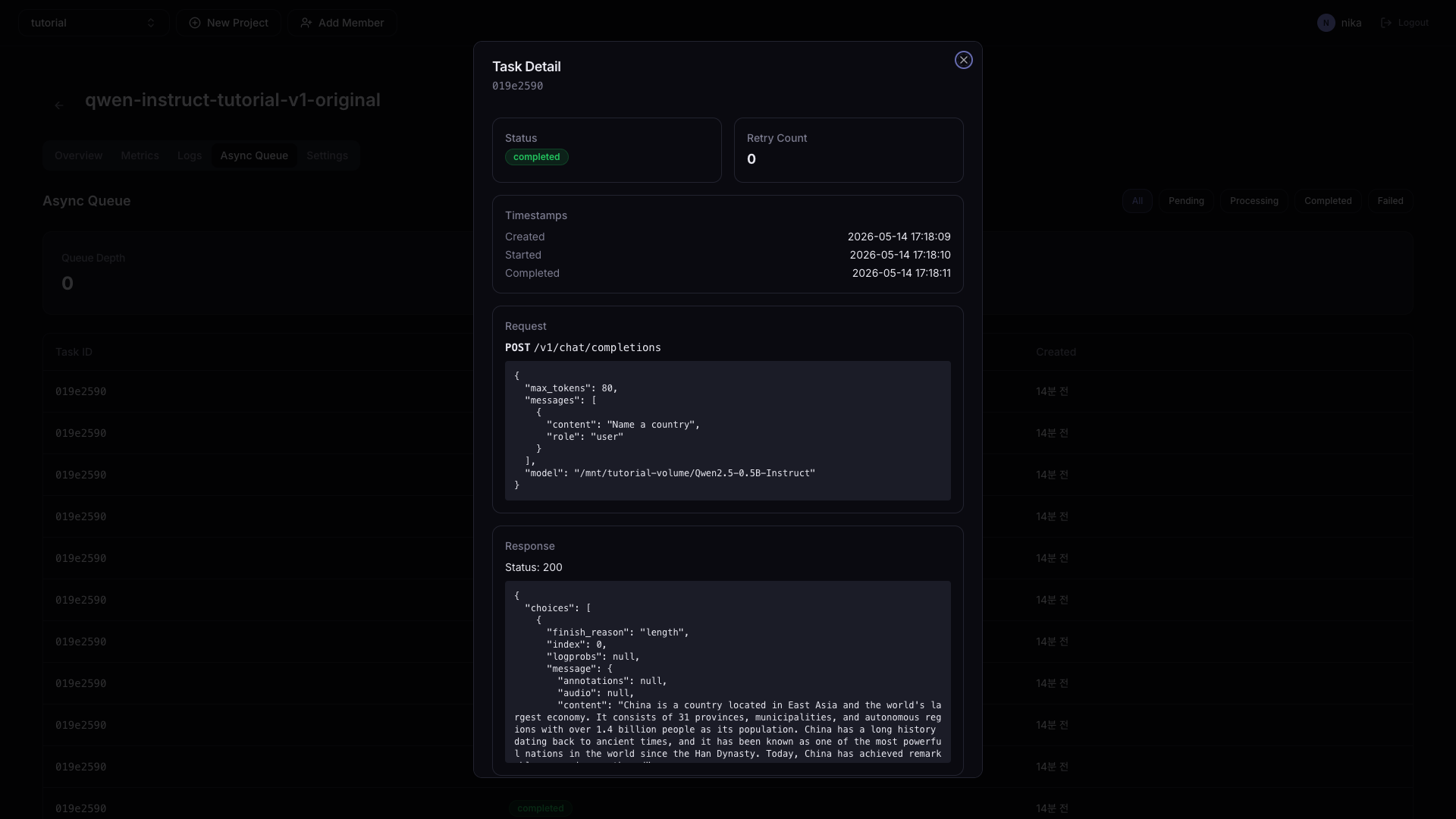
How to make an async request — Add the X-Async: true header to the HTTP request.
curl -X POST 'https://<deployment-endpoint>/v1/chat/completions' \
  -H 'Content-Type: application/json' \
  -H 'Authorization: Bearer <token>' \
  -H 'X-Async: true' \
  -d '{"model": "model-name", "messages": [{"role": "user", "content": "Hello"}]}'
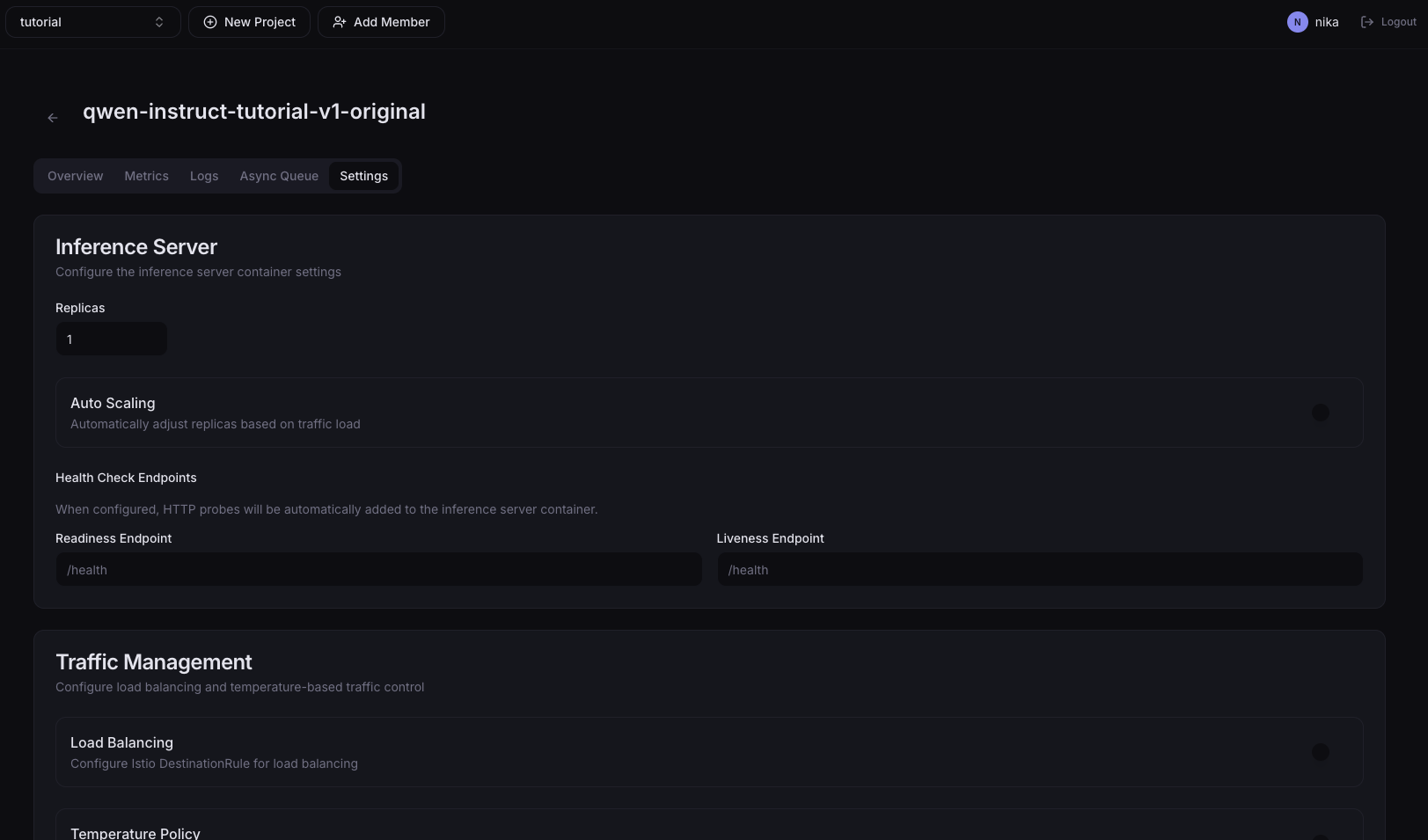
Change the settings needed to operate the Serving — inference server scaling, health checks, traffic distribution, async queue, and more. For per-item details, see Advanced Deployment Settings.
Naming Rules
- Lowercase letters, digits, and hyphens (-) are allowed
- Must not start or end with a hyphen
- Up to 63 characters (Kubernetes limit)
Examples: my-model-v1, llm-server-prod
Supported Accelerators
| Accelerator | Resource Key | Available Features |
|---|---|---|
| NVIDIA GPU | nvidia.com/gpu | Lab, Serving |
| Furiosa RNGD | furiosa.ai/rngd | Lab, Serving |