Model Compilations
Convert models registered in the Model Registry into NPU-specific binaries automatically. When conversion completes, the resulting artifact is auto-registered in the Model Registry and can be deployed immediately.
Prerequisites
- A model and a version must already be registered in the NuFi Model Registry.
- The target artifact's platform must be the original format (e.g.,
safetensors), notrngd. - The cluster must have sufficient CPU and memory resources.
How to Start NPU Compile
NPU compilation starts from the model version detail page.
- In the left sidebar, click Models to go to the model list page.
- Click the row of the model you want to compile to go to the model detail page, then click the row of the version you want to compile to go to the version detail page.
- From the version detail page, you can start a compilation in two ways:
- Click the Quick Compile button in the Compilations tab
- Click the
 icon on the right of each row in the Artifacts tab (opens the creation dialog with that artifact preselected)
NPU Compile List
In the Compilations tab of the version detail page, you can see the compilation history for that version.
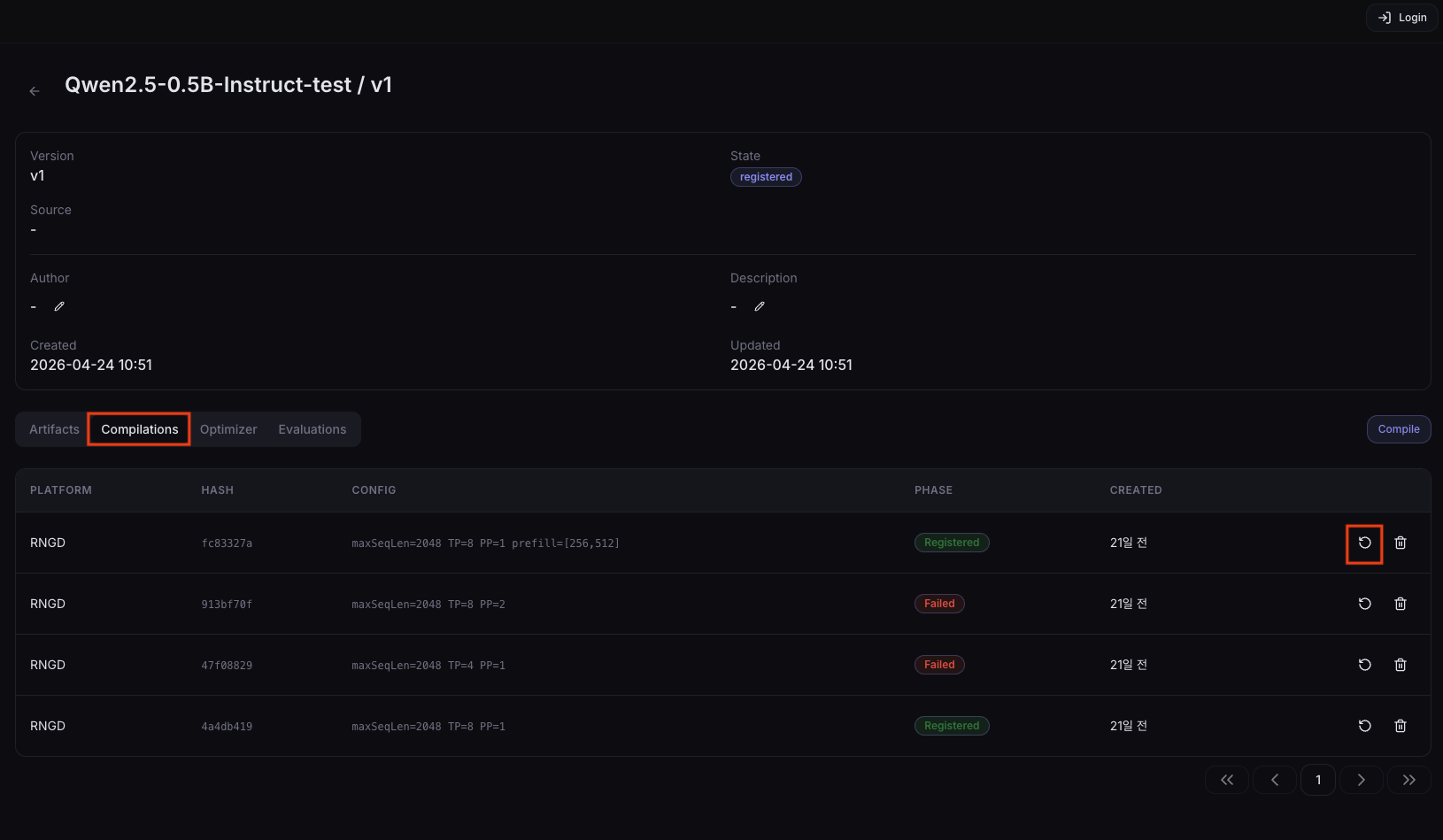
Columns
| Column | Description |
|---|---|
| Platform | Target NPU platform |
| Hash | Hash of the compile options (identifies same-option runs) |
| Config | Shows a View button for entries with saved compile options. Click it to open the Compile Config dialog and review Max Seq Len, Tensor Parallel, Pipeline Parallel, Prefill Buckets, Decode Buckets, and Tokenwise Seq Lens. Older entries without saved config are shown as -. |
| Phase | Current pipeline state |
| Created | Creation time |
Status
| Phase | Description | Recovery |
|---|---|---|
| Pending | The pipeline is waiting to be scheduled | Check that the cluster has sufficient resources. |
| Running | The compilation step is in progress | — |
| Succeeded | Compilation complete. The NPU artifact has been registered in the Model Registry. | — |
| Failed | One or more steps failed | Check the failing step's logs on the detail page and re-run using the retry button. |
| Registered | The compilation result has been registered in the Model Registry | — |
Action Icons
The icons on the right of each row, from left to right:
| Icon | Action | Description |
|---|---|---|
 | Re-compile | Opens the creation dialog pre-filled with this pipeline's compile options. The existing run is preserved in history. Disabled while the run is Pending/Running or when the entry has no saved compile options. |
 | Delete | Deletes this compilation history entry. After confirmation, the pipeline and history entry are permanently deleted. |
Create a Pipeline
Click the Compile button to open the creation dialog.
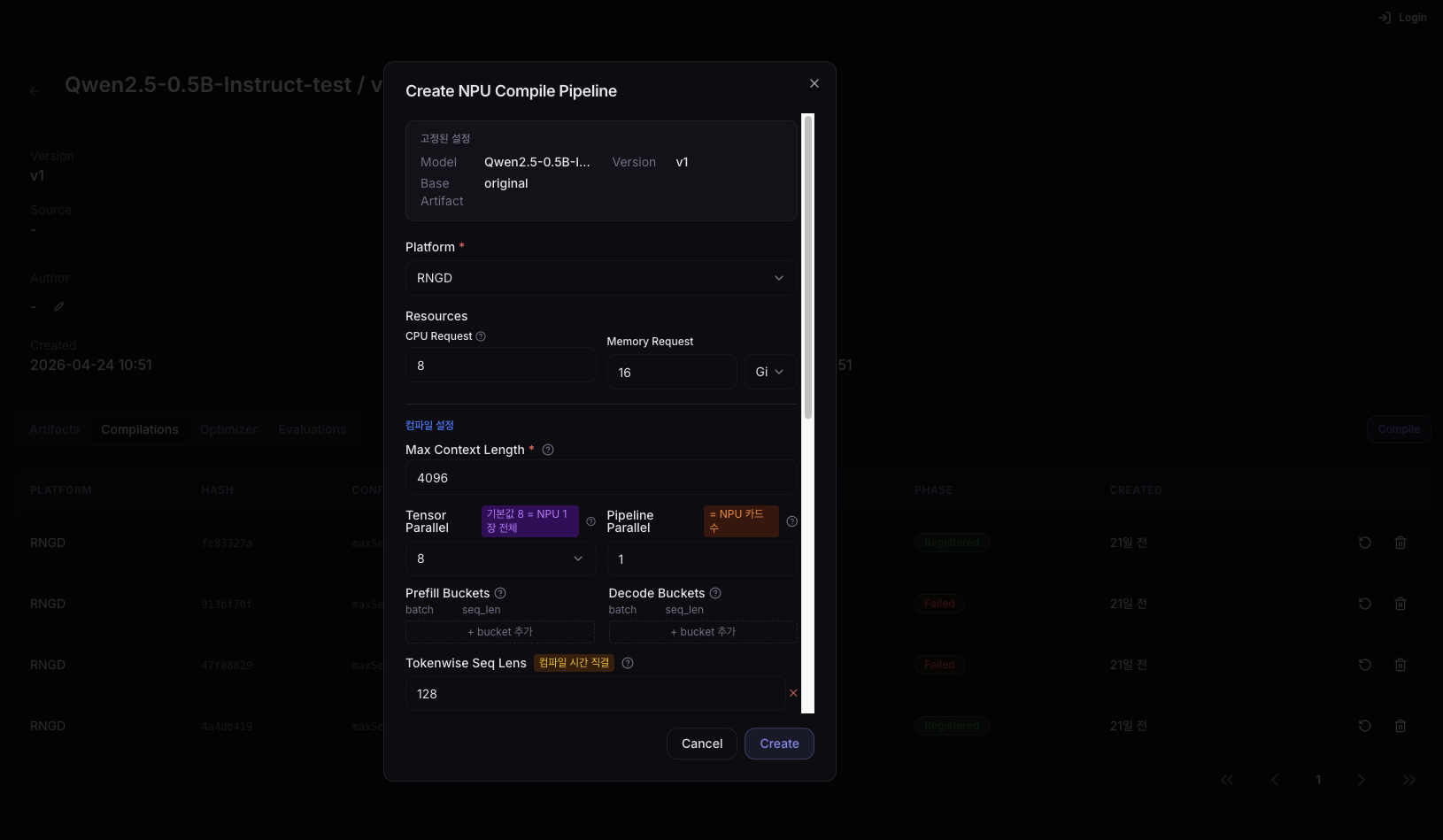
Pinned Settings
The pinned settings area at the top of the dialog shows the compilation target information determined at entry time. The user cannot change these.
| Item | Description |
|---|---|
| Model | Model name from the version detail page where you entered |
| Version | The version you entered |
| Base Artifact | The artifact to convert. When entering via Quick Compile on the Compilations tab, the original artifact for that version (e.g., original) is auto-selected. When entering via the CPU icon in the Artifacts tab, the clicked artifact is auto-selected. |
Platform Selection
| Field | Description | Required |
|---|---|---|
| Platform | Select the target NPU platform (e.g., RNGD) | ✓ |
Resource Settings
| Field | Description |
|---|---|
| CPU Request | Number of CPU cores to allocate to the compile Job |
| Memory Request | Memory size to allocate to the compile Job |
Compile Settings
| Field | Description |
|---|---|
| Max Context Length | Maximum number of context tokens the model will process. Longer values increase memory requirements. |
| Tensor Parallel | Number of NPU internal cores to parallelize the tensor across. Typically set as a multiple of 4. |
| Pipeline Parallel | Number of pipeline parallel stages. Distributes model layers across multiple NPUs. |
| Prefill Buckets | Sequence-length bucket list for the Prefill stage (comma-separated). If requested empty, buckets appropriate for Max Context Length are set. Examples: 1,128, 1,512 |
| Decode Buckets | Batch-size bucket list for the Decode stage (comma-separated). If requested empty, buckets appropriate for Max Context Length are set. Examples: 1,512, 1,1024 |
| Tokenwise Seq Lens | Memory-space window sizes used during token generation. Directly affects compile time. Typically include all powers of 2 from 128 up to Max Context Length. Example: 128,256,512,1024,2048,4096 |
| Additional Args | Additional arguments to pass directly to the compiler. RNGD does not currently support additional arguments. |
| Environment Variables | Environment variables to inject into the compile Job container. Enter as KEY=VALUE, one per line, or drag and upload a .env file. For gated Hugging Face models that require an authentication token, add it as HF_TOKEN=hf_.... |
- Tensor Parallel / Pipeline Parallel: Set these to match the number of NPU devices you have. If you use a single NPU, set Tensor Parallel to
8and Pipeline Parallel to1. RNGD has 8 cores per NPU. - Prefill / Decode Buckets: Set these based on the expected input length distribution of your actual service. More buckets mean longer compile time and larger binary size.
When you select RNGD as the platform, Additional Args input is automatically disabled and a 'Python SDK · args unsupported' badge is shown. RNGD compilation uses the Python SDK (ArtifactBuilder) and does not support additional arguments. When switching the platform to RNGD, any previously entered Additional Args value is cleared automatically.
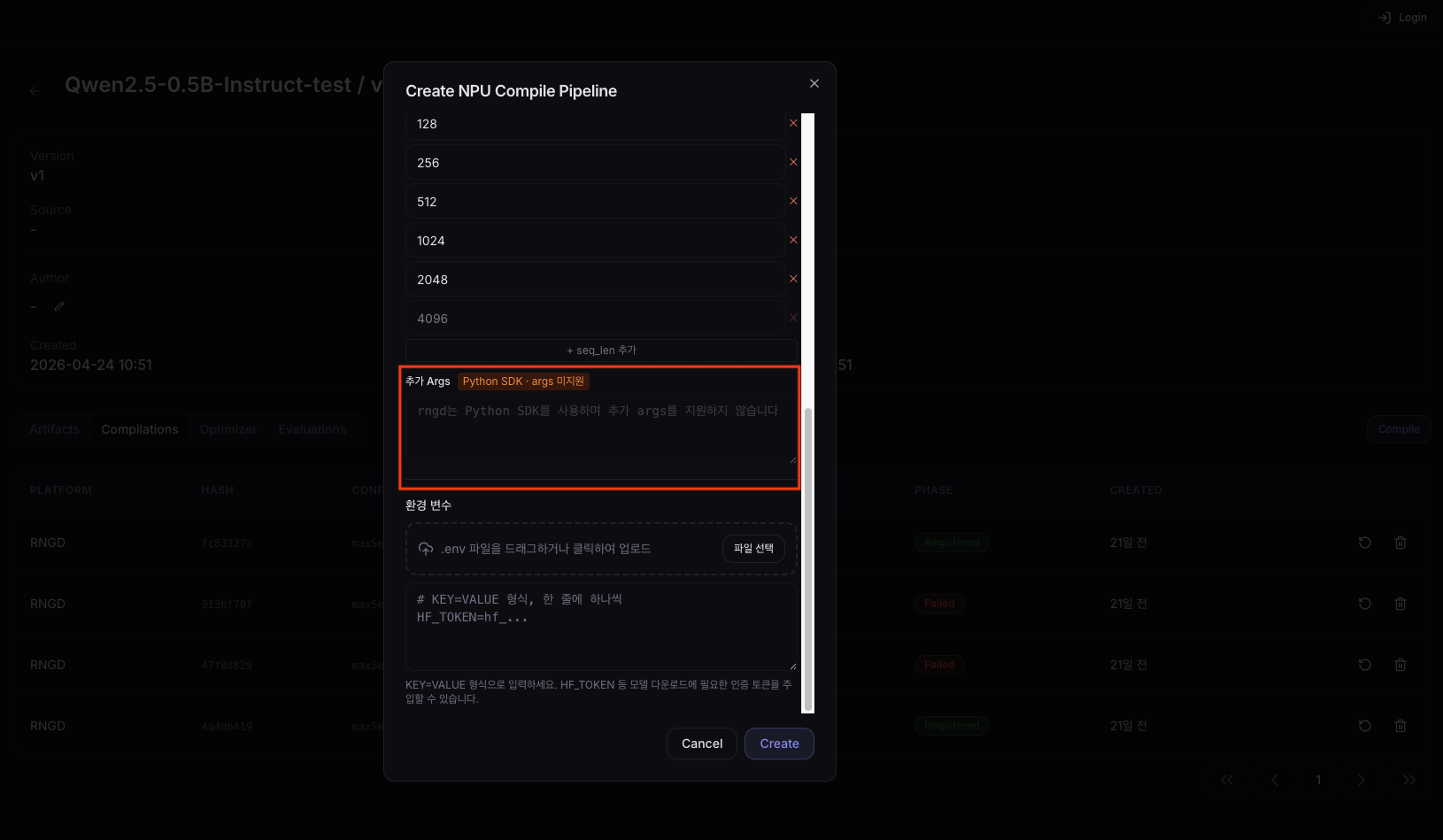
As shown above, when you select the RNGD platform, a 'Python SDK · args unsupported' badge appears next to the Additional Args input and the input becomes disabled automatically.
When you click the Create button, the pipeline starts.
Pipeline Detail
Click a pipeline row in the list to navigate to the detail page.
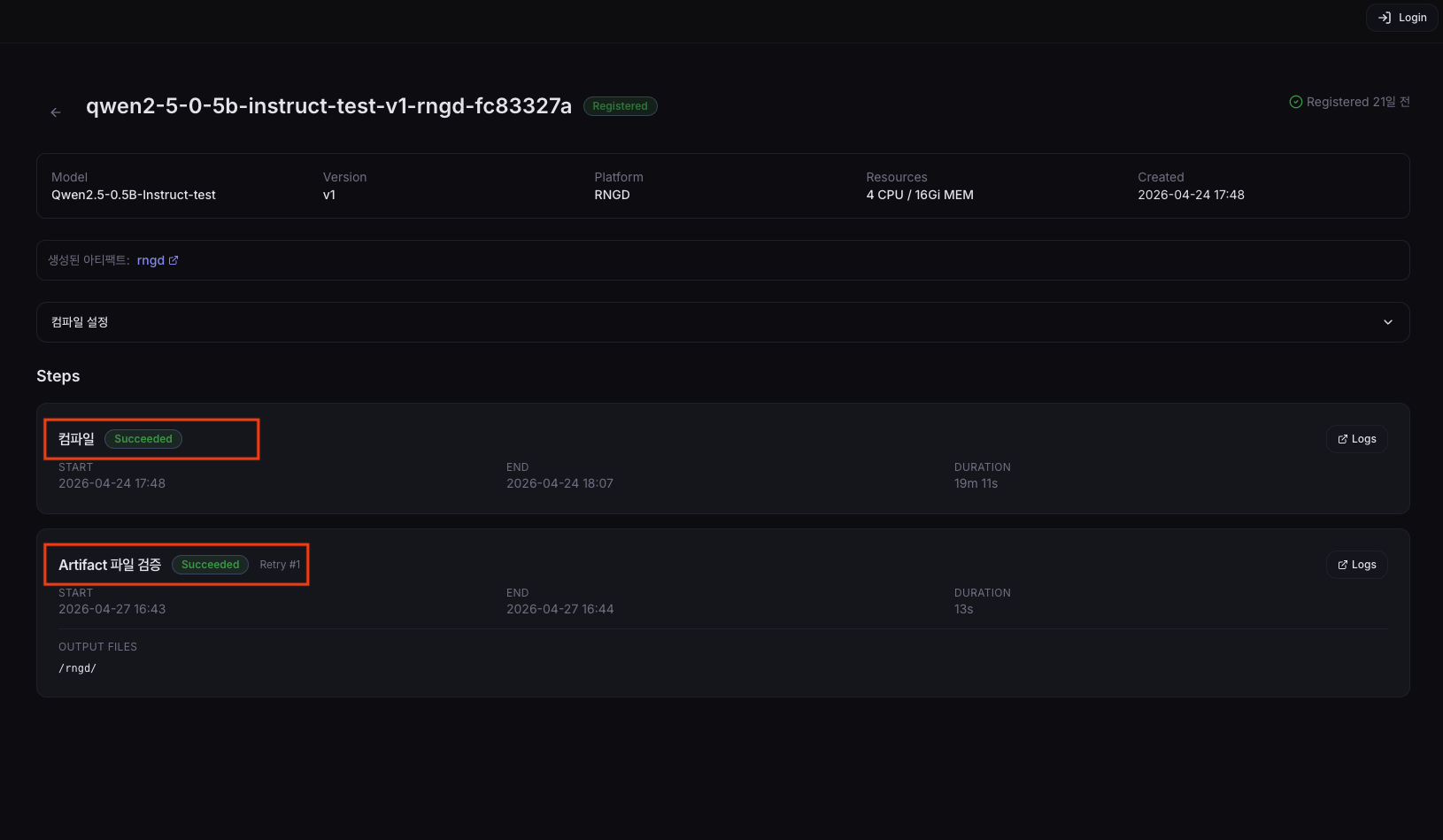
The detail page is structured as a 2-step timeline.
| Step | Description |
|---|---|
| Compile | Convert the model into the NPU-specific binary. |
| Artifact file verification | Only verifies that the artifact files produced by the Compile step exist at the expected paths. Does not load onto the actual device or perform inference. The atomic publish is performed at this step. |
Each step card shows the following information.
| Item | Description |
|---|---|
| Phase | Current status of the step (Pending / Running / Succeeded / Failed) |
| Start / End time | Step execution start and end timestamps |
| Duration | Time the step took to execute |
| Retry Count | Number of retries (shown only when retried 1 or more times) |
| Output Files | List of output files produced by the step |
| Log link | Link to the detailed logs for this step |
Per-step retry: When the pipeline is in a Failed state overall, the Retry button on each failed step card can re-run that step independently. For example, if only the Artifact file verification step failed, you can retry only the verification step without re-running the Compile step.
When both the Compile and verification steps reach the Succeeded state, the compiled NPU artifact is automatically added to the original version in the Model Registry. After that, you can run Quick Deploy with that artifact.
Check Compile Settings
Below the Meta information card on the detail page, a Compile Settings card is shown. You can verify all of the compile options used when the pipeline was created here.
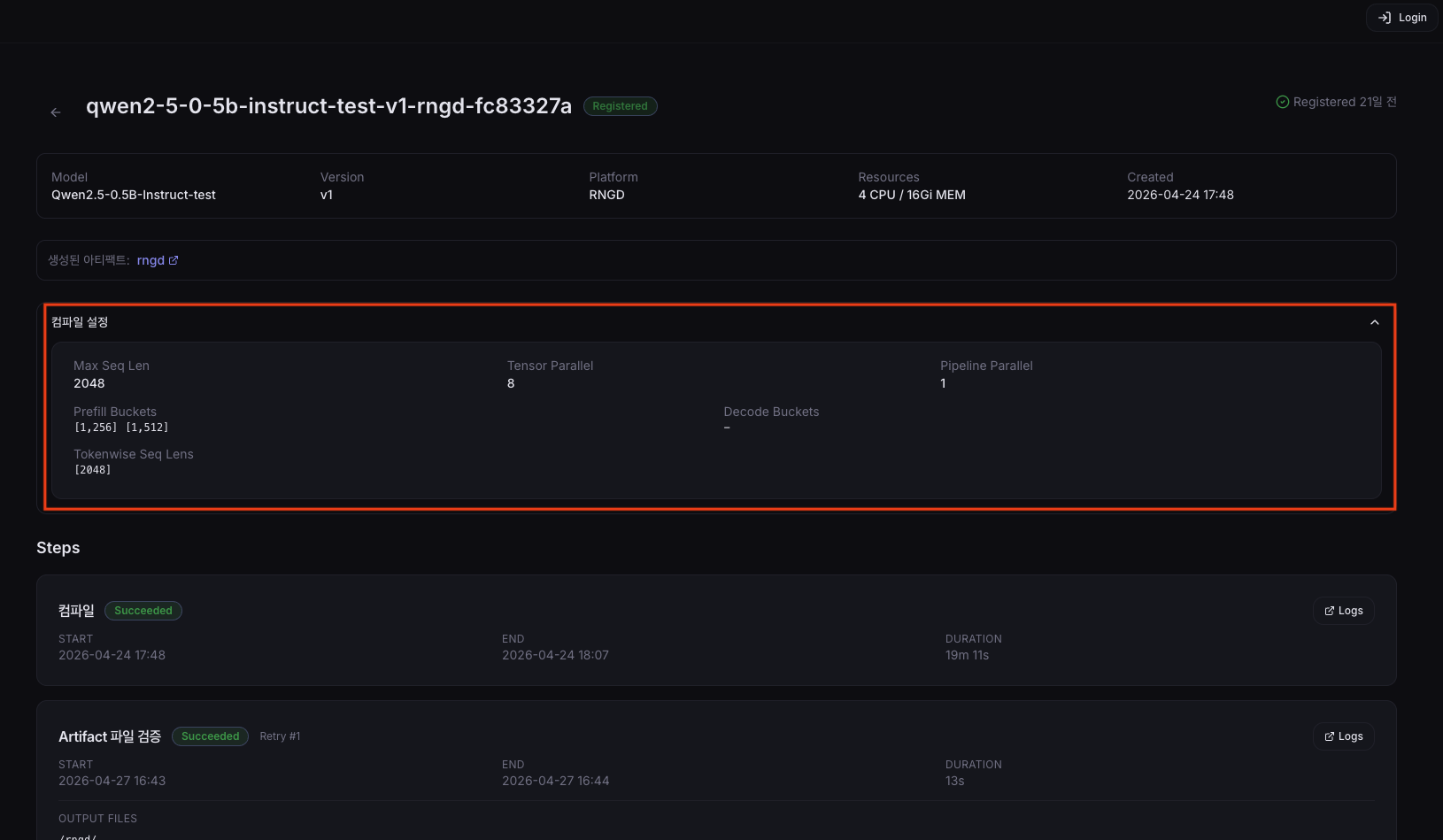
| Field | Description |
|---|---|
| Max Seq Len | Maximum context token count set at compile time |
| Tensor Parallel | Number of NPU cores for tensor parallelism |
| Pipeline Parallel | Number of pipeline parallel stages |
| Prefill Buckets | Sequence-length bucket list for the Prefill stage |
| Decode Buckets | Batch-size bucket list for the Decode stage |
| Tokenwise Seq Lens | List of memory-space window sizes for token generation |