Volumes
This page walks you through creating PVC-based Volumes and mounting them on Labs and Servings to share model files, datasets, and more.
Volume List
Click Volumes in the left sidebar to see the Volume list for the current project.
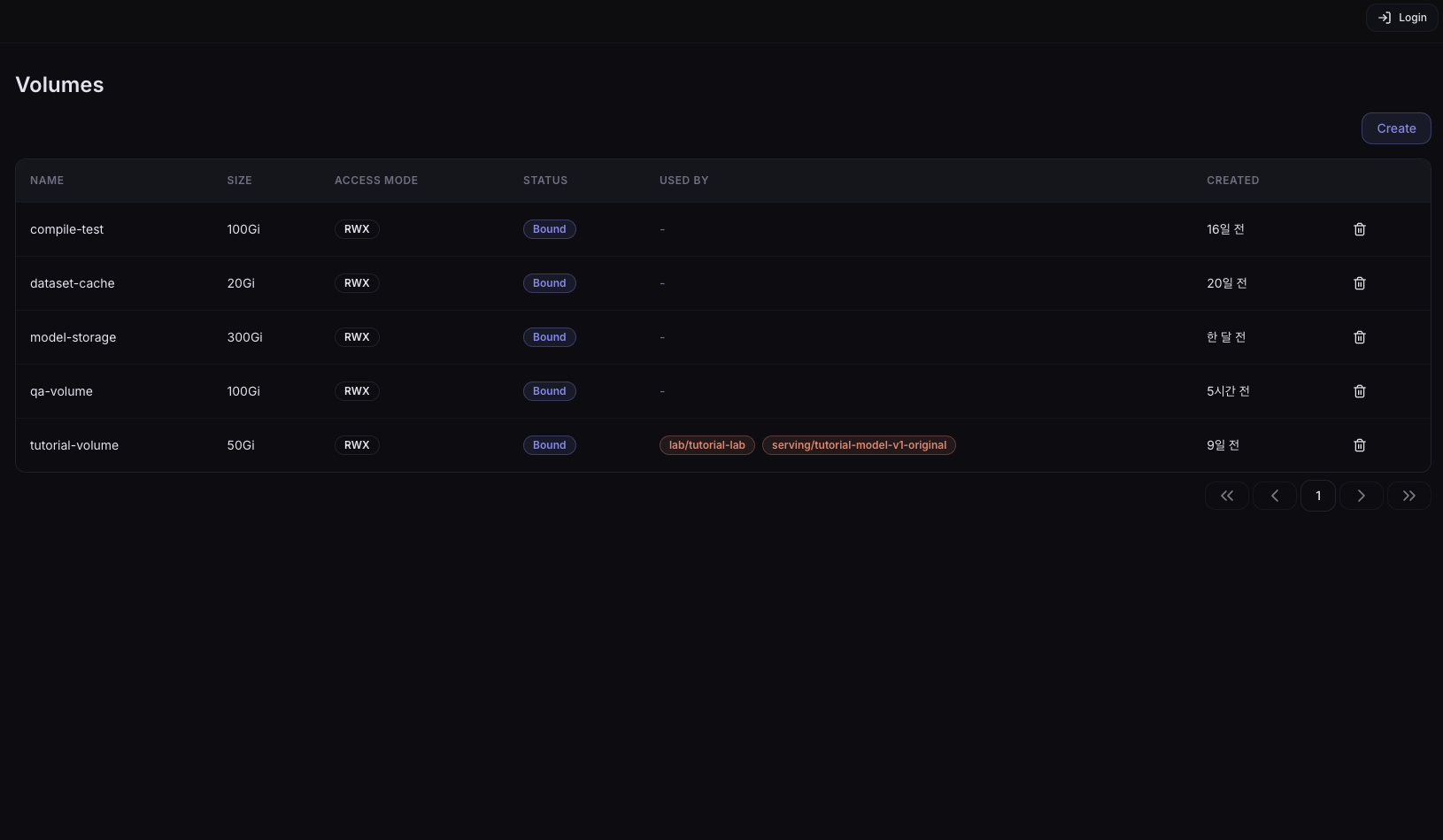
Columns
| Column | Description |
|---|---|
| Name | Volume name |
| Size | Volume capacity |
| Access Mode | Volume access mode (RWX, etc.) |
| Status | PVC binding status (Bound / Pending, etc.) |
| Used By | List of Labs / Servings currently mounting this Volume |
| Created | Creation time |
Create a Volume
- Click the Create button in the upper right of the Volume list page.
- Fill in the required information in the creation form.
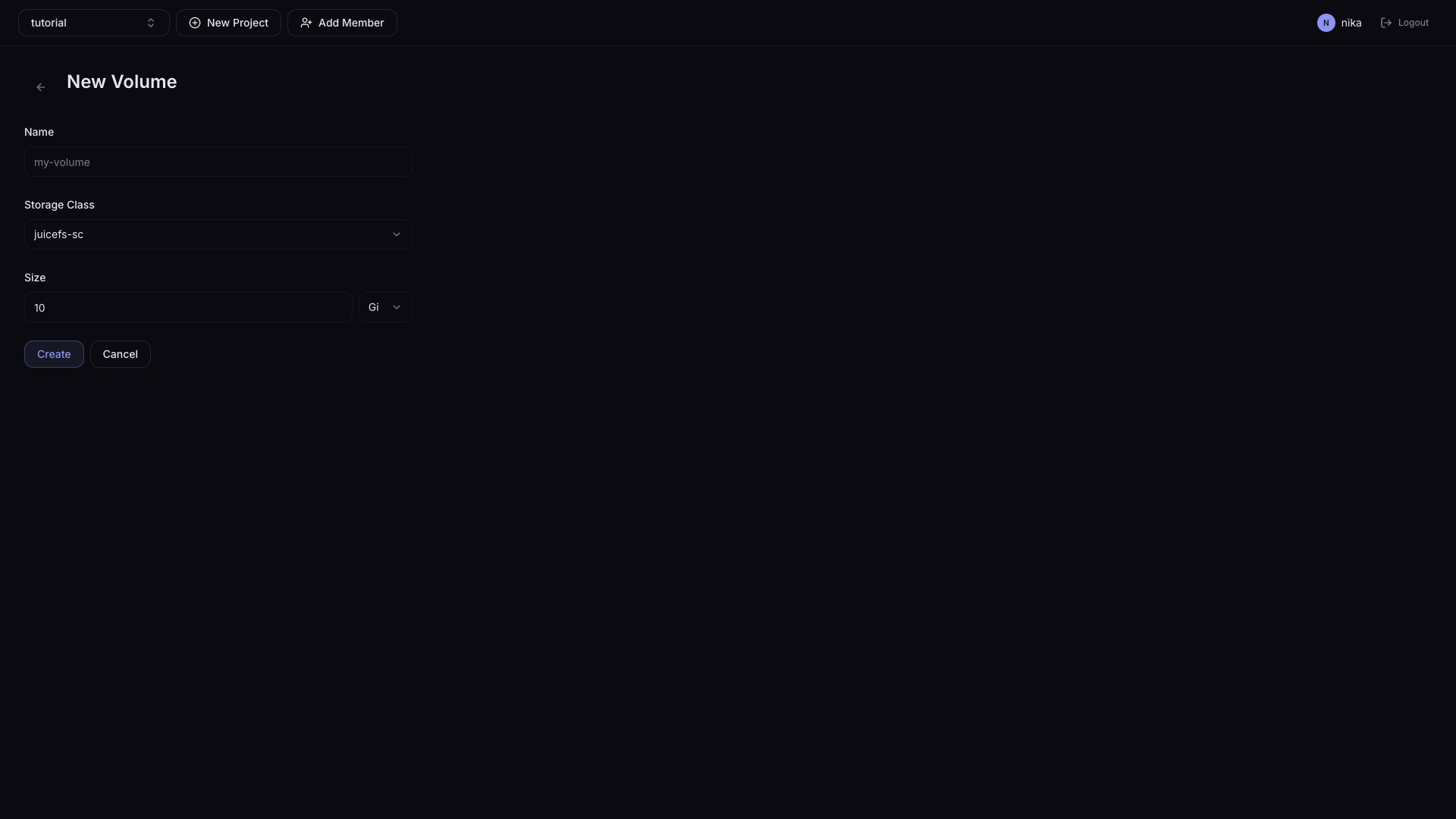
| Field | Description |
|---|---|
| Name | Volume name (lowercase, digits, hyphens / unique within the project) |
| Storage Class | Storage class |
| New Volume / Link existing path | Dynamic provisioning or static provisioning |
| Size | Volume capacity (e.g., 10Gi) |
- Dynamic provisioning (leave Mount Path empty): the Storage Class creates the PV automatically. This is the simplest way to use a new Volume and is the recommended option in most cases.
- Static provisioning (enter Mount Path): connect an existing NFS path (
nfs.csi.k8s.io) or node-local path (local-path) on the cluster as a NuFi Volume. Use this when you need to reuse an existing data path or point to a specific storage server.
- Click the Submit button.
A Volume's size can be changed after creation. If a Volume's capacity becomes insufficient, use the resize feature on the Volume detail page.
Volume Detail Page
Click a row in the Volume list to navigate to the detail page.
- Overview
- File Browser
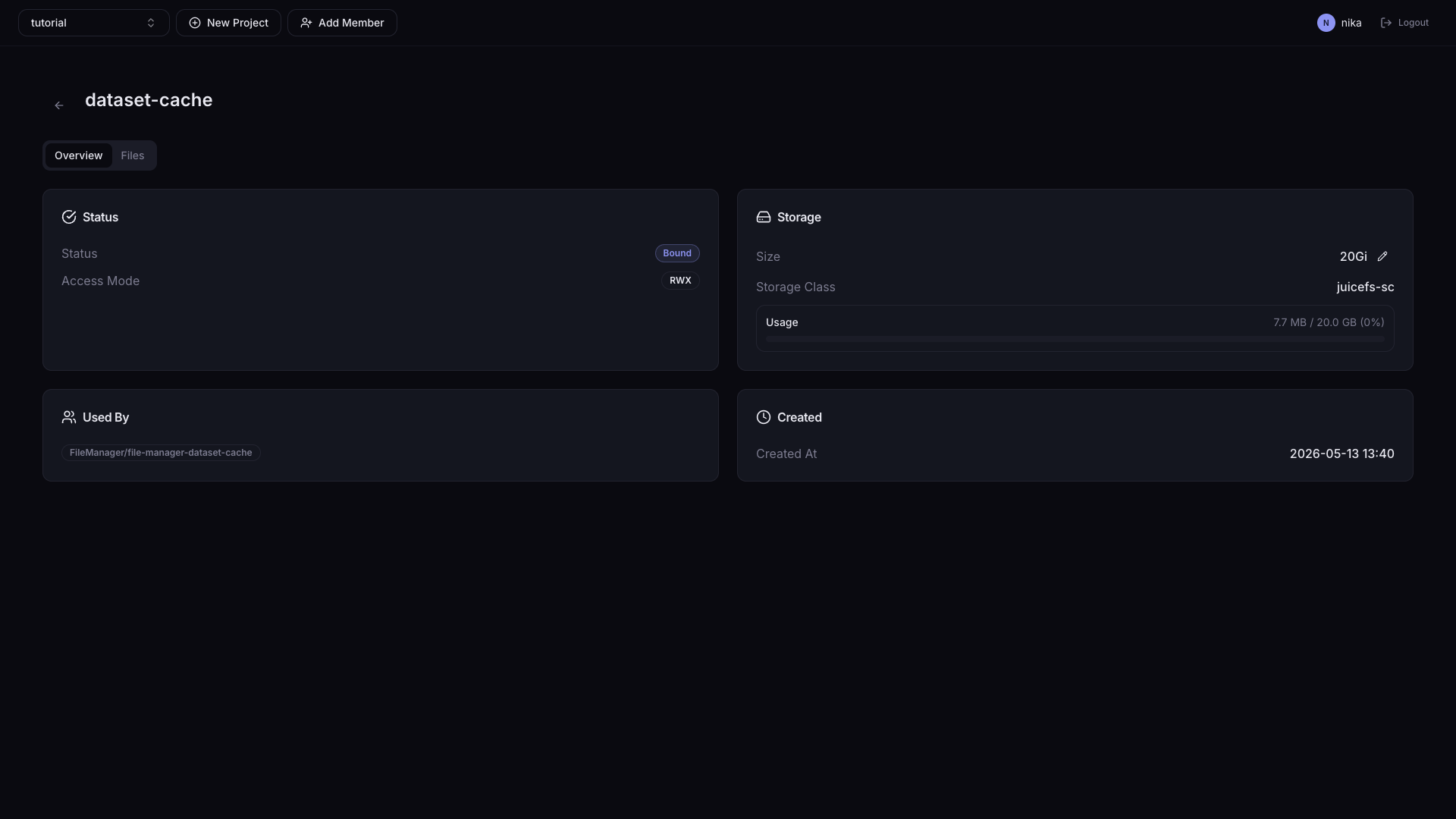
| Card | Information |
|---|---|
| Status | Status (PVC binding status), Access Mode |
| Storage | Size, Storage Class, Usage |
| Used By | List of Labs / Servings currently mounting this Volume |
| Created | Creation time |
Resize Volume
Click the edit (pencil) icon next to the Size item in the Storage card to increase the Volume capacity. This icon appears only when the Volume is in the Bound state.
To resize a Volume, follow these steps.
- In the Volume list, click a row for a Volume in the Bound state.
- In the Storage card on the Overview tab, click the edit icon next to the Size item.
- Enter the new size as a number (unit: fixed to Gi).
- Click the save (✓) icon or press Enter to apply.
- Only values larger than the current size are accepted (shrinking is not supported). Entering a value equal to or smaller than the current size shows an inline error message.
- Errors at the Kubernetes level (e.g., exceeding the StorageClass maximum capacity) are delivered as toast messages.
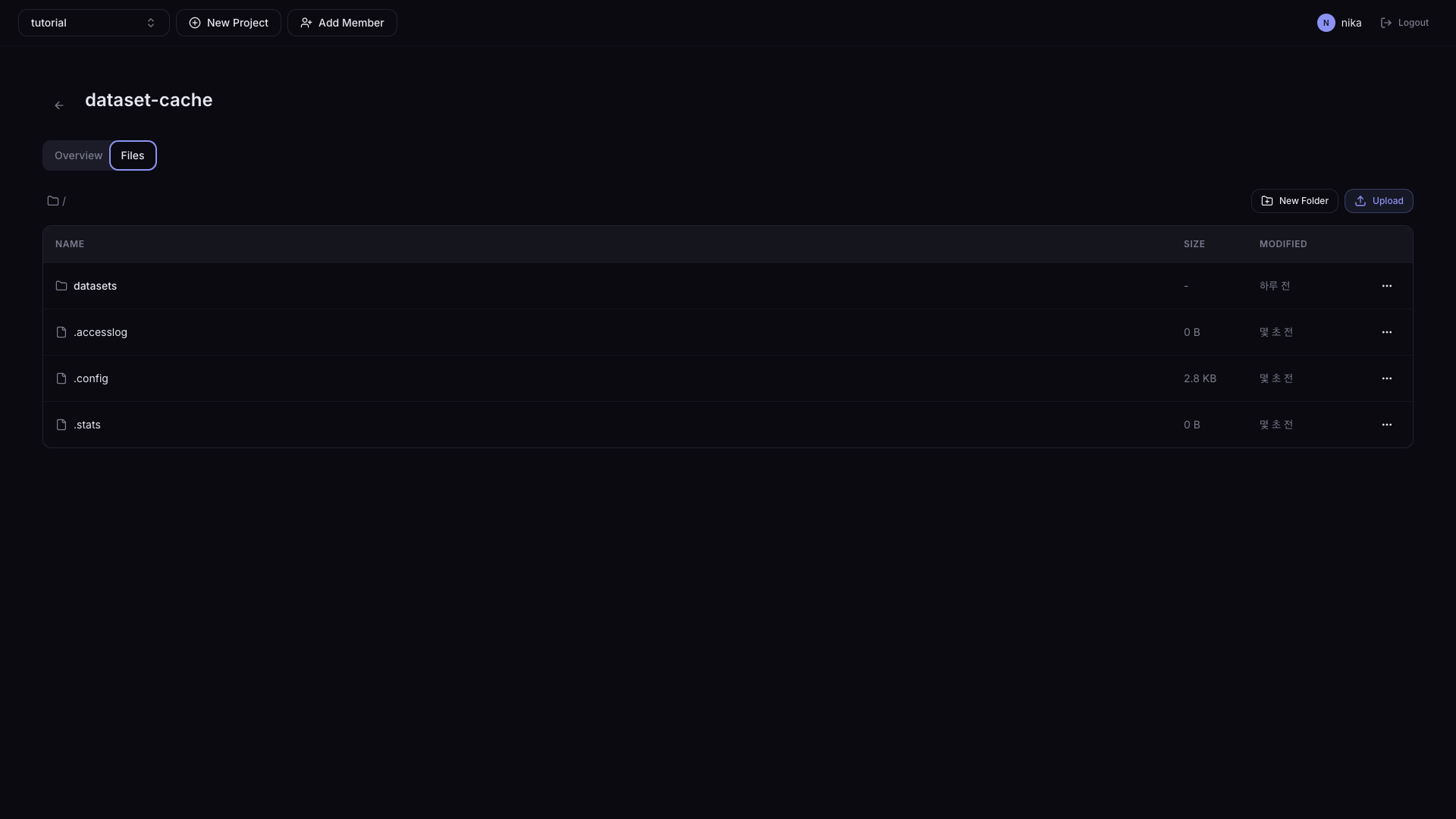
You can perform file management actions directly from the web UI — listing files, uploading, creating directories, moving and deleting files.
| Button | Description |
|---|---|
| Upload | Upload local files to the Volume |
| New Folder | Create a new folder |
Delete a Volume
In the Volume list, click the Delete button for the Volume you want to delete.
A Volume currently mounted by a Lab or Serving cannot be deleted. First detach the Volume from those resources, then delete it.