Devices
Administrators can add, edit, and delete accelerator devices directly from the dashboard UI. Built-in devices (gpu, rngd, rbln) are read-only and cannot be edited or deleted.
This menu appears only for accounts that have the nufi-admin role.
Prerequisites
Before registering a custom device, the following two components must be installed in the Kubernetes cluster where NuFi is deployed.
You can check whether they are installed with the following commands.
# Verify Device Plugin installation — the custom resource key must appear under the node's Capacity.
kubectl describe node <node-name> | grep -i <resource-key>
# e.g. kubectl describe node <node-name> | grep -i nvidia.com/gpu

# Verify Metric Exporter installation — metrics must be collected by Prometheus.
kubectl get pods -A | grep -i exporter
| Component | Role |
|---|---|
| Device Plugin | Registers custom resources such as nvidia.com/gpu under the Kubernetes node Capacity. Lets NuFi schedule Pods using that resource key. |
| Metric Exporter | Collects Prometheus metrics (e.g., DCGM Exporter) and provides utilization, temperature, power, and memory data to the monitoring dashboard. |
At device registration, the Resource Key you enter is actually looked up against the cluster node Capacity via kubectl describe node. If the resource does not exist in the cluster, registration is rejected. Register the device only after the Device Plugin is properly installed.
Device list
Click Admin > Devices in the left sidebar.
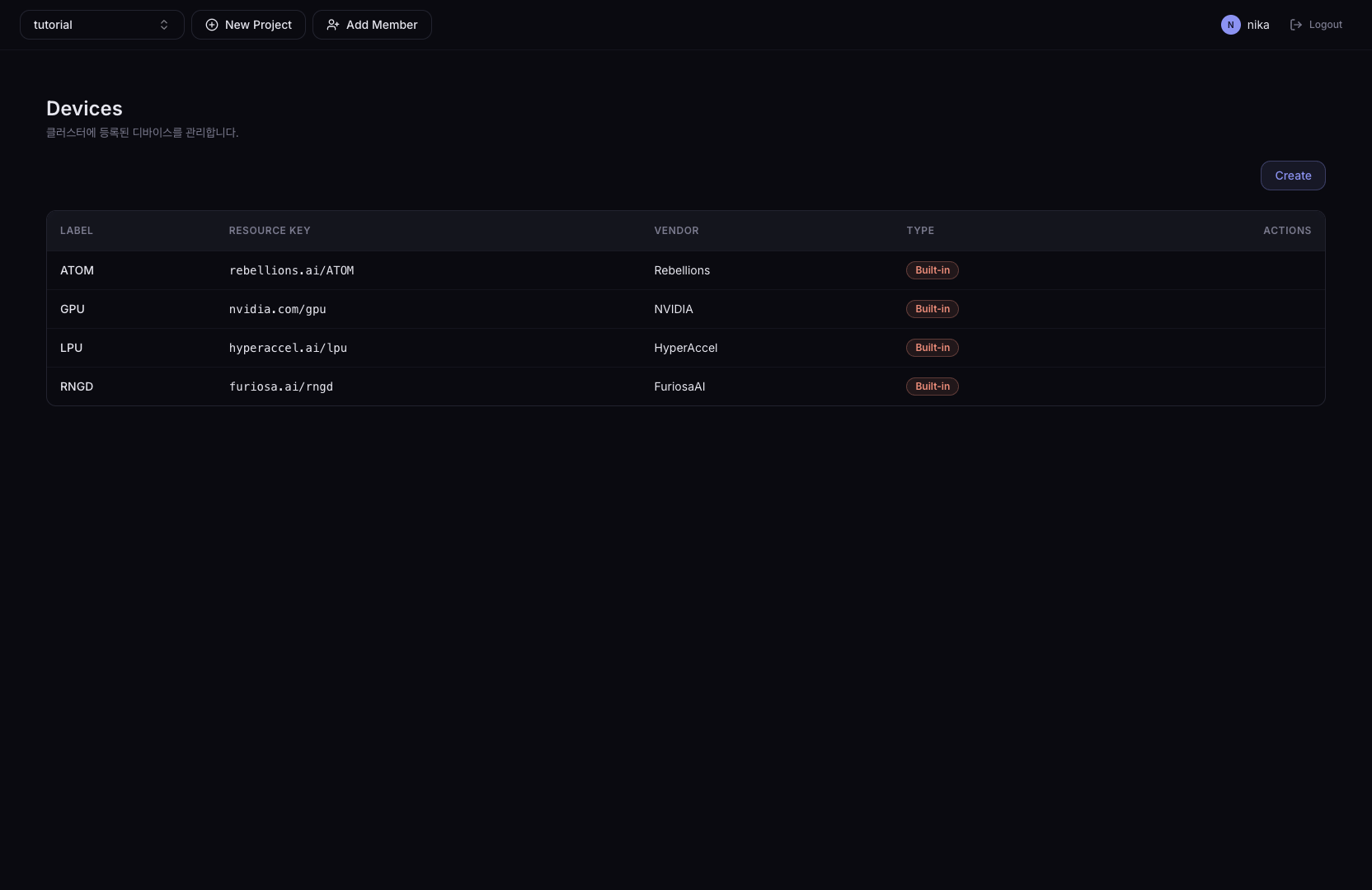
Click a device row in the list to open that device's detail page. Clicking Edit or Delete runs the selected action instead of opening the detail page.
Columns
| Column | Description |
|---|---|
| Label | Name displayed in the dashboard |
| Resource Key | Kubernetes resource request key (e.g., nvidia.com/gpu) |
| Vendor | Manufacturer |
| Type | Built-in or Custom (admin-added) badge |
Action buttons
| Button | Target | Description |
|---|---|---|
| Edit | Custom device | Edit device information |
| Delete | Custom device | Delete the device (not allowed for Built-in devices) |
Device detail
The device detail page shows the selected device configuration in read-only mode. The page header shows the device name, a Built-in or Custom badge, and a button to return to the list.
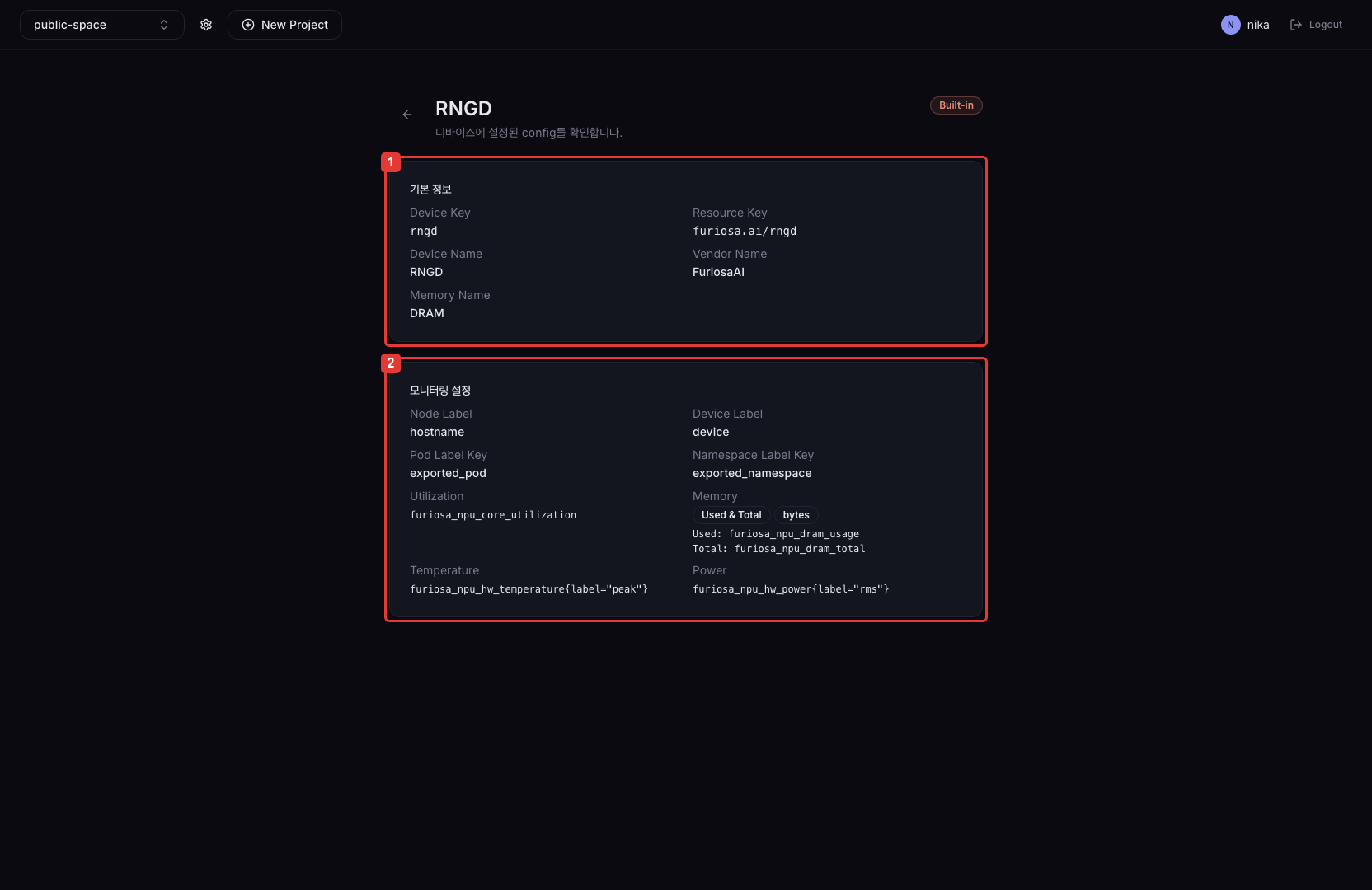
Basic information
| Item | Description |
|---|---|
| Device Key | Unique device key |
| Resource Key | Kubernetes resource request key |
| Device Name | Device name displayed in the dashboard |
| Vendor Name | Manufacturer name |
| Memory Name | Label for the device memory type |
Monitoring settings
| Item | Description |
|---|---|
| Node Label | Prometheus label key that identifies the node |
| Device Label | Prometheus label key that identifies the device |
| Pod Label Key | Label key that identifies the Pod assigned to the device. Hidden when empty. |
| Namespace Label Key | Label key that identifies the Namespace assigned to the device. Hidden when empty. |
| Utilization | Accelerator utilization metric name |
| Memory | Memory calculation mode, memory unit, Used metric, and Total or Free metric |
| Temperature | Temperature metric name. Hidden when empty. |
| Power | Power metric name. Hidden when empty. |
The Memory item displays either the Used & Total or Used & Free badge according to the registered calculation mode, together with the memory unit.
Add / edit a custom device
Click the Create or Edit button on the list page to start a 3-step Wizard.
nvidia.com/gpu) installed in the cluster.- Step 1. Basic information
- Step 2. Monitoring settings
- Step 3. Review
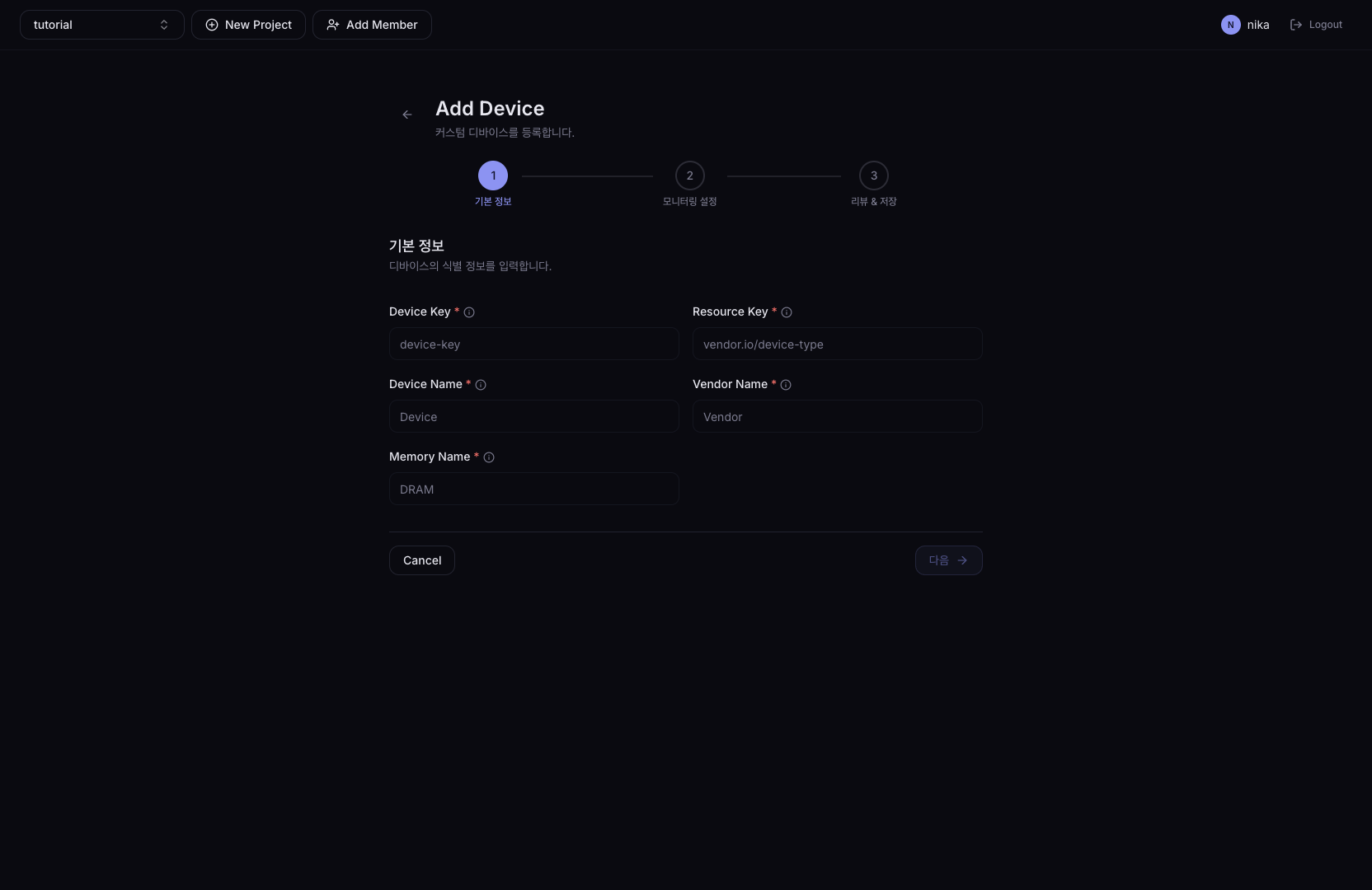
| Field | Description |
|---|---|
| Device Key | Unique device key (lowercase, digits, hyphens). Cannot be changed when editing. |
| Resource Key | Kubernetes node resource key (e.g., nvidia.com/gpu). When you finish typing, cluster availability is auto-checked via kubectl describe node. |
| Device Name | Display name shown in the dashboard. Combined with Vendor Name with a space. |
| Vendor Name | Manufacturer name. Combined with Device Name with a space. |
| Memory Name | Label for the device memory type (e.g., VRAM) |
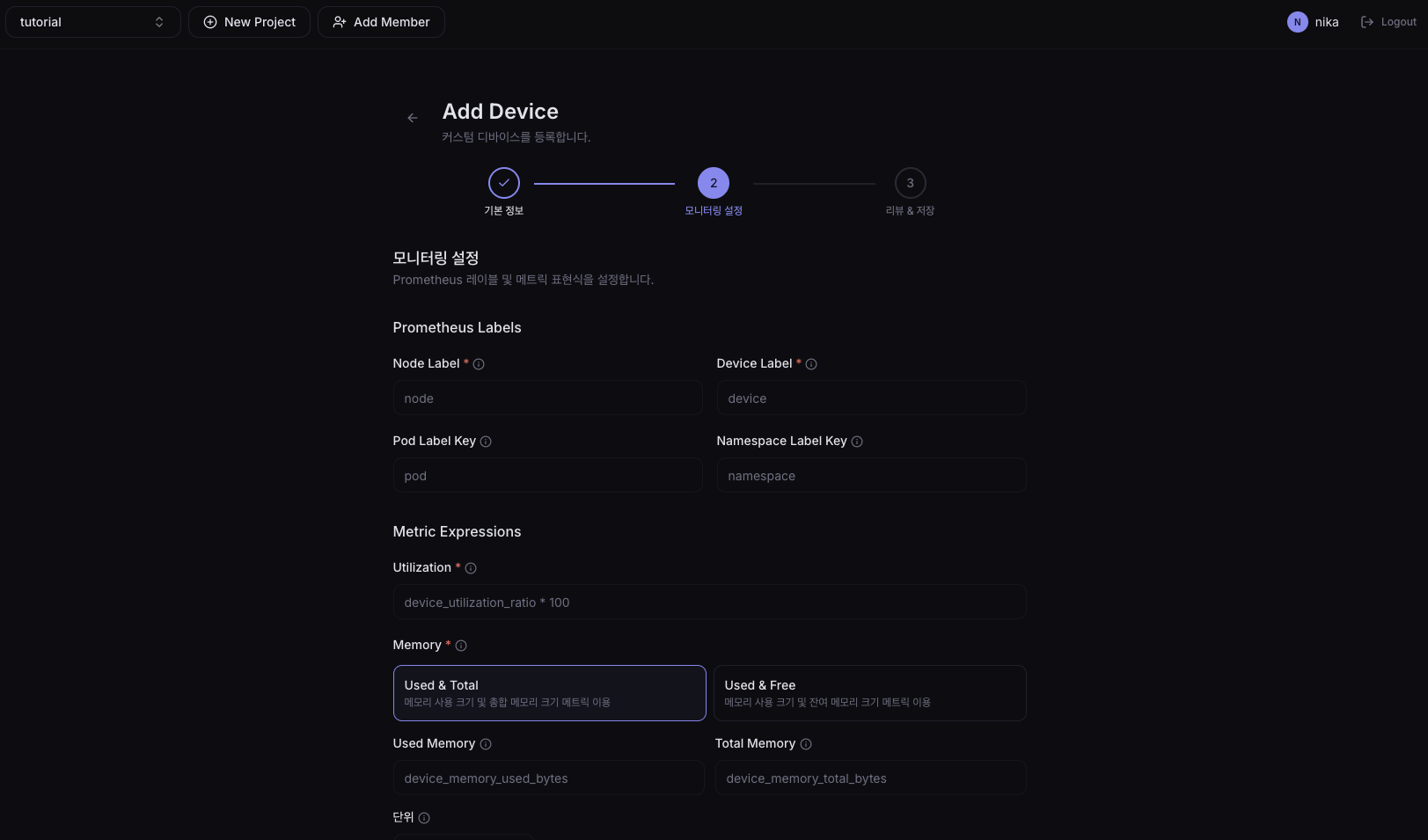
Configure metrics based on Prometheus PromQL.
Prometheus Labels
| Field | Description |
|---|---|
| Node Label | Prometheus label key that identifies a node |
| Device Label | Label value that identifies a device |
| Pod Label Key | Label key that identifies a Pod |
| Namespace Label Key | Label key that identifies a Namespace |
Metric Expressions
| Field | Description |
|---|---|
| Utilization | PromQL metric name for accelerator utilization (%) |
| Memory | PromQL for memory usage. Enter the metric name after selecting a mode. |
| Memory Unit | Unit of the memory value (bytes / KiB / MiB / GiB) |
| Temperature | PromQL for temperature (°C). Empty value disables temperature-based control. |
| Power | PromQL for power (W). Empty value treats it as unsupported. |
Memory modes
| Mode | Formula |
|---|---|
| Used / Total | used / total * 100 |
| Used / (Used + Free) | used / (used + free) * 100 |
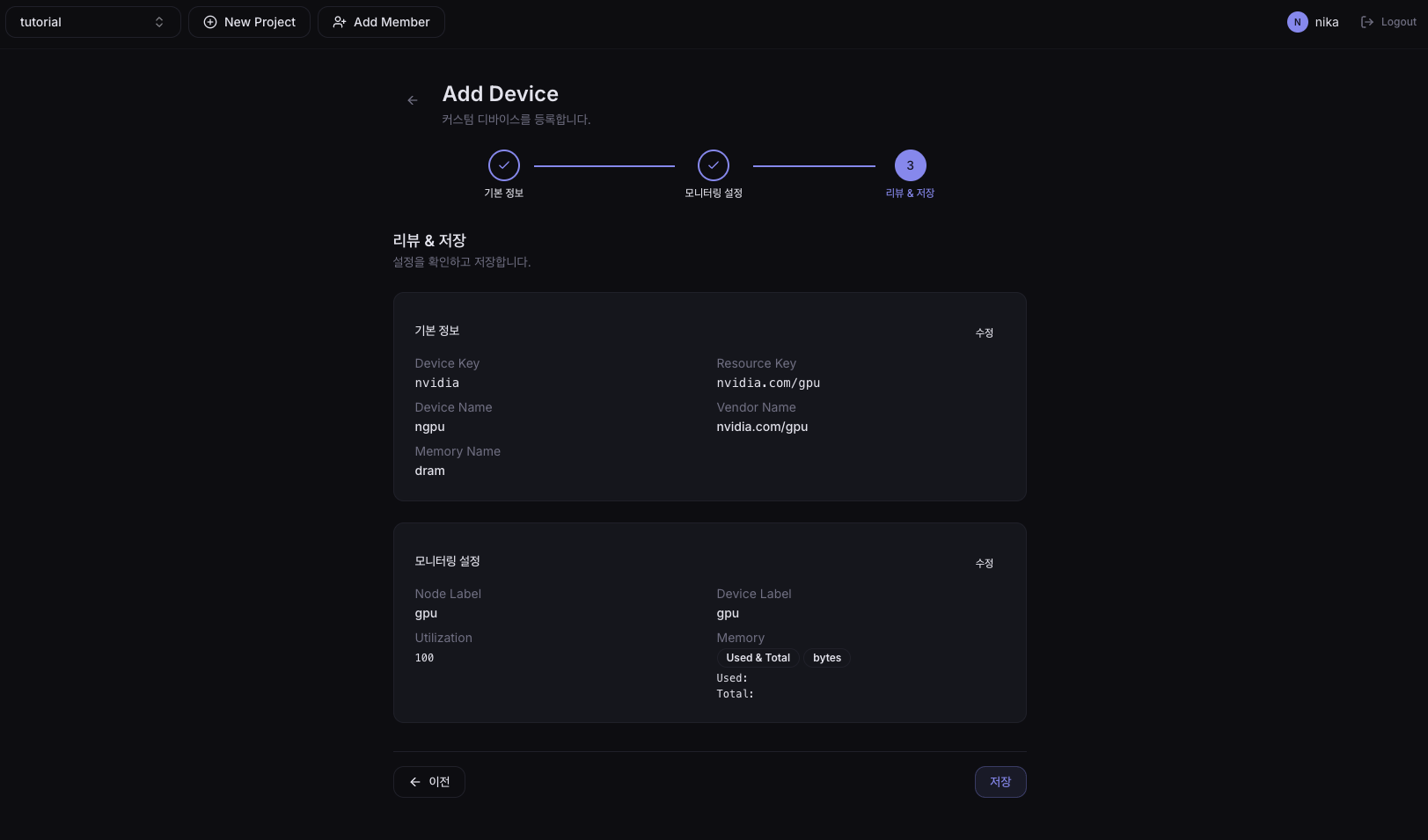
Review the device information you entered. Use the Edit button on each section to go back to that step. Click the Save button to register the device.