Audit Logs
Administrators can view authentication, permission-change, credential-change, resource-change, and system-action events on the Audit Logs page, filter or search for specific events, and export them to CSV. This supports audit trail requirements under the Personal Information Protection Act and public-sector software delivery standards (1–2 years for access records, 3 years for permission history).
This menu appears only for accounts that have the nufi-admin role.
Prerequisites
- NuFi must be installed and the dashboard accessible.
- You must be logged in as an account granted the
nufi-adminrole.
Audit log list
In the left sidebar, click Admin > Audit Logs.
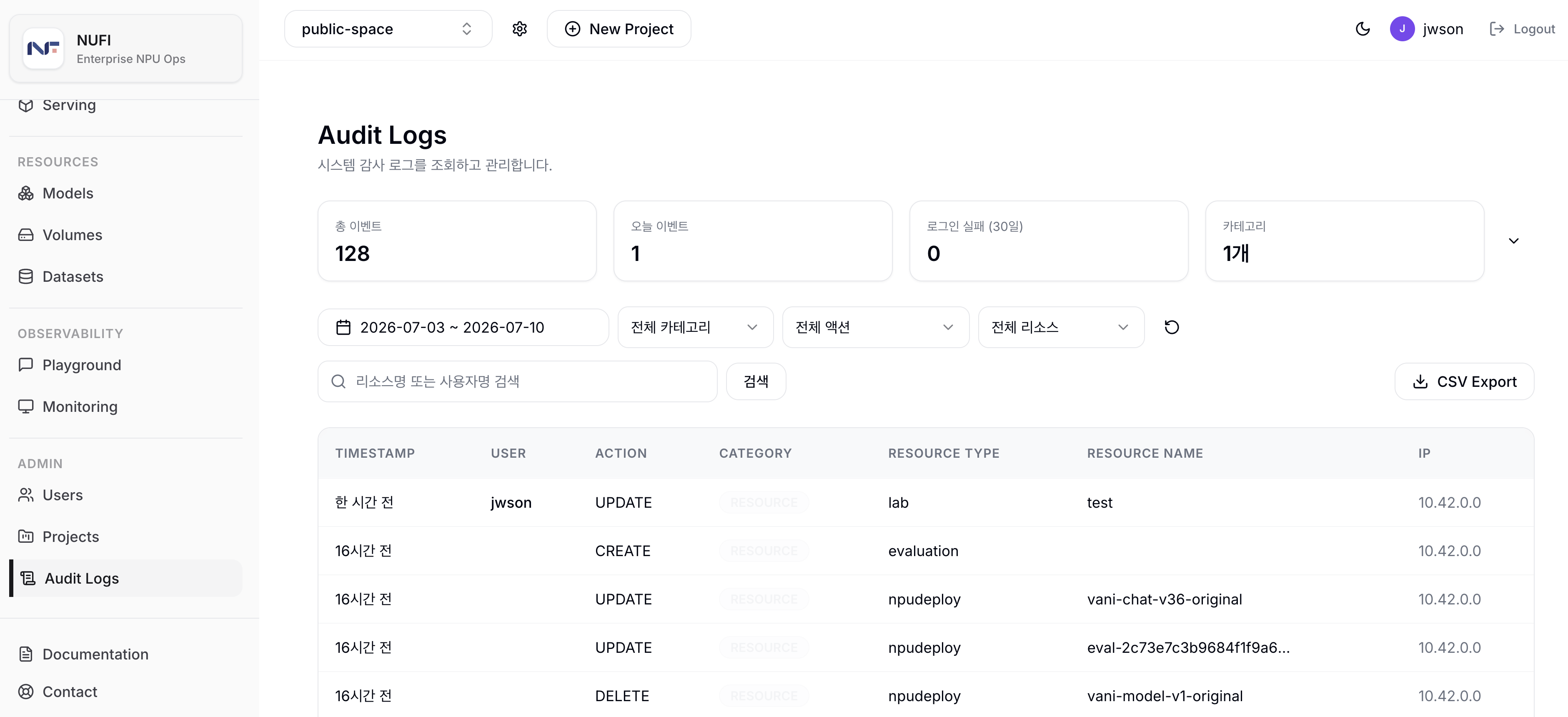
Use the filter bar to combine a date range, category (Auth / Permission / Credential / Resource / System, etc.), action, resource type, and keyword to find the logs you need. Filter conditions are automatically synced to URL query parameters, so sharing the URL reproduces the same filter state.
Log table columns
| Column | Description |
|---|---|
| TIMESTAMP | When the event occurred |
| USER | The user who triggered the event |
| ACTION | The performed action (e.g., CREATE, DELETE, LOGIN) |
| CATEGORY | Event classification (AUTH, PERMISSION, CREDENTIAL, RESOURCE, SYSTEM, etc.) |
| RESOURCE TYPE | The type of resource the event targets |
| RESOURCE NAME | The name of the resource the event targets |
| IP | The recorded request IP address |
Up to 50 logs are shown per page.
Summary bar
The summary bar at the top of the page shows statistics for the current filters at a glance. The default date range is the last 7 days.
| Item | Description |
|---|---|
| Total events | Number of audit log entries matching the current filters |
| Events today | Events that occurred today within the current filters |
| Login failures | Login failure count over the last 30 days |
| Category count | Number of distinct event categories matching the current filters |
Click the expand button on the right of the summary bar to expand the daily activity line chart and per-category donut chart for a visual view of trends.
Event detail
Click a row in the log table to open a detail panel on the right. The detail panel shows the following details.
| Item | Description |
|---|---|
| ID | Unique event ID |
| Request ID | Request tracking ID |
| Timestamp | When the event occurred |
| User ID / Username | Identifier of the user who triggered the event |
| IP / User Agent | Recorded request IP address and client info |
| Action / Category | Performed action and category badge |
| Status code | HTTP status code of the request |
| Resource Type / Resource ID / Resource Name | Target resource info |
| Project ID | The project identifier the event belongs to |
| Detail | Additional context (error messages, request parameters, etc.) |
| Before / After | Resource state JSON before and after the change. Shown only for events that produced a change. |
The before/after JSON is shown side-by-side in two columns so you can quickly compare changes.
CSV Export
Download audit logs as a CSV file based on the current filter conditions.
- Set filter conditions if needed.
- Click the CSV Export button.
- Up to 100,000 entries are downloaded in a streaming manner.
- The file is saved as UTF-8 with BOM, so Korean characters display correctly in Excel.
Retention policy
If retention is adjusted by environment variables during installation or operation, the configured values determine the actual retention period.
| Log type | Default retention (installation default) | Environment variable |
|---|---|---|
| General logs (auth, credential, resource, system) | 1 year | AUDIT_RETENTION_GENERAL_DAYS |
| Permission logs (grant/revoke) | 3 years | AUDIT_RETENTION_PERMISSION_DAYS |
Logs past the retention period are removed by a periodic auto-delete batch. The retention period can be adjusted via environment variables.