Serve a Model Downloaded in Lab
Download a Hugging Face model manually from Jupyter Lab, register the files in Model Artifacts, and deploy them as a Serving. Use this path when you need to run download scripts yourself or modify files before registration.
Prerequisites
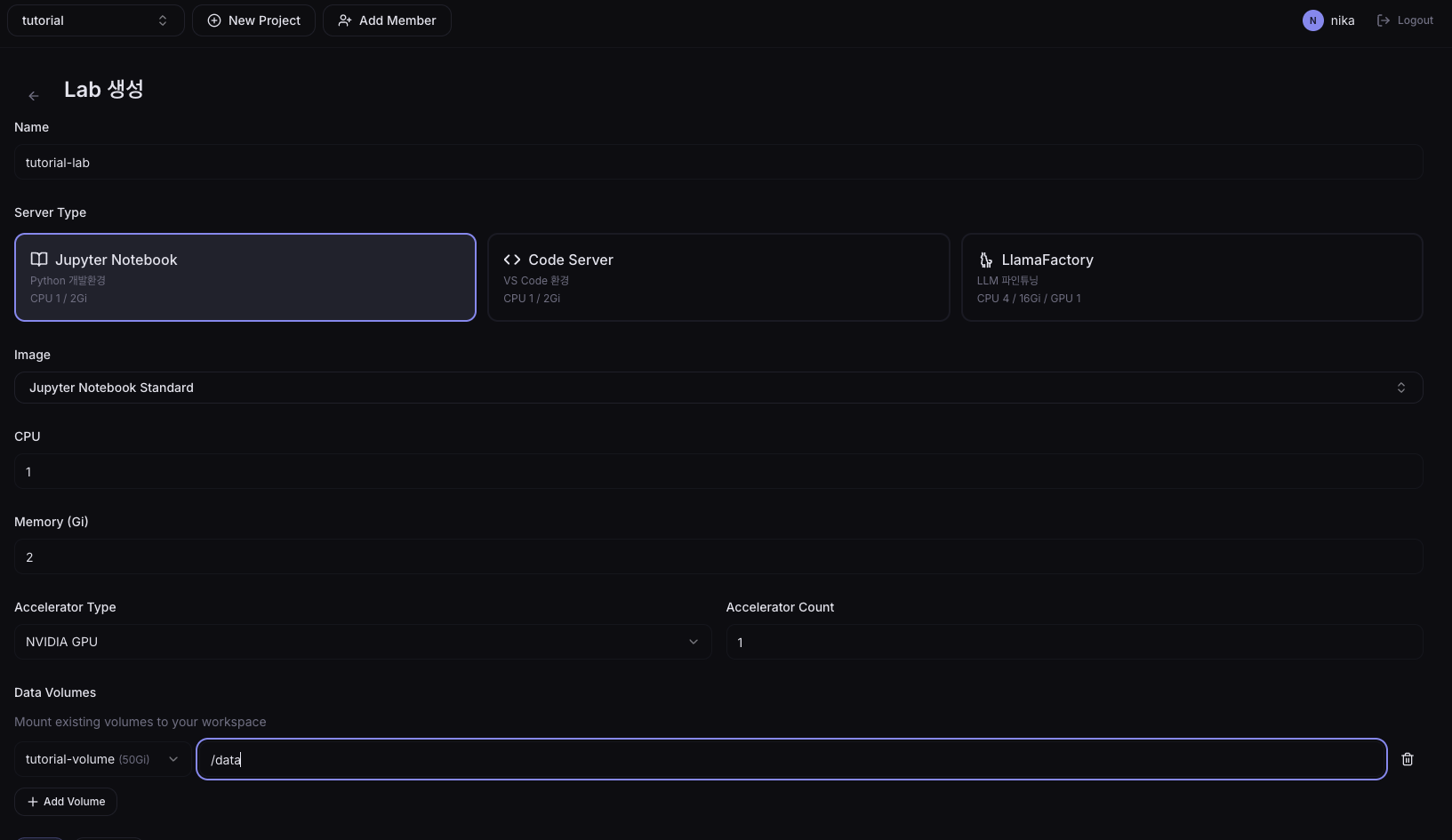
1. Mount a Volume in Lab
When creating the Lab, add the model storage Volume to Data Volumes and set the mount path to /data.
| Field | Example |
|---|---|
| Name | tutorial-lab |
| Server Type | Jupyter |
| Data Volumes | tutorial-volume -> /data |
2. Download the Model
When the Lab is Running, click Connect to open Jupyter. Open File > New > Terminal and download the model.
pip install -U huggingface_hub

hf download Qwen/Qwen2.5-0.5B-Instruct \
  --local-dir /data/Qwen2.5-0.5B-Instruct
For private repositories, log in with a token first.
hf login --token $HF_TOKEN
3. Register the Model
In the left sidebar, click Model Artifacts and run Register Model.
| Field | Example |
|---|---|
| Model Name | qwen-instruct-tutorial |
| Version | v1 |
| Volume | tutorial-volume |
| Path | Qwen2.5-0.5B-Instruct |
| Format | SafeTensors |
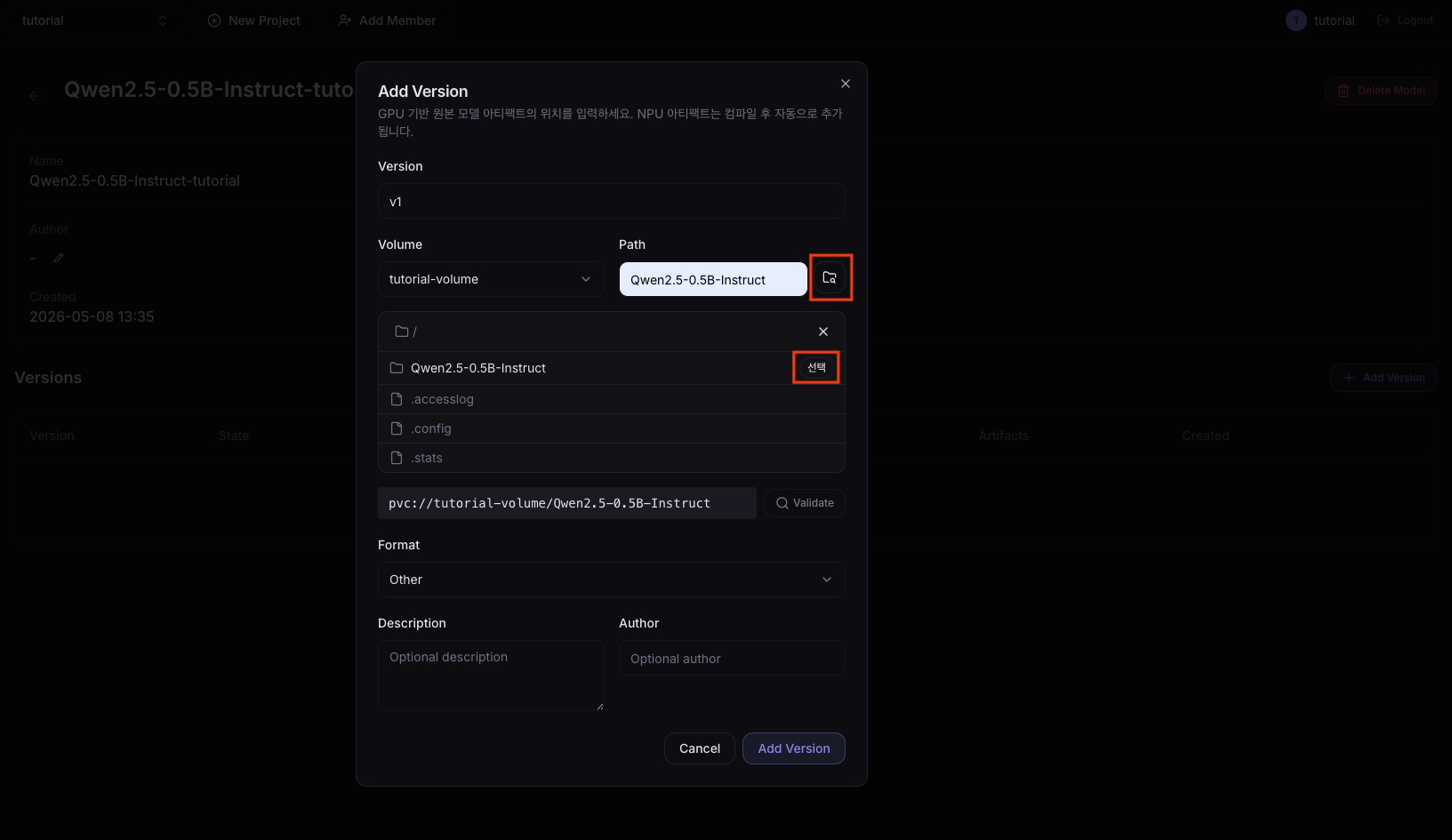
When validation succeeds, register the model version.
4. Choose a Serving Path
For GPU serving, run Quick Deploy from the model detail page.
For NPU serving, compile the source artifact first in Model Compilations. When compilation reaches Succeeded, run Quick Deploy with the generated NPU artifact.
5. Create the Serving
In the Quick Deploy dialog, confirm the model, version, and artifact, then enter a Serving name.
| Field | Example |
|---|---|
| Service Name | lab-downloaded-model-serving |
| Version | v1 |
| Artifact | Source artifact for GPU serving, compiled artifact for NPU serving |
The deployment is complete when the Serving status becomes Running.
Next Steps
To check the serving model's response, continue to Test Responses in Playground.
To check device and node metrics, continue to Check Metrics in Monitoring.