NPU Compile
Compile a registered model into a binary executable on RNGD NPUs. NuFi supports the following three methods — pick the one that fits your situation.
| Method | Best for |
|---|---|
| A. NuFi UI | Simple usage, real-time log viewing |
| B. furiosa-llm CLI | Fine-grained option tuning |
| C. Python SDK | Script automation |
Method A: Compile from the NuFi UI
1. Go to the model version page
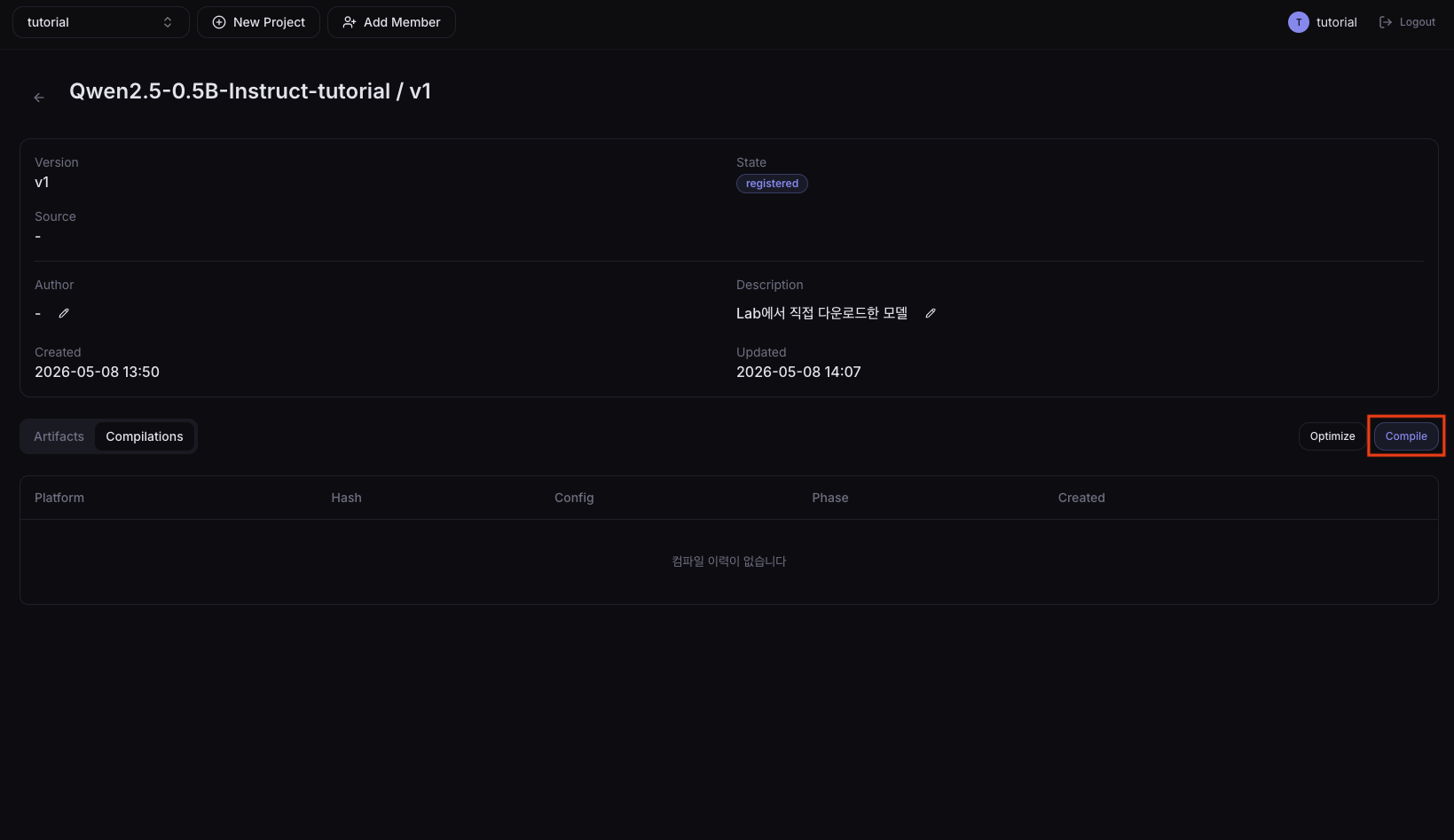
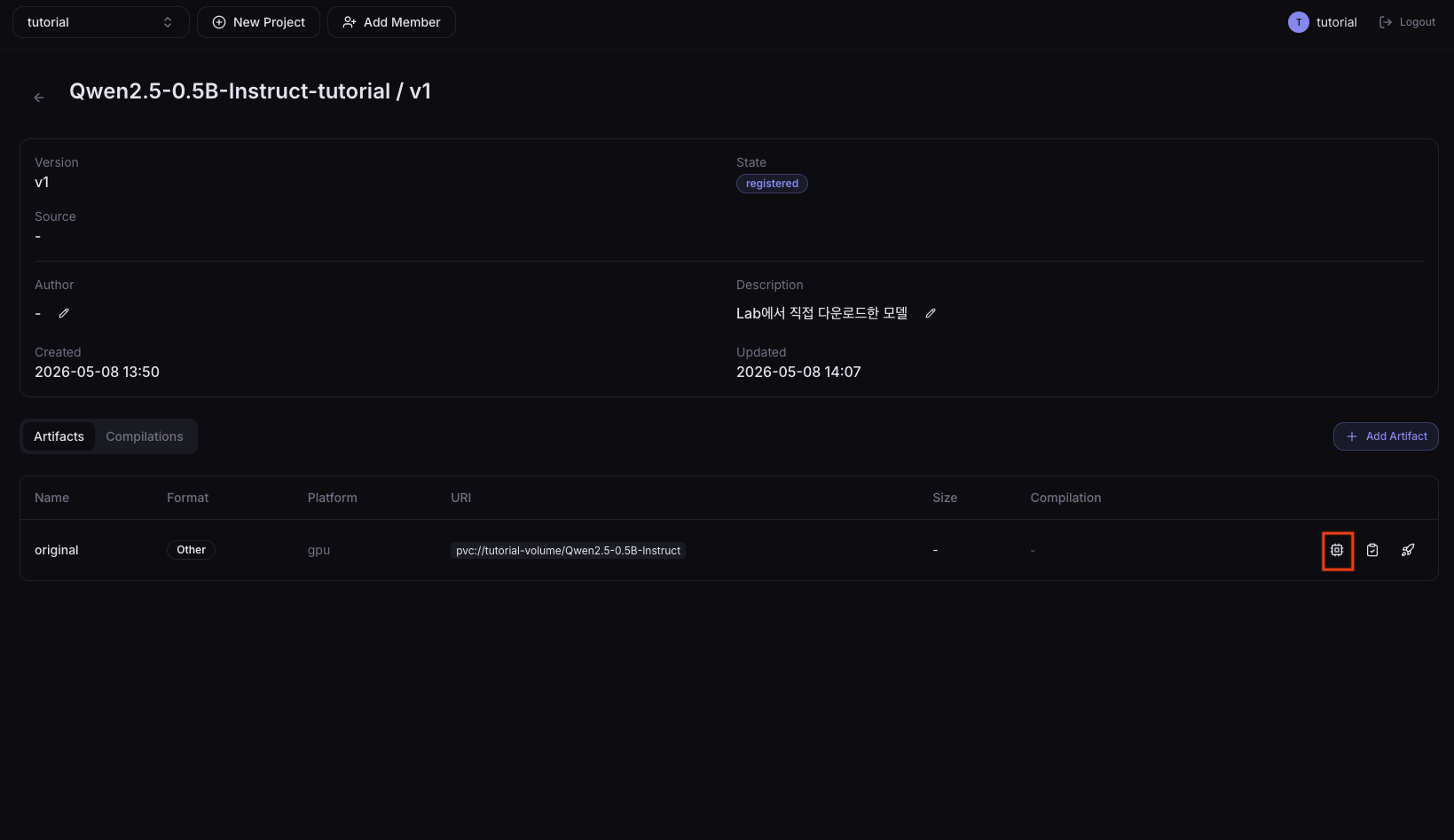
In the left sidebar, click Resources > Models, select a model, and in the Artifacts tab click the Compile button on the artifact to compile.
2. Enter compile settings
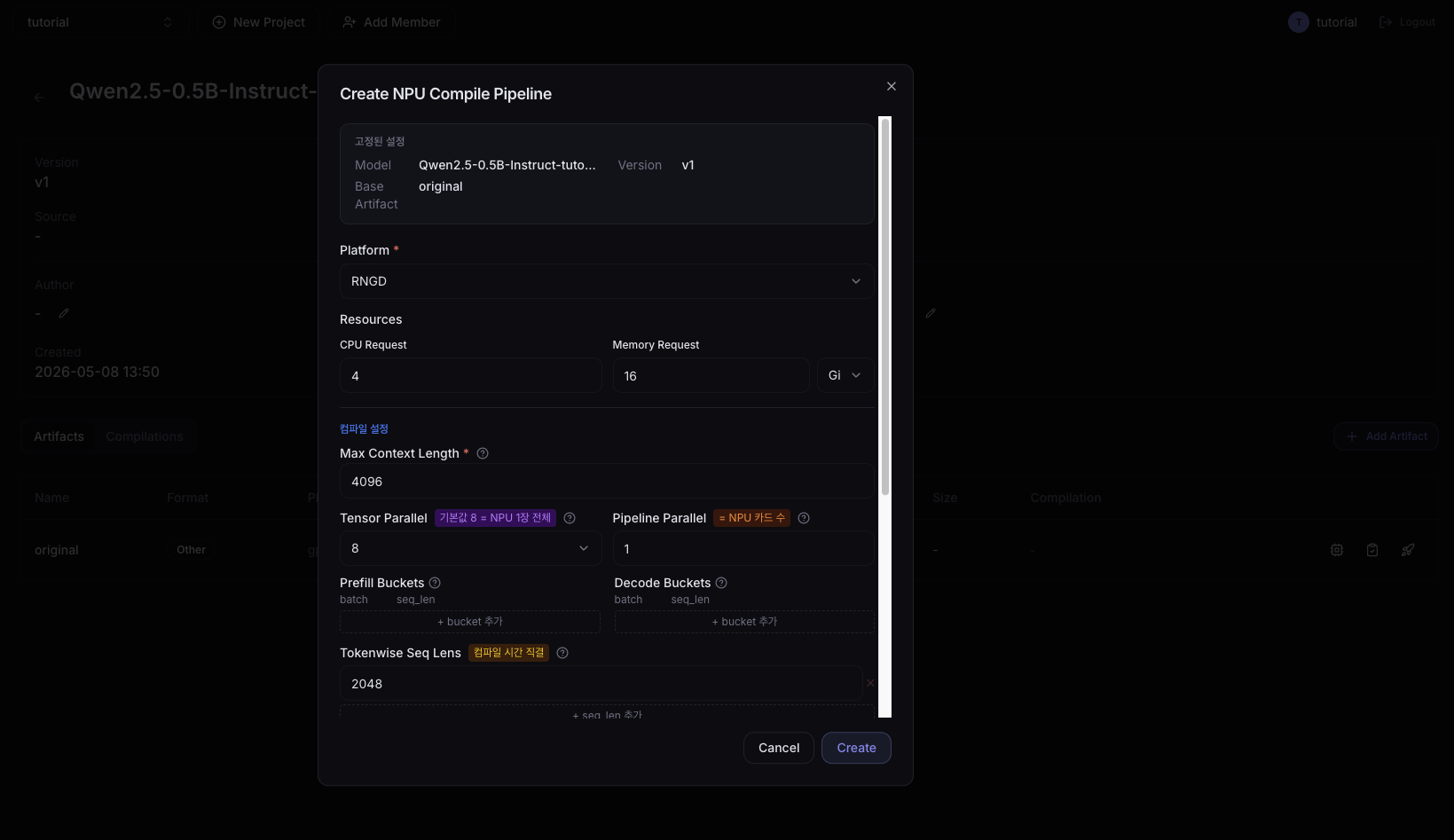
For compile settings, see the Compile Settings Guide.
3. Monitor progress
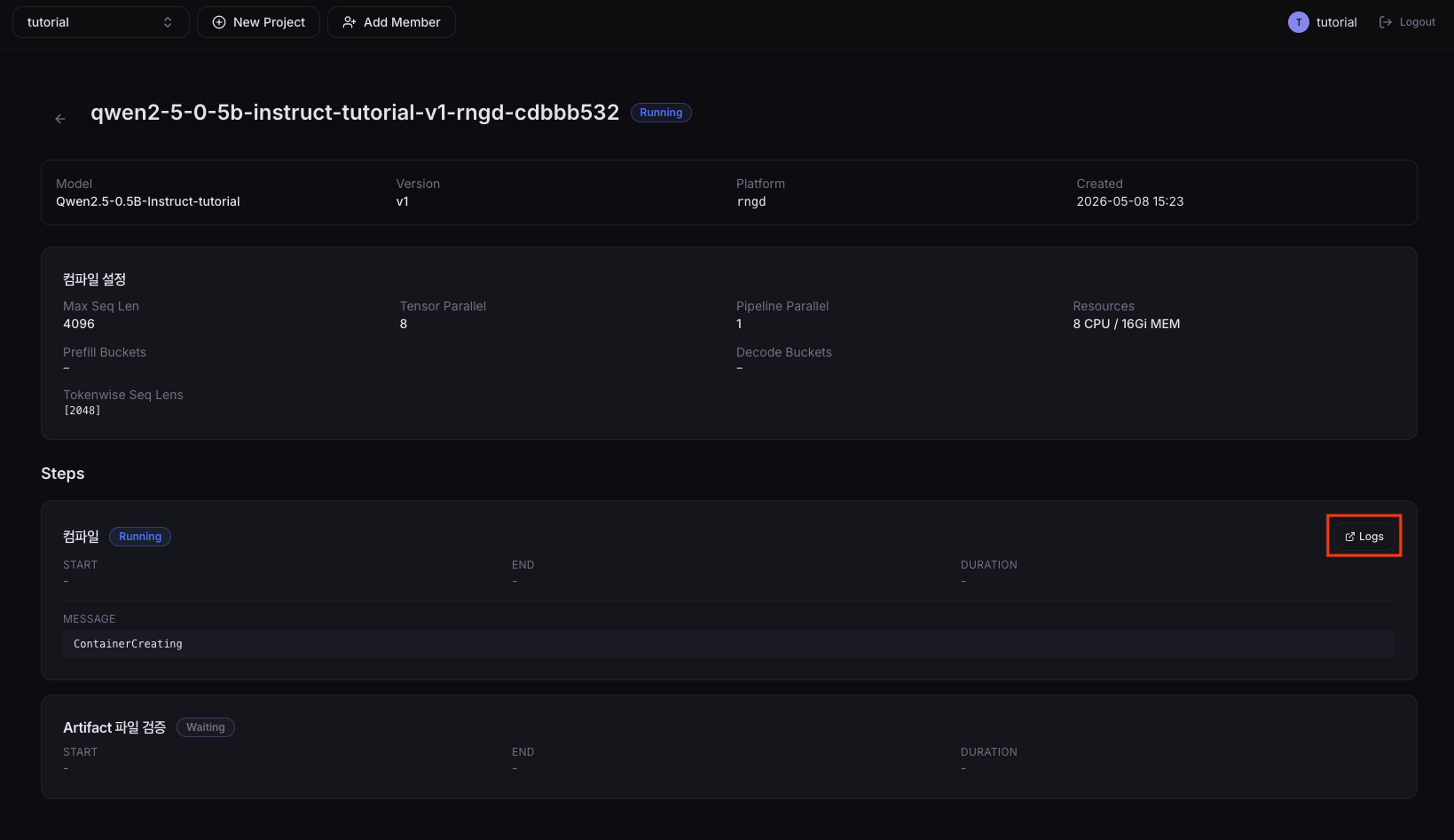
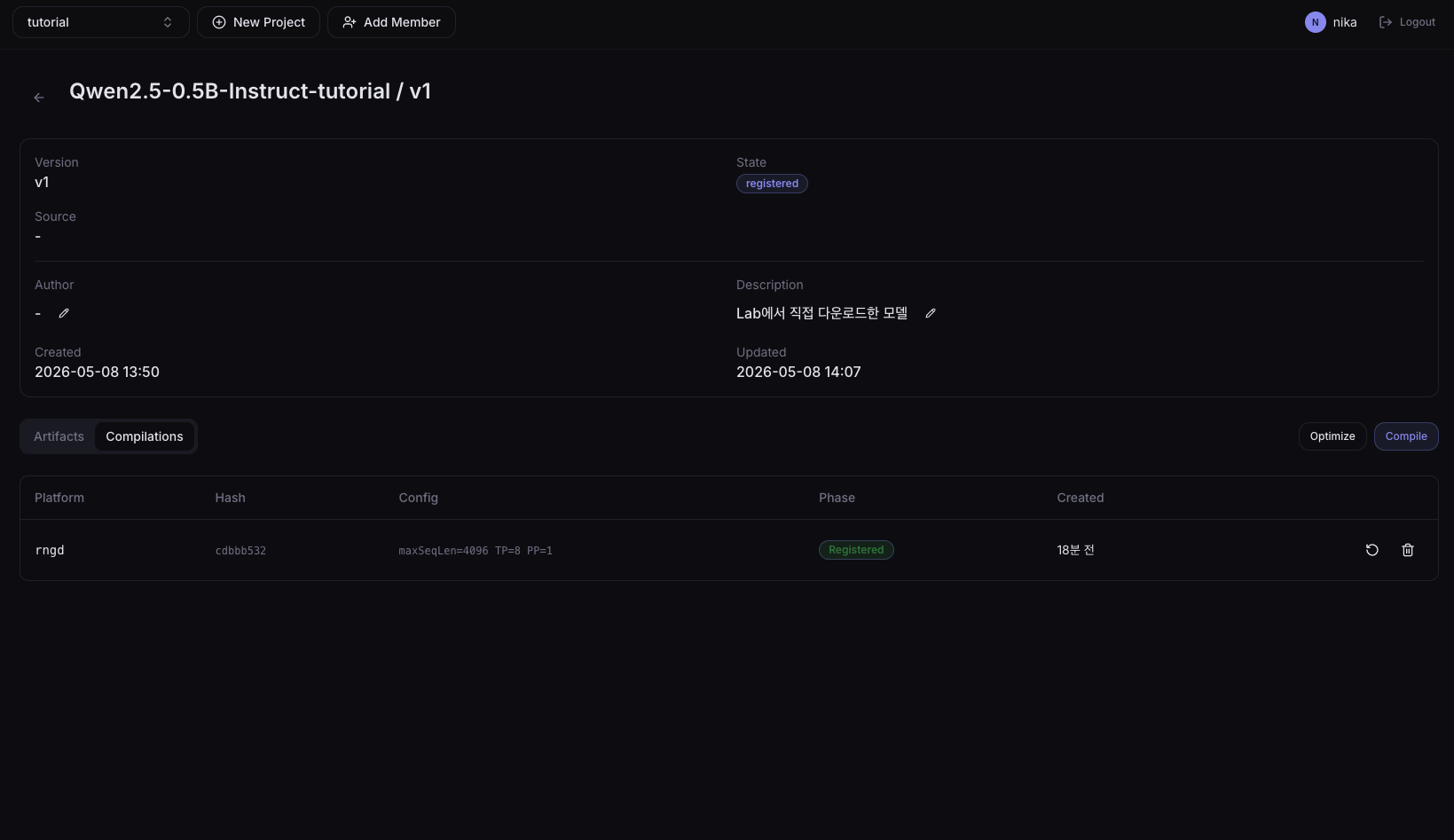
The created compile job is added to the Compilations tab on the model version detail page. Check progress in the Phase column, then click the row to open the detail page and use the step-level Logs buttons to view progress logs. Click the View button in the Config column to open a dialog with the compile settings used when the job was created.
On the right side of each row, the  Re-compile icon opens the creation dialog with the same options pre-filled, and the
  Delete icon deletes that compilation history entry.
4. Check completion
When the status becomes Succeeded, an RNGD artifact is automatically added to the model's artifact list.
On failure:
- OOM error: lower Max Context Length or Tensor Parallel and retry
- Platform error: ask the administrator to check NPU device status
Method B: Compile in Jupyter Lab with the furiosa-llm CLI
Connect to the NPU Lab created in 02. Create per-device Lab, open a terminal, and proceed.
Create the output directory
mkdir -p /data/Qwen2.5-0.5B-Instruct-rngd-cli
Run compile
furiosa-llm build \
  /data/Qwen2.5-0.5B-Instruct \
  /data/Qwen2.5-0.5B-Instruct-rngd-cli \
  --tensor-parallel-size 1 \
  --max-seq-len-to-capture 4096
| Argument / option | Description |
|---|---|
| First argument | Input model path (Volume mount path) |
| Second argument | Output path for compile result (must be under /data/) |
--tensor-parallel-size | Tensor Parallel size |
--max-seq-len-to-capture | Maximum context length |
Always save under the Volume mount path (/data/).
Saving outside the Volume (e.g., /tmp) loses the data when the Pod terminates.
After compile, register the model
When compile completes, in 04. Register Model, first register the original GPU model with Add Version, then in the Artifacts tab click Add Artifact to register the compiled RNGD model.
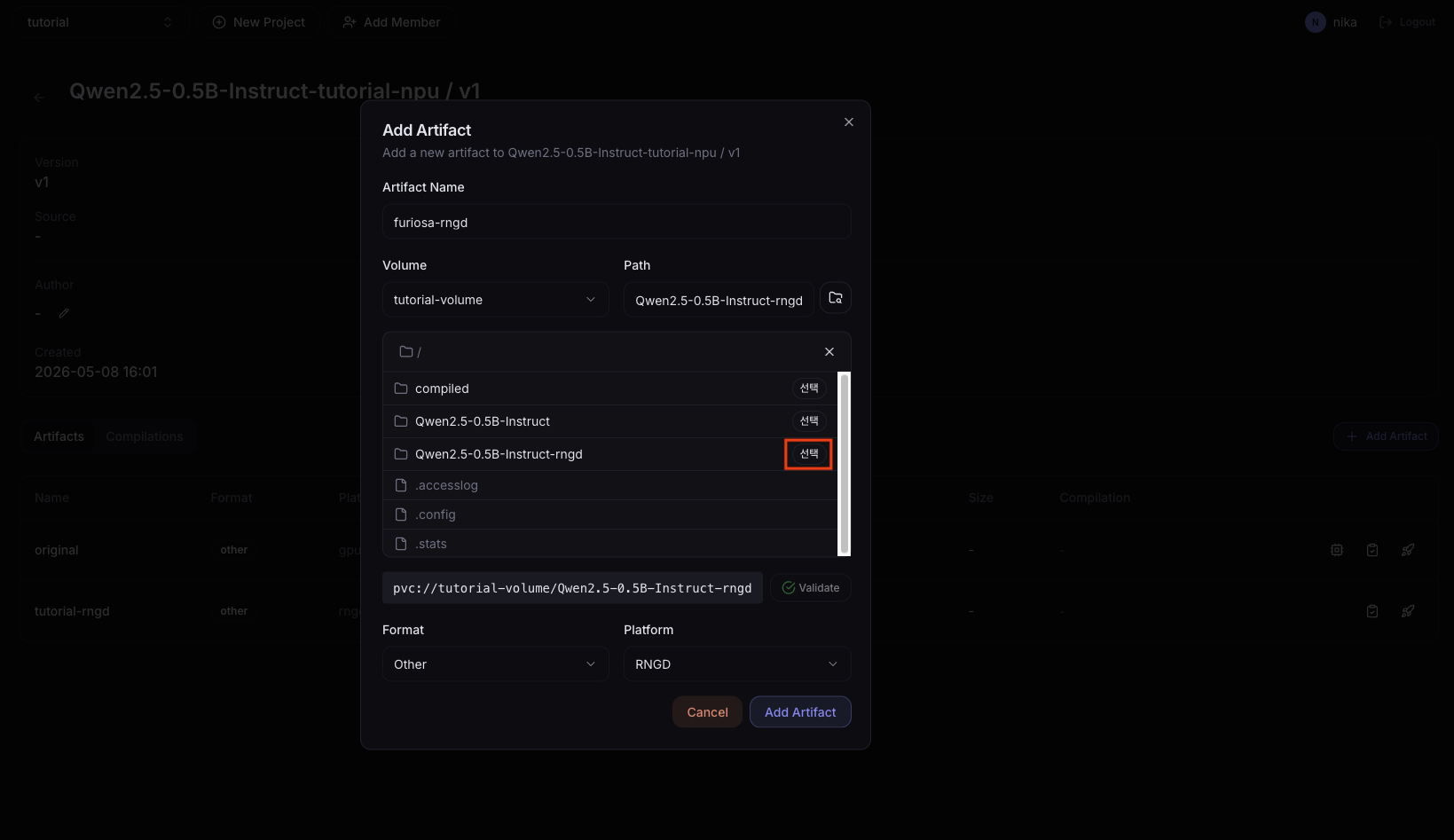
Path is a relative path under the Volume mount path (/data/). In the example above we used /data/Qwen2.5-0.5B-Instruct-rngd-cli, so enter Qwen2.5-0.5B-Instruct-rngd-cli in Path.
If you used a different path, run ls /data/ in the terminal to verify the actual directory name.
Method C: Compile with the Python SDK
Connect to the NPU Lab created in 02. Create per-device Lab, and proceed from a Jupyter notebook or terminal.
Write and run the compile script
from furiosa_llm.artifact import ArtifactBuilder

builder = ArtifactBuilder(
    model_id_or_path="/data/Qwen2.5-0.5B-Instruct",
    tensor_parallel_size=1,
    max_seq_len_to_capture=4096,
)

builder.build(save_dir="/data/Qwen2.5-0.5B-Instruct-rngd-sdk")
Always set save_dir to a location under the Volume mount path (/data/).
After compile, register the model
Register the result in NuFi Models the same way as Method B.
Next Step
→ 06. Evaluate model quality — Evaluate accuracy with the compiled RNGD artifact → 07. Deploy Model Serving — Jump straight to serving deployment