Create per-device Lab
Create a Jupyter environment with a GPU or NPU device attached. Use a GPU Lab for downloading and experimenting with models, and an NPU Lab for compilation and NPU inference work.
GPU Lab
Use this in a GPU environment when downloading or experimenting with models.
1. Go to the Lab menu
In the left sidebar, click Development > Lab and press the Create button.
2. Enter the Lab settings
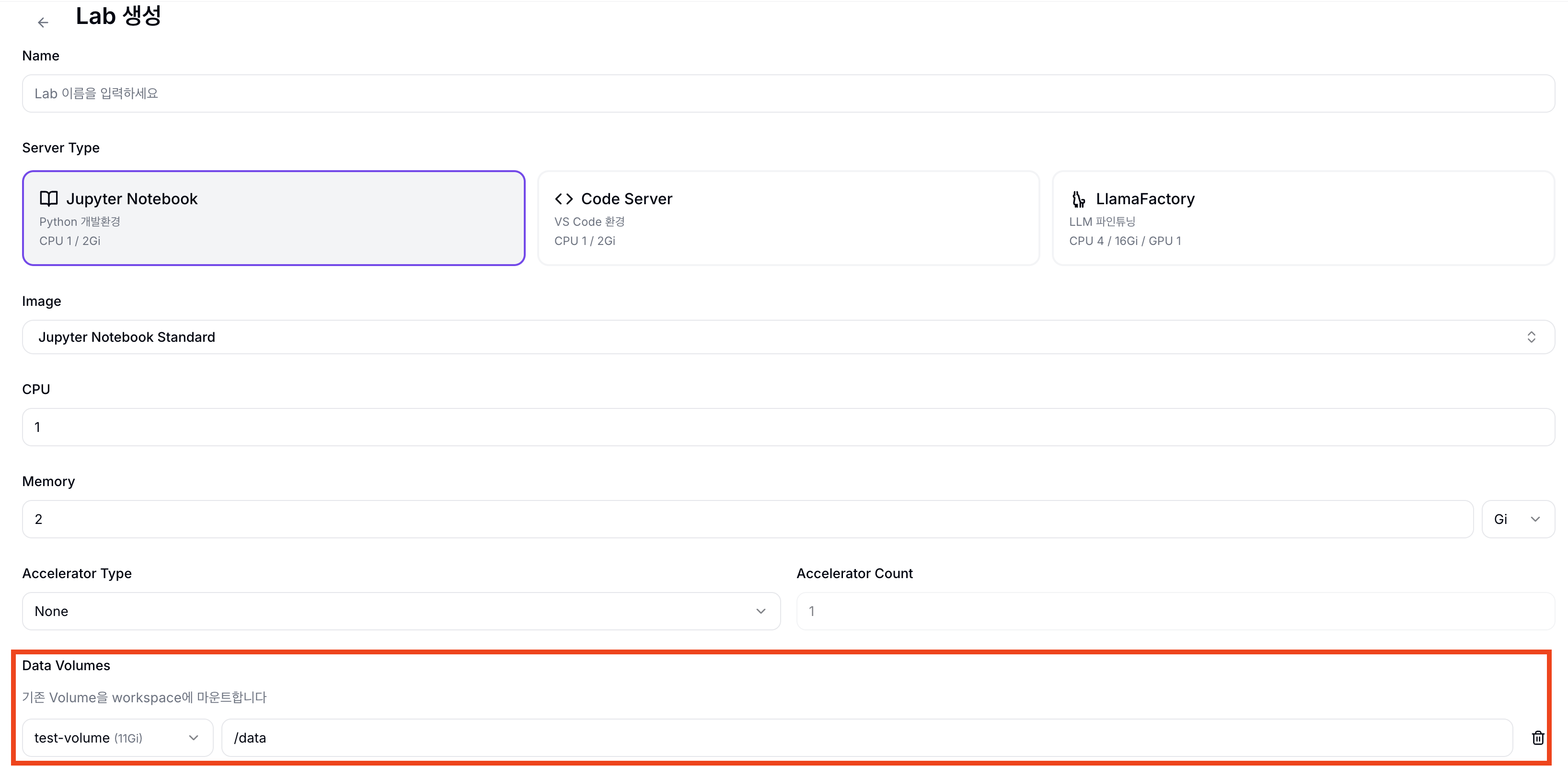
| Field | Example value |
|---|---|
| Name | tutorial-lab |
| Server Type | Jupyter |
| Accelerator Type | Nvidia GPU |
| Count | 1 |
| Data Volumes | tutorial-volume → mount path /data |
3. Connect to the Lab
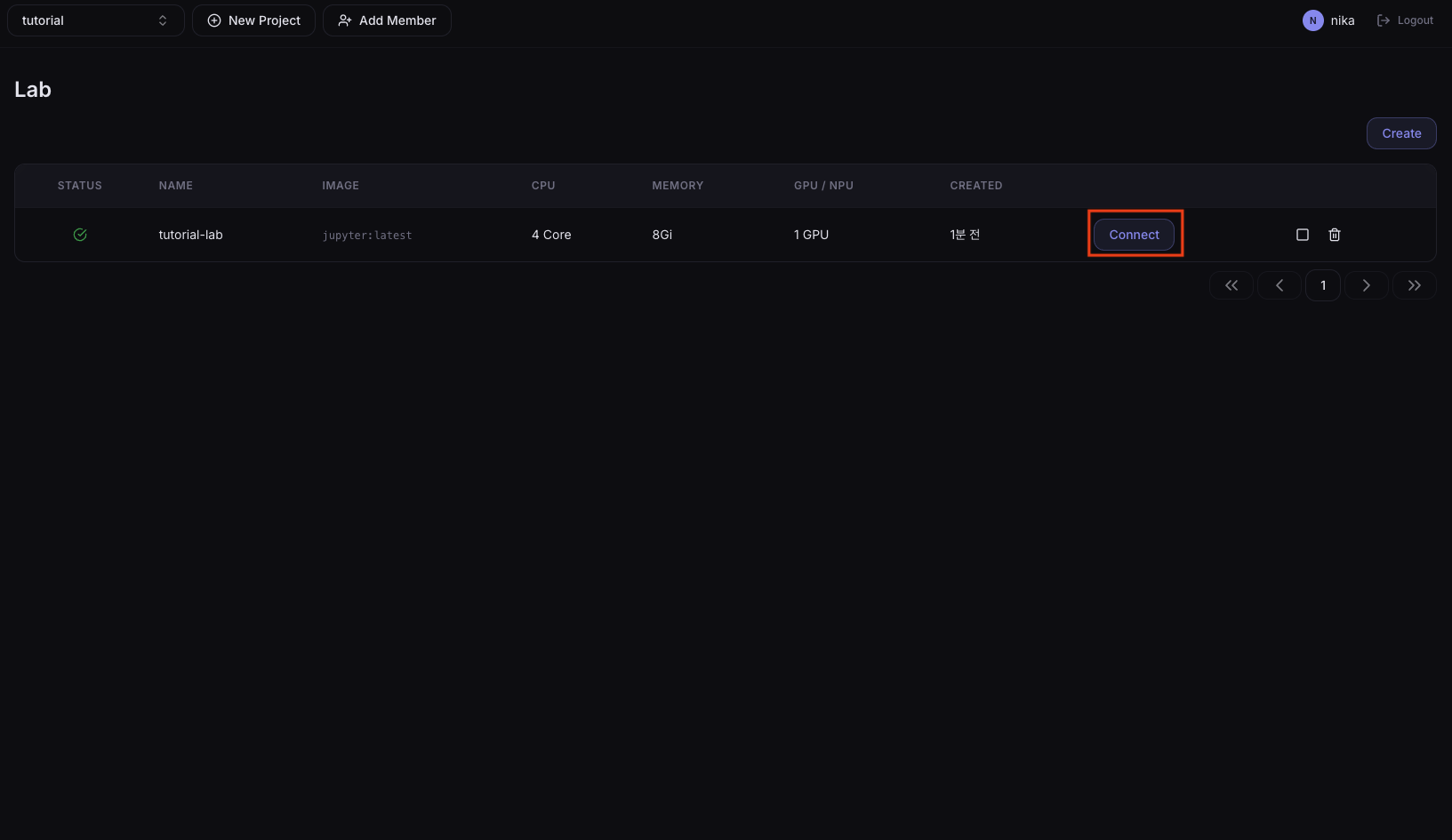
When the status in the Lab list becomes Running, click the Connect button to enter the Jupyter environment.
NPU Lab
Create a Jupyter environment equipped with an RNGD NPU to perform compilation and NPU work.
1. Go to the Lab menu
In the left sidebar, click Development > Lab and press the Create button.
2. Enter the Lab settings
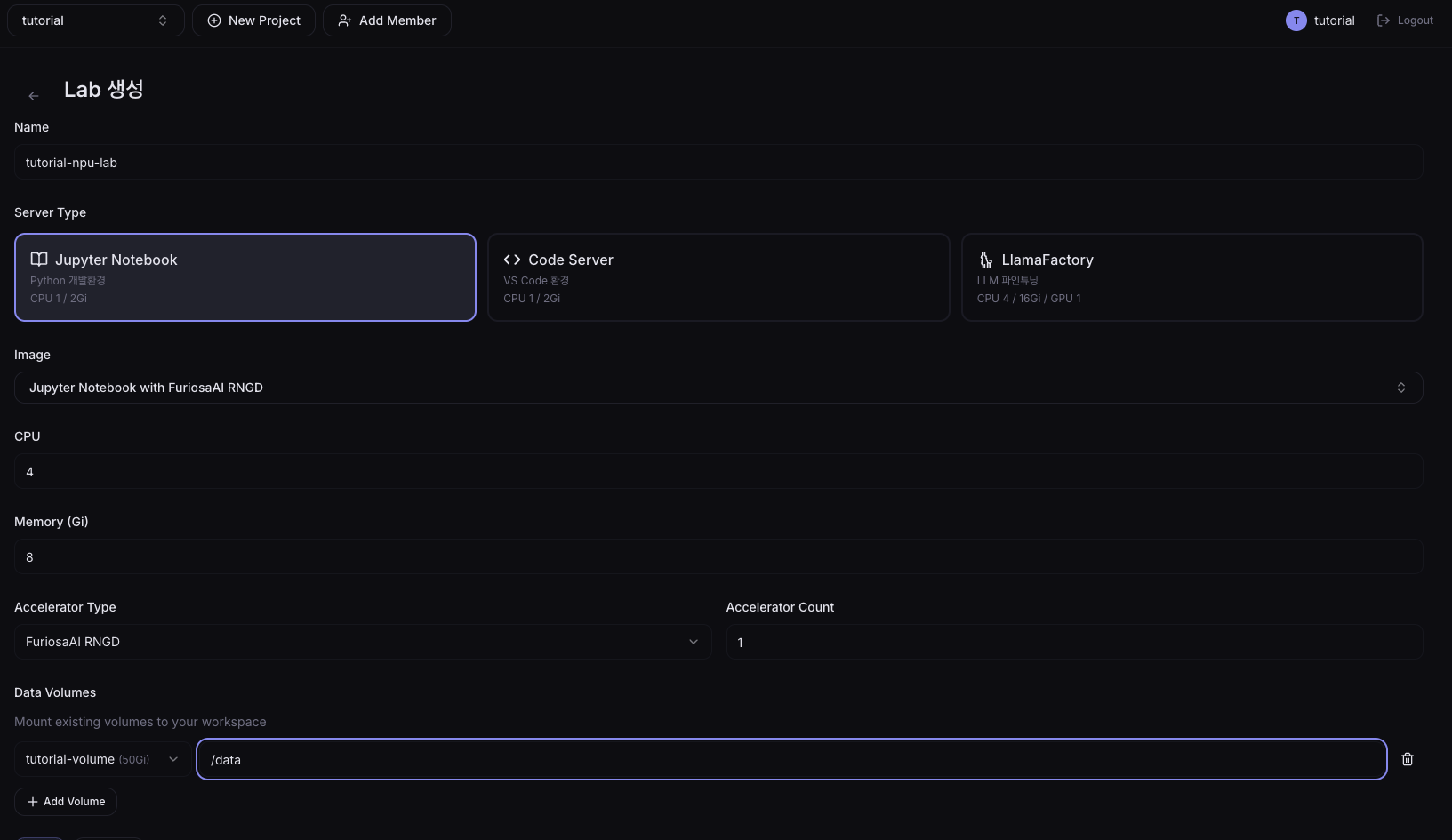
| Field | Example value |
|---|---|
| Name | tutorial-lab-npu |
| Server Type | Jupyter |
| Image | Jupyter Notebook with FuriosaAI RNGD |
| Accelerator Type | RNGD |
| Count | 1 |
| Data Volumes | tutorial-volume → mount path /data |
Any Jupyter image works to bring the Lab up. However, to use the furiosa-smi command, you must select the Jupyter Notebook with FuriosaAI RNGD image. Other images will produce furiosa-smi: command not found.
3. Connect to the Lab
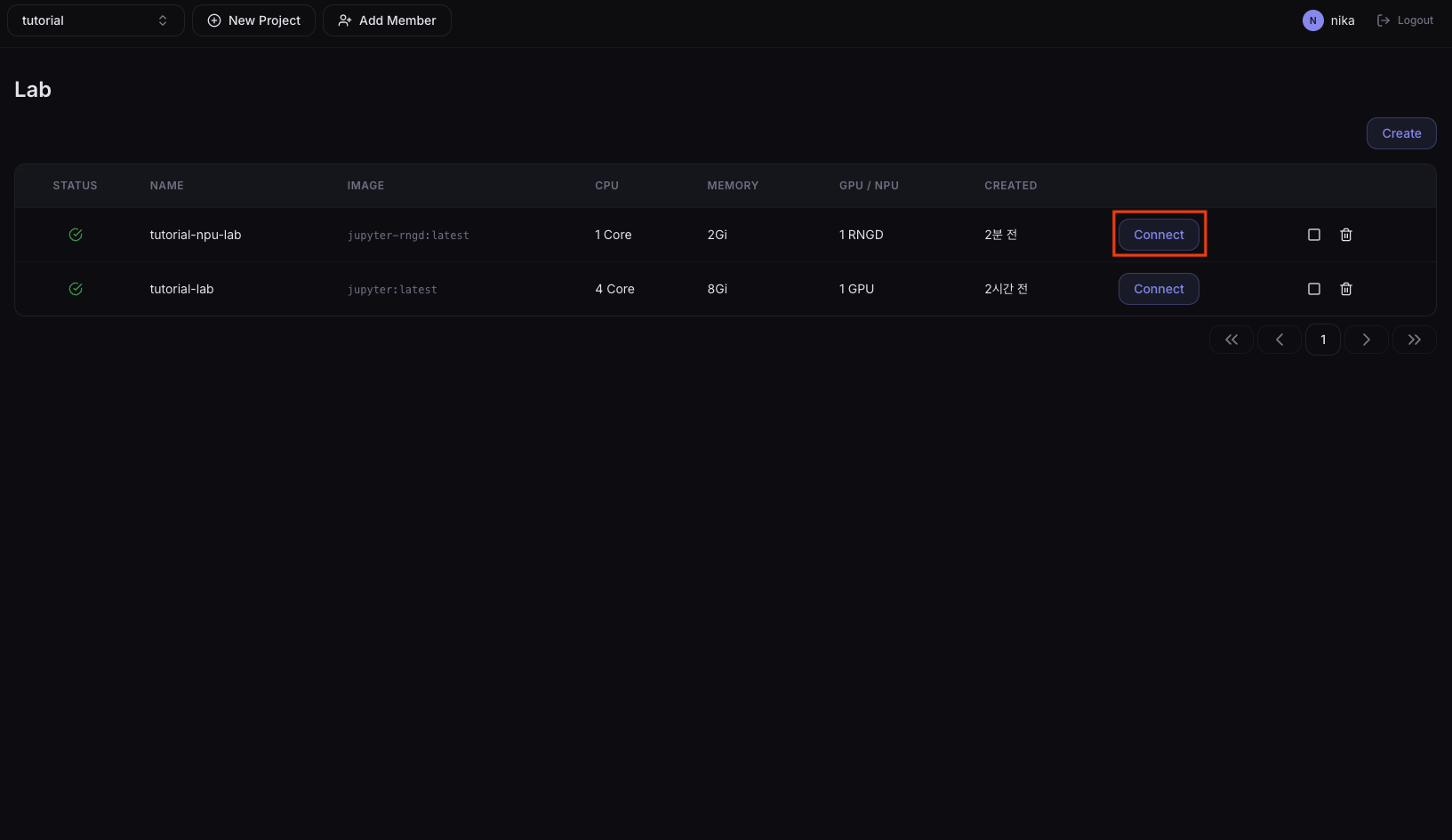
When the status in the Lab list becomes Running, click the Connect button to enter the Jupyter environment.
Check NPU Recognition
Clicking Connect opens the Jupyter environment. Open a terminal from the top menu File > New > Terminal and run the command below.
- Open a terminal via the Jupyter top menu File > New > Terminal and run there.
- If you enter it into a notebook cell (.ipynb) Python interprets it and you'll get a
SyntaxError. furiosa-smiis available only in the NPU Lab. Running it in a GPU Lab producescommand not found.
furiosa-smi info
If the NPU is healthy, you should see output similar to:
+------+--------+---------+-------+--------+---------+
| Arch | Dev    | Temp(C) | Power | PCI-BDF | UUID    |
+------+--------+---------+-------+--------+---------+
| RNGD | npu0pe0|   35.0  | 70 W  | ...    | ...     |
+------+--------+---------+-------+--------+---------+
Ask your administrator to check the NPU device status.
Next Step
→ 03. Download the model — Save a model from Hugging Face to a Volume